Your WooCommerce conversion value loses its decimal places because the tracking script reads the price the way your store displays it, with a comma as the decimal separator, and then converts that text into a number. Code that expects a dot reads “49,90” as 49. Code that strips “stray” characters turns it into 4990. The order itself is fine. The value was taken from the wrong place.
This is common on stores in Germany, France, Spain, Italy, the Netherlands, Brazil and anywhere else prices are written 49,90 € or R$ 49,90. WooCommerce lets you show prices that way, and it should. The trouble starts when a pixel or plugin scrapes that display string instead of reading the order’s real total.
The result is either a ROAS (return on ad spend) that looks a hundred times better than reality, or one that silently drops every cent. Both teach the ad platform’s bidding the wrong lesson.
Why does WooCommerce show one number and send another?
WooCommerce keeps two versions of every price: the stored number and the display string. The stored total is a plain decimal with a dot, like 49.90. The display string is built from your currency settings (thousand separator, decimal separator, number of decimals) and comes out as 49,90 €. Tracking breaks when a script reads the second one.
You set those display options under WooCommerce → Settings → General → Currency options. In WooCommerce’s own source, the function that renders a price for the page, wc_price(), passes your chosen decimal and thousand separators straight into PHP’s number_format(). So with a comma decimal and a dot thousands separator, 1234.5 is printed as 1.234,50.
That’s correct for a human reading your shop. It’s wrong for a machine. Every ad platform expects a value as a number with a dot decimal. Meta’s Conversions API documentation describes value as a float alongside a separate currency code. A string like 1.234,50 isn’t a number in any language that platform code is written in.
Most WooCommerce tracking plugins (and plenty of hand-written thank-you page snippets) pull the purchase value off the order-received page or from a variable that was formatted for display. That’s where the comma gets in.
How does a comma turn 49,90 into 49 or 4990?
There are two common failure patterns, and the number you see tells you which one you have. A parser that stops at the first character it doesn’t understand returns 49. A cleaner that deletes everything except digits and dots returns 4990. Both are deterministic, so the same order always produces the same wrong value.
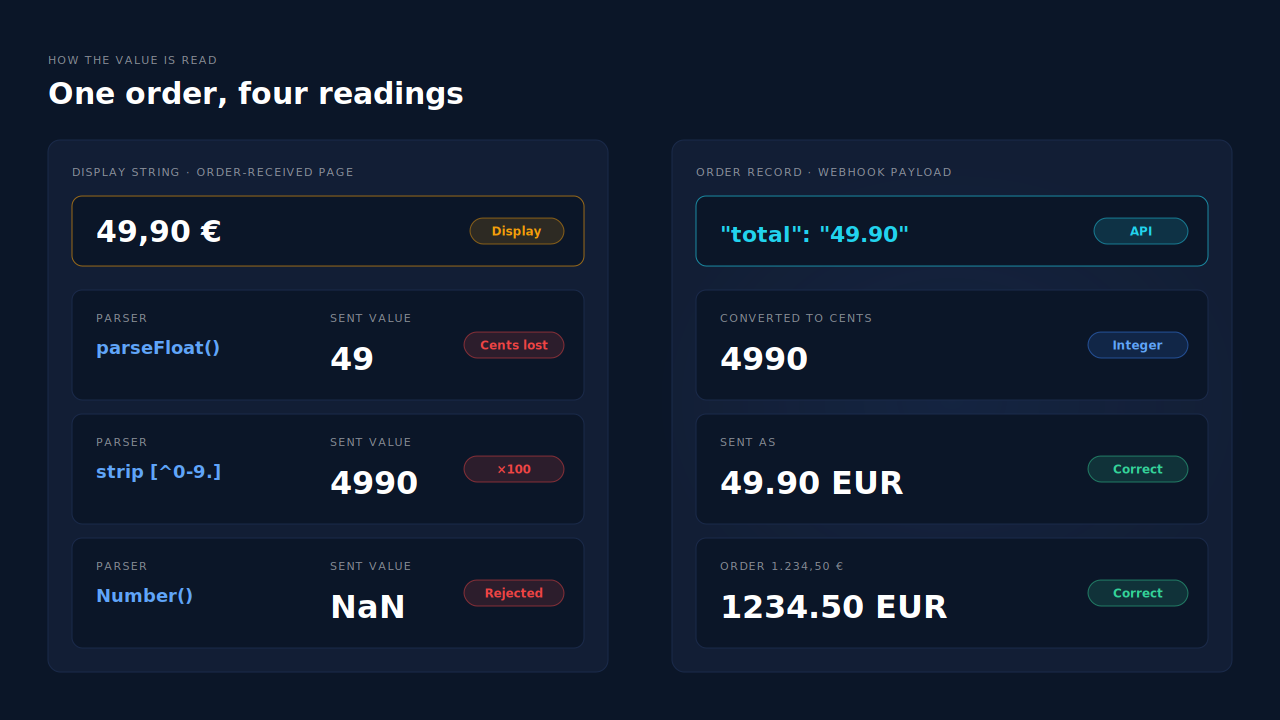
Here’s what each one does, reproduced in Node.js and PHP:
parseFloat("49,90")                     // 49    — stops at the comma
"49,90".replace(/[^0-9.]/g, "")         // "4990" — comma deleted as "noise"
Number("49,90")                         // NaN   — rejected outright
parseFloat("1.234,50")                  // 1.234 — dot read as the decimal
floatval("49,90");     // 49
floatval("1.234,50");  // 1.234
The truncation pattern (49,90 becomes 49)
JavaScript’s parseFloat() and PHP’s floatval() read left to right and stop at the first character that can’t be part of a number. A comma is that character. You lose the cents on every order, so your reported revenue runs consistently a little low. It’s easy to miss because the numbers look plausible.
The inflation pattern (49,90 becomes 4990)
Some code “cleans” a price by removing everything that isn’t a digit or a dot, to get rid of currency symbols. The comma goes with the symbol. €49,90 is reported as 4,990. This one is loud: one order can outweigh a week of real revenue, and Smart Bidding or Meta’s value optimisation starts chasing it.
The thousands trap (1.234,50 becomes 1.234)
With a dot thousands separator, the same parsers read the dot as the decimal point. A €1,234.50 order is reported as €1.23. Bigger orders get crushed the hardest, which skews value-based bidding toward your cheapest products.
How do you find which one is happening on your store?
Place one test order with a total that has non-zero cents and is over 1,000 if you can, then compare the value each platform received with the order in WooCommerce. A value missing its cents is truncation. A value about a hundred times too large is inflation. A value around a thousand times too small is the thousands trap.
Where to look:
- Meta: Events Manager → your dataset → Test events. Use the test event code and check the
valuefield on the Purchase. - Google Ads: the conversion action’s recent conversions, or Tag Assistant on the order-received page.
- Your plugin: many WooCommerce pixel plugins have a debug or log mode that prints the payload. Check the value there before it leaves the browser.
Then check two settings. In WooCommerce → Settings → General, note your decimal separator, thousand separator and number of decimals. If the separator is a comma and your plugin builds its value on the thank-you page, you’ve found the cause.
One more check: if a currency-switcher plugin is installed, test in each currency. Switchers often reformat prices per currency, so the bug can appear in only one market.
Can you fix it without changing tracking tools?
Sometimes. Switching your store’s decimal separator to a dot fixes the parsing and makes your shop look foreign to its own customers. That’s a bad trade. The better fixes are to update the plugin, set its value source to the order total if it offers one, or correct the snippet so it reads a number instead of a display string.
If you maintain the snippet yourself, stop building the value from the page. In PHP, the order object already has the number:
$order = wc_get_order( $order_id );
$value = (float) $order->get_total();   // 49.9 — no locale formatting
$currency = $order->get_currency();     // "EUR"
Print that into your script as a number, not inside quotes that something will later “clean”. Also make sure the currency travels with it. Sending purchase value and currency to Meta covers the format every platform expects: a plain decimal in the currency’s major unit, one currency per event.
The limit of every browser-side fix: it still depends on the thank-you page loading, on the buyer not blocking the script, and on no theme, cache or switcher reformatting the value later. The Google for WooCommerce wrong-value problem is the same family of bug, with text joined to text and tax split differently, all because the value was assembled on the page.
Why does the WooCommerce order webhook always use a dot decimal?
Because WooCommerce builds webhook payloads from its REST API, and the REST API formats money with wc_format_decimal(), which outputs a dot decimal with no thousands separator regardless of your display settings. The order webhook’s total for that €49,90 order is the string "49.90". No comma, ever.
In WooCommerce’s source, an order webhook’s payload is the data from the REST endpoint /wc/v3/orders/{id}. The orders controller runs total through wc_format_decimal(), which replaces your store’s decimal separator with a dot, strips everything that isn’t a digit, dot or minus, and then calls number_format() with '.' as the decimal point and an empty thousands separator.
One condition to know. The number of decimal places in that API total defaults to your store’s Number of decimals setting. If you set it to 0 to hide cents on the shop, the API total is rounded to whole units too: 49.90 arrives as "50". Keep that setting at the number of decimals your currency actually uses, and hide cents in the theme if you must.
This is why moving the Purchase off the browser and onto the order fixes the decimal problem as a side effect. Tracking WooCommerce purchases server-side is mostly sold as a fix for missed conversions, and it is, but it also removes every formatting layer between the order and the ad platform.
How does PartialLeads send the right conversion value?
PartialLeads takes the purchase value from the WooCommerce order webhook, not from any page. It reads the order’s total, which WooCommerce always reports with a dot decimal, converts it to whole cents, and sends that same figure to Meta, TikTok and Pinterest through their conversion APIs, and as the value on the Google Ads rows in your Google Sheet.
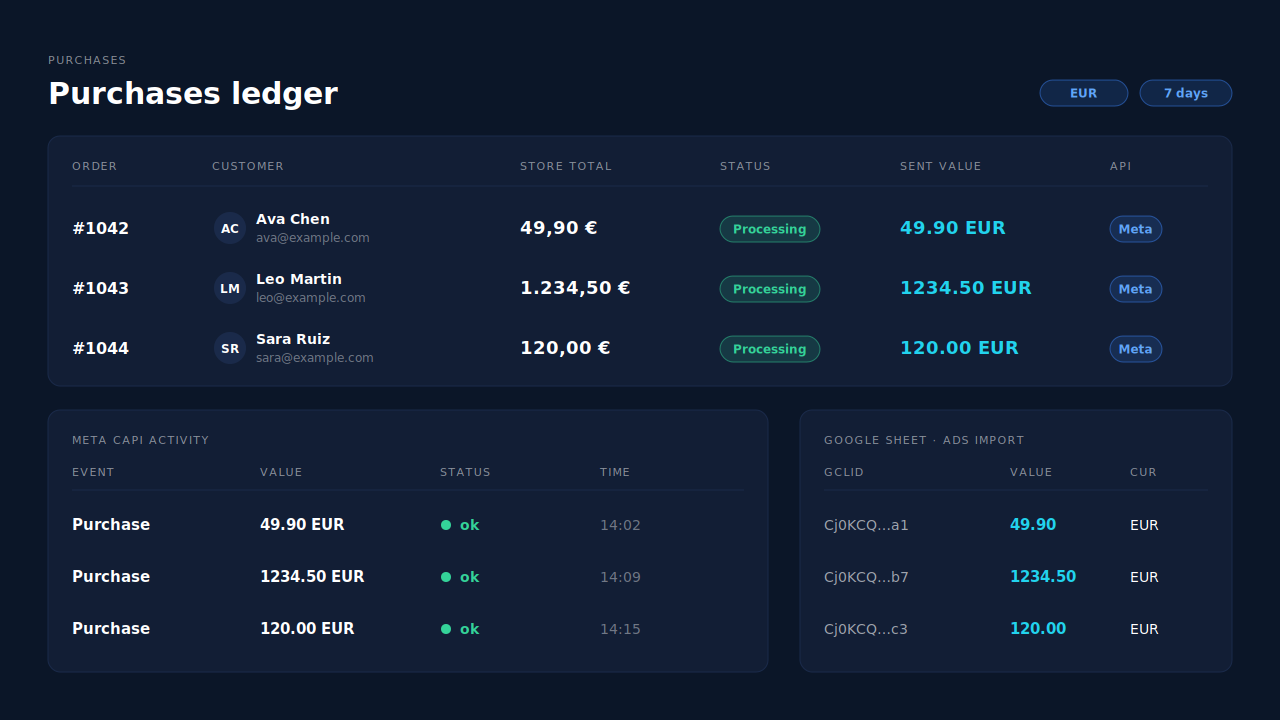
What that means in practice:
- The display format never touches the value. Your shop can show
49,90 €and1.234,50 €forever. The webhook total is the source, and the conversion to cents is done on a number, not on text. - The value is the full order total, including tax and shipping, after discounts. There’s no subtotal option.
- Only paid orders are sent. A WooCommerce order fires when it reaches processing or completed; pending, on-hold, failed and cancelled orders aren’t sent.
- The order is recorded once. Later edits to the same order don’t change the recorded value or send a second event.
- Currency travels with the value. Each Purchase carries the currency the order was placed in.
Honest constraints. If your store’s number of decimals is set to 0, the webhook total is already rounded and PartialLeads sends what WooCommerce reports. PartialLeads uses its own event ids, so it never double-sends, but it doesn’t deduplicate against another plugin’s browser pixel. If Meta for WooCommerce or PixelYourSite still fires a browser Purchase built from the display price, the broken value keeps arriving alongside the right one. Keep one source per event and switch the other plugin’s Purchase off.
You can verify it yourself. Open the Purchases ledger and compare an order’s total with the WooCommerce admin. Then open the Meta CAPI page and check the value on that order’s Purchase, and look at the value column on the matching Google Sheets row. All three should match to the cent.
| What breaks | The mechanism | Where you see it in the dashboard |
|---|---|---|
| Comma decimal truncated (49,90 → 49) | Value read from the order webhook’s total, a dot-decimal number, never from the display price |
Purchases ledger total vs WooCommerce admin |
| Comma stripped, value ×100 (49,90 → 4990) | Converted to whole cents from a number, not cleaned from text | Meta CAPI activity: Purchase value and currency per order |
| Thousands dot read as decimal (1.234,50 → 1.234) | No thousands separator in the API total | Purchases ledger, high-value orders |
| Google Ads values wrong after import | Same webhook value written to the Google Sheet rows | Google Sheets value column |
| Unpaid or cancelled orders inflating revenue | Only processing or completed orders are sent | Purchases ledger status per order |
| Two Purchases with different values | One source per event: switch off the other plugin’s browser Purchase | Meta CAPI page, one Purchase per order id |
Tell us what's broken. We'll fix your tracking — free.
Describe the tracking/attribution problem you're stuck on and we'll map it to a fix: server-side conversions to Meta, Google, TikTok and Pinterest, plus first-party tracking that survives Safari. No code required.
Sources
- https://raw.githubusercontent.com/woocommerce/woocommerce/trunk/plugins/woocommerce/includes/wc-formatting-functions.php
- https://raw.githubusercontent.com/woocommerce/woocommerce/trunk/plugins/woocommerce/includes/rest-api/Controllers/Version2/class-wc-rest-orders-v2-controller.php
- https://raw.githubusercontent.com/woocommerce/woocommerce/trunk/plugins/woocommerce/includes/class-wc-webhook.php
- https://developers.facebook.com/docs/marketing-api/conversions-api/parameters/custom-data