Google for WooCommerce sends the wrong conversion value because the purchase value Google Ads receives is put together in the buyer’s browser, on the order-received page, rather than read from the order in your database. When that value is built as text, formatted for your locale, split differently for tax, or served from a cached page, Google records a number your store never charged.
Below: how the value breaks, how to find your cause, what it does to bidding, and how to send the real order total.
What does a “wrong conversion value” look like in Google Ads?
It shows up as purchase revenue in Google Ads that doesn’t match your WooCommerce orders for the same days. Sometimes it is wildly inflated, a €120 order recorded as €12,020. Sometimes it is slightly off on every order, or zero, or the same flat number on every purchase. Each pattern points to a different cause, so note which one you see before changing anything.
The quickest check: pick a single day and compare Google Ads’ conversion value with that day’s paid orders in WooCommerce.
Four patterns cover most cases:
- Absurdly large values on some or all orders: numbers joined as text, or a decimal separator read the wrong way.
- Values consistently a few percent off: tax or shipping included on one side and excluded on the other.
- The same value on every order: Google is using the conversion action’s default value because no value arrived.
- Values from another order: a cached order-received page.
Why does the value break between WooCommerce and Google Ads?
Because the tag doesn’t read the order; it reads what the order-received page hands it. The browser script builds a value from order data the page exposes, then sends it to Google as part of the purchase event. Every step in that handoff is a chance to change the number: how it is formatted, whether it arrives as a number or a string, and whether the page belongs to this order at all.
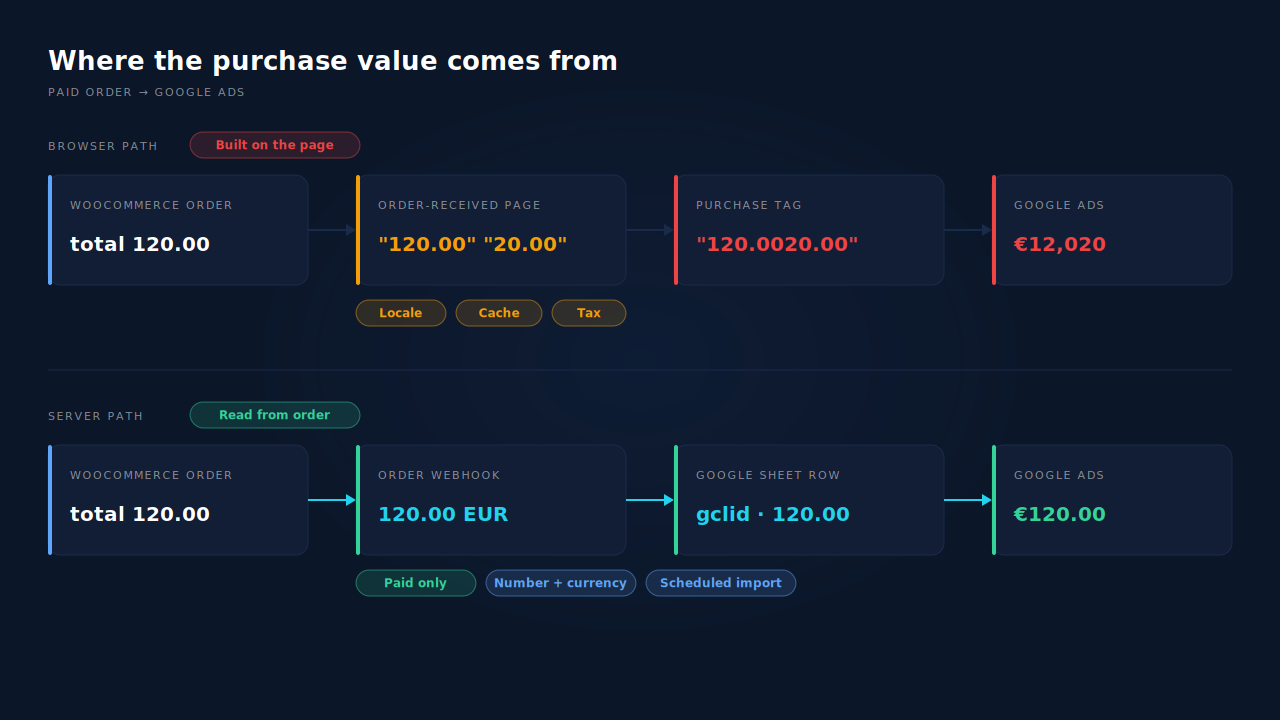
Numbers joined as text
This is the one store owners report as “order total and VAT concatenated”. In JavaScript, the + operator adds numbers but joins strings. If the total and the tax reach the script as text, "120.00" + "20.00" becomes "120.0020.00", not 140.00. Depending on how that string is then parsed, Google can record 120.002, 12002 or something else entirely. The order was fine; the arithmetic ran on the wrong data type.
// Illustrative — why text values inflate conversion value
const total = "120.00";   // read from the page as a string
const tax   = "20.00";
total + tax;               // "120.0020.00"  (joined, not added)
Number(total) + Number(tax); // 140           (what was meant)
Commas read as decimal points
Stores in much of Europe display 1.234,50 for one thousand two hundred thirty-four euros fifty. If a value formatted for display is passed to Google, which expects a plain number with a dot decimal, the thousands separator and the decimal comma can be read the wrong way round.
Tax and shipping counted differently
WooCommerce stores the order total, the tax, the shipping and the line items as separate figures. One tracking setup may send the total including VAT and shipping; another may send line items before tax. Mixing them is the error. If your conversion action was built on one definition and the tag sends the other, every value is off by roughly your VAT rate plus shipping.
A cached order-received page
Full-page caching on checkout pages can serve one buyer a copy of another buyer’s order-received page. The tag then reports the cached order’s value, or no value, against the new buyer’s click. Custom cache rules, a server-level cache or a CDN are the usual culprits.
No value at all
If the value field is missing or can’t be parsed, Google Ads falls back to the conversion action’s value settings. Depending on how the action is configured, that can mean the same default value on every purchase. That is why a flat, identical value on every order is a sign that nothing is arriving, not that every customer spent the same.
How do you find which cause you have?
Place one real order with a known total, capture the exact value the tag sends from the order-received page, and compare it with the order in WooCommerce. Whether the value is joined text, a comma-formatted string, a different tax basis or another order’s number tells you the cause.
- Place a test order with odd numbers. Choose a product and shipping method that give a total like 123.45 with visible tax.
- Open developer tools before the order-received page loads. On the Network tab, filter for Google’s conversion requests (or use Google’s Tag Assistant) and read the value parameter on the purchase event.
- Compare four numbers: the order total, the total minus tax, the total minus shipping, and what the tag sent. The match or mismatch names the cause.
- If the sent value is joined or scaled, check recent theme, currency-switcher or price-formatting changes, and search the plugin’s support forum for the same symptom.
- Refresh the order-received page and place a second order. If the second page shows the first order’s number, you have a caching problem.
- Check the conversion action’s value settings in Google Ads (Goals → Conversions → the purchase action). If it is set to use a default value, a missing value will be hidden behind it.
Does a wrong conversion value hurt your Google Ads campaigns?
Yes, if you bid on value. Maximise conversion value and target ROAS optimise toward the values you report, so an inflated order teaches the algorithm that the click behind it was worth far more than it was. It will bid up similar traffic. Reported ROAS stops being a decision tool, and a campaign can look like your best performer while losing money.
Values including VAT against a target set on net revenue make every campaign look roughly a VAT rate better than it is. The per-order logic behind value-based bidding is covered in sending dynamic conversion values to Google Ads offline imports.
If you find a large error, look at Google Ads’ data exclusion options for the affected dates rather than letting inflated history steer bids.
How do you send the correct value to Google Ads?
Take the value from the order record, as a number, with its currency, on your server, and decide once whether it includes tax and shipping. Nothing formatted for display should be in the path. The page is a presentation layer; the order is the source of truth, and a server-side report built from it can’t be affected by themes, caching or locale formatting.
The same rule applies to every ad platform. Sending purchase value and currency to Meta walks through the format question: a plain decimal in the currency’s major unit, one currency per event.
For Google Ads, the server-side route is an offline conversion import. You store the Google click identifier (gclid, or gbraid/wbraid on some iOS traffic) when the visitor lands, attach it to the order, and upload the order’s value against that click. Because the value is read from the order, it matches your books by construction. The pillar guide to attributing ecommerce revenue to the ad click covers the join between click and order.
Two rules keep the numbers honest afterwards:
- One primary purchase action. If the plugin’s tag and an import both count the same order as primary, Google counts it twice, with two different values.
- Net refunds in reporting. A conversion is sent when the order is paid. Money that goes back later needs to be subtracted in your reporting, which is where refunds inflate attributed revenue if you don’t.
How does PartialLeads send the right value to Google Ads?
By never reading the value from the page. When a WooCommerce order reaches processing or completed, PartialLeads receives it through the order webhook, takes the order total as a number with the order’s currency, matches the order to the visitor who placed it, and writes an offline-conversion row to your Google Sheet. Google Ads imports that sheet on a schedule.
The value is the order total. It is WooCommerce’s total for the order: the full amount including tax and shipping, after discounts. There is no subtotal or ex-VAT option. If your ROAS targets were set on net revenue, adjust them to a gross-revenue basis rather than expecting a different number from us.
The number never passes through a display layer. Themes, currency switchers, price formatting and page caching sit on the storefront; the webhook value touches none of them.
Each row carries the click. The PartialLeads WooCommerce plugin stores gclid, gbraid or wbraid when the visitor lands. The order is matched to that visitor by visitor ID, then email, then phone, then IP, and the row includes the click identifier, hashed email and phone, the value and the currency. Nothing fires on the order-received page; the purchase is webhook-owned. That also means a broken thank-you page can’t take the purchase conversion inactive.
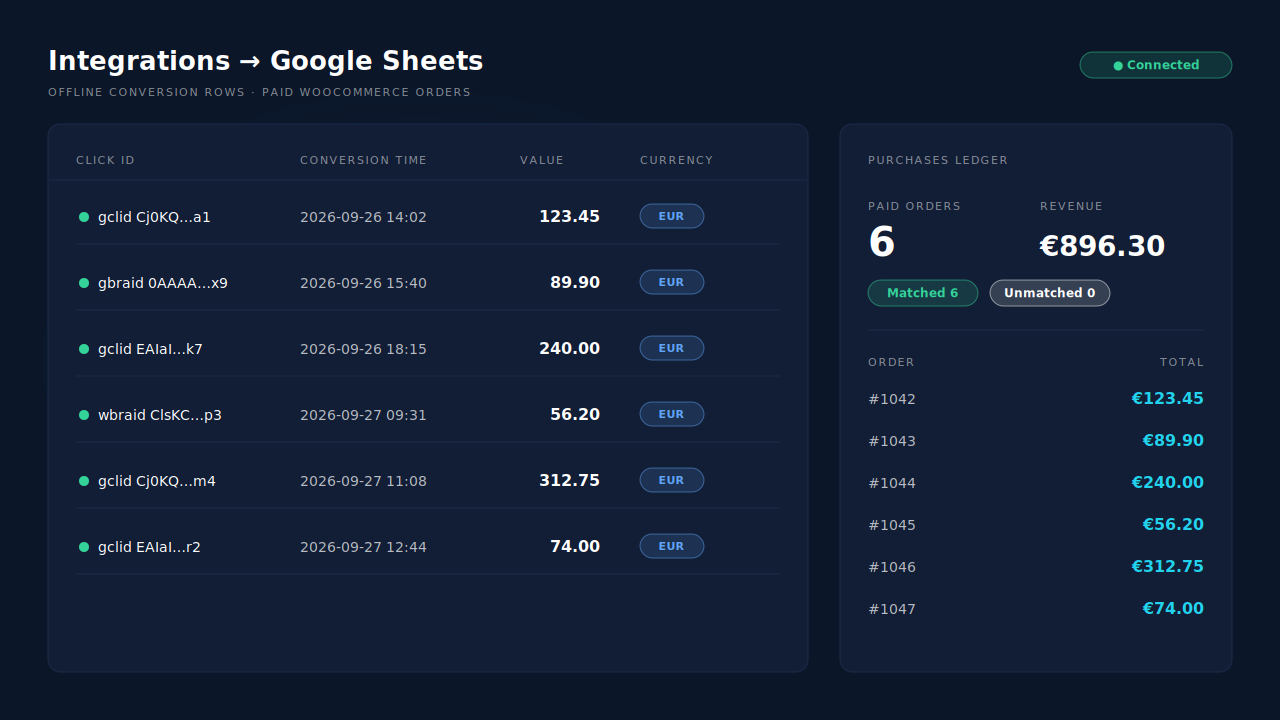
Where you see it working. Integrations → Google Sheets shows the connected sheet, one row per paid order with its value and currency. The Purchases ledger lists the same orders, matched or unmatched, so you can check any row’s value against the WooCommerce order it came from.
The honest constraints.
- Only paid orders. Processing or completed orders become rows; pending, on-hold, failed and cancelled don’t. Bank-transfer and cash-on-delivery orders are written once marked paid. For WooCommerce Subscriptions, only the first payment is written.
- An order is recorded once. If you later edit the order, for example adding a post-purchase upsell, the recorded value doesn’t change and the row isn’t re-sent.
- Refunds aren’t retracted from Google. They net against revenue in the Purchases ledger; see calculating true ROAS from revenue and refunds.
- Keep one source per purchase. PartialLeads uses its own event ids and does not deduplicate against Google for WooCommerce. Set the plugin’s purchase action to secondary or turn its purchase event off.
- It’s a scheduled import. Values reach Google when the import runs, not the second the order is placed.
- Existing wrong values stay wrong. New rows don’t correct conversions Google already recorded.
| What breaks | The mechanism | Where you see it in the dashboard |
|---|---|---|
| Order total and VAT joined as text into an inflated value | Order total taken as a number from the order webhook, never from the page | Integrations → Google Sheets, value column per row |
| Locale formatting turns commas into decimal points | Value never passes through theme or currency-switcher formatting | Google Sheets rows vs Purchases ledger totals |
| Tax and shipping included inconsistently | One definition: full order total incl. tax and shipping, after discounts | Purchases ledger, per-order value |
| Cached order-received page reports another order’s value | Purchase is webhook-owned; nothing fires on the thank-you page | Purchases ledger, one row per paid order |
| Plugin tag and import both count the order | Not deduplicated across tools — keep one primary purchase action | Google Ads conversion settings, Leads-list API column |
Tell us what's broken. We'll fix your tracking — free.
Describe the tracking/attribution problem you're stuck on and we'll map it to a fix: server-side conversions to Meta, Google, TikTok and Pinterest, plus first-party tracking that survives Safari. No code required.
Sources
- https://developers.facebook.com/docs/marketing-api/conversions-api/parameters/custom-data
- https://developers.facebook.com/docs/marketing-api/conversions-api