You can track WooCommerce purchases in Google Ads without Google for WooCommerce ever finishing its setup. The plugin only creates its purchase conversion action after it confirms your Google account is an admin on the Ads account. If that check fails, no conversion action exists. So create an import conversion action yourself and send each paid order as an offline conversion against the stored click.
That’s the short version. The longer one matters, because the stall is quiet. The plugin doesn’t say “conversion tracking is off”. It says it can’t get your Google Ads status and greys out Continue. Meanwhile your campaigns keep spending, and Google Ads’ bidding sees no purchases at all.
Below: what the plugin does during setup, why the status step stalls, the fixes worth trying, and how to report orders to Google Ads from the order itself while the plugin sorts itself out.
What does Google for WooCommerce do before it tracks a purchase?
It runs a fixed setup sequence against your Google Ads account, and purchase tracking sits in the middle of it. The plugin’s own code lists five steps in order: set_id, account_access, conversion_action, link_merchant, billing. The conversion action the purchase tag reports to is created at step three, and only after step two passes.
In plain terms:
- set_id — pick an existing Google Ads account or create a new one.
- account_access — confirm the Google account you connected can manage that Ads account.
- conversion_action — create the purchase conversion action the plugin’s tag will fire against.
- link_merchant — link the Ads account to your Merchant Center account.
- billing — check that billing is set up.
The setup resumes at the last unfinished step each time you return to it. So if step two never passes, step three never runs. There’s no half-created conversion action waiting somewhere. It doesn’t exist.
That’s why the usual advice for broken WooCommerce tracking doesn’t help here. Clearing the cache, checking the thank-you page, testing with Tag Assistant: all of that assumes a tag is firing into an action. On a stalled setup there’s no action for it to report to.
Why does Google for WooCommerce get stuck at the Google Ads status step?
Because the status check asks one narrow question: does the Google account connected to the plugin hold the admin role on this Ads account? The check looks for that email among the account’s users and returns true only for an admin. Anything else, including an API error along the way, comes back as “no access”, and setup stops there.
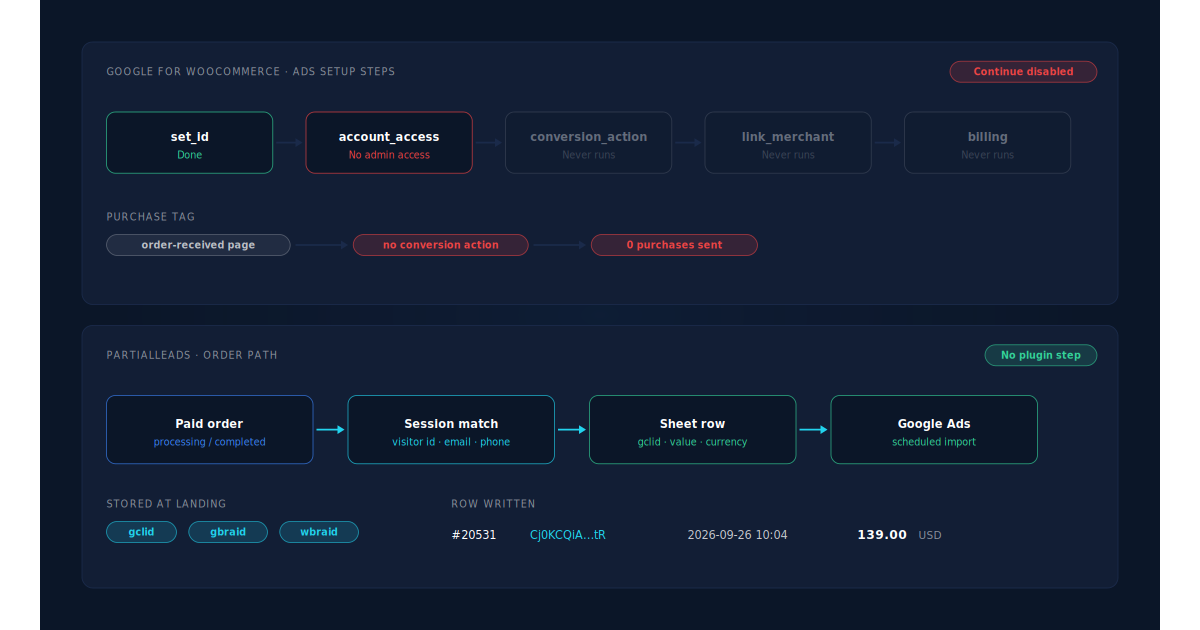
When the request itself fails, the plugin’s setup screen shows “There was an error getting the status of your Google Ads account.” Store owners paraphrase it as “Error getting Google Ads status”, which is how most of them search for it.
The common causes, roughly in the order worth checking:
- The invitation was never accepted. When the plugin creates a new Ads account for you, Google sends an invitation, and the plugin’s code refuses to go further: “Account must be accepted before completing setup.” The card asks you to claim the new account. Until someone does, access stays false.
- You connected a Google account that isn’t an admin. Standard, read-only or billing access isn’t enough. The check wants the admin role on that exact Ads account, not on a manager account above it.
- The wrong Google account is connected to the plugin. Many teams run ads from one login and WordPress from another. The plugin checks the account connected to WooCommerce, not the one you use in your browser.
- The Ads account isn’t in a usable state. Suspended, cancelled or brand-new accounts with unfinished sign-up can fail the same check.
A separate thing can keep Continue grey. In the plugin’s paid-ads onboarding, the button stays disabled until the Ads account is linked to Merchant Center, and that link is step four. If step two is stuck, step four hasn’t run either, so the button waits on a problem two steps back.
What should you try before giving up on the plugin setup?
Fix access first, because every later step depends on it. Sign in to Google Ads with the account connected to the plugin and check your role on the Ads account is admin. Accept any pending invitation. Then reopen the plugin’s setup so it rechecks access and resumes at the stalled step.
A practical order:
- Find the connected Google account. It’s shown on the plugin’s setup screen. Note the exact email.
- Check that email’s role in Google Ads. Open the Ads account’s access settings. The role must be admin on this account, not only on a manager account above it.
- Accept pending invitations. Look in that inbox for a Google Ads invitation and accept it. If the plugin created the account, claim it.
- Reload setup. The plugin resumes at the last unfinished step, so a fixed access check lets it move on to creating the conversion action.
- Disconnect and reconnect the Ads account if it still fails. That clears the plugin’s stored Ads settings, including the conversion action option, so setup starts clean.
- Look for a success notice. Once the Ads step completes, the plugin shows “Conversion measurement has been set up.” No notice, no purchase action.
If that works, you have the plugin’s browser tag. It fires on the order-received page, so it still misses buyers who never load that page. How ad blockers break conversion tracking covers one reason.
If it doesn’t work, often because the person who owns the Ads account isn’t around, you still need purchases in Google Ads this week. That’s the offline route.
How do you send WooCommerce purchases to Google Ads without the plugin?
Report the order, not the page. Create a conversion action in Google Ads set up for imports. Store the visitor’s gclid, gbraid or wbraid when they land from an ad, attach it to the order on your server, and add a row per paid order to an import Google Ads reads on a schedule, such as a Google Sheet.
Each row needs the click identifier, the conversion action’s name, the conversion time with its timezone, and ideally the order value and currency. Three things trip people up:
- The click has to be stored at landing. Google’s click identifiers arrive in the landing URL and vanish on the next page unless something saves them. On iPhones, some Google ad clicks carry
gbraidorwbraidinstead ofgclid; capturing gbraid and wbraid for offline conversions covers that. - The order has to be joined back to that click. The buyer may land on Monday and pay on Thursday. Attributing WooCommerce orders when the checkout is on another page covers the join.
- The details have to match. A misspelled action name, a conversion time before the click, or a click outside Google’s window each makes rows fail to match; why offline conversions don’t match the gclid walks through each.
This route needs someone who can create a conversion action and schedule an import in Google Ads. It doesn’t need the plugin’s admin check to pass, and it doesn’t touch the plugin’s Merchant Center feed.
How does PartialLeads get WooCommerce orders into Google Ads when the plugin setup is stuck?
By writing paid orders to a Google Sheet that your Google Ads account imports on a schedule. When a WooCommerce order reaches processing or completed, PartialLeads matches it to the visitor who placed it and writes a row: gclid, gbraid or wbraid, hashed email and phone, value and currency. It needs no Google for WooCommerce connection for conversions.
The click is stored when the visitor lands. The PartialLeads WooCommerce plugin records Google’s click identifiers on the visitor’s session at landing. The Purchase is webhook-owned: nothing fires on the thank-you page. When the paid order arrives, it’s matched to that visitor by visitor ID, then email, then phone, then IP, and the stored click is copied onto the row. The pillar guide to attributing ecommerce revenue to the ad click explains the join.
Only paid orders become rows. Processing and completed orders are written. Pending, on-hold, failed and cancelled orders aren’t. For WooCommerce Subscriptions, only the first payment is written; renewals are recorded in PartialLeads but never sent to the sheet.
The value is the order total. It’s the full WooCommerce order total, including tax and shipping, after discounts, in the order’s currency. There’s no subtotal option. An order is recorded once, so a later edit doesn’t change its row. Sending dynamic conversion values to Google Ads offline imports covers why a real per-order value matters for bidding.
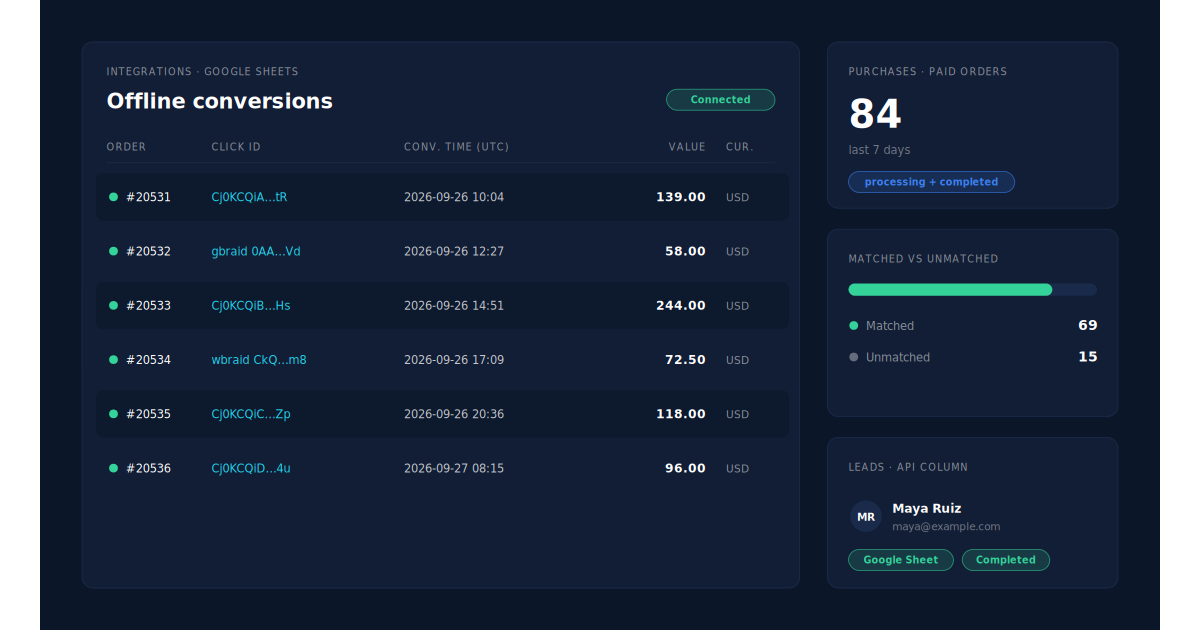
Where you see it working. Integrations → Google Sheets shows the connected sheet and the rows written for paid orders, with their click ids. The Purchases ledger lists every paid order PartialLeads recorded, matched or unmatched, so you can reconcile against WooCommerce’s order list. On the Leads list, the API column shows which integrations each buyer was sent to.
The honest constraints.
- Conversions only. This doesn’t replace Google for WooCommerce’s Merchant Center feed or its campaign setup. Keep the plugin for those, or finish its setup later.
- You still need a conversion action and a schedule. Someone with enough access to the Ads account creates an import conversion action and points a scheduled import at the sheet. PartialLeads writes the rows; it doesn’t create anything inside Google Ads.
- It’s a scheduled import, not a live send. Google credits orders after the next import runs.
- A row credits a click only if a click was captured. Buyers who didn’t come from a Google ad, or whose landing carried no click id, have nothing to match, and Google’s own click window still applies.
- Keep one source per purchase. PartialLeads uses its own event ids and doesn’t deduplicate against Google for WooCommerce. If the plugin’s setup later completes, make one purchase action primary.
- Purchases only, for Google. WooCommerce funnel events go to Meta, Pinterest and TikTok, not Google, and there’s no GA4 integration.
- We control the row; Google controls the match. Every paid order is written from the order. Whether Google ties a row to an ad click is Google’s side.
| What breaks | The mechanism | Where you see it in the dashboard |
|---|---|---|
| Admin check fails, so the plugin never creates a purchase conversion action | Paid orders written as rows to a Google Sheet your own import conversion action reads | Integrations → Google Sheets |
| Continue stays grey while Merchant Center isn’t linked | Conversion rows don’t depend on the plugin’s Ads, Merchant Center or billing steps | Integrations → Google Sheets |
| No storefront tag, so the gclid never reaches Google | Click stored on the session at landing, order matched by visitor ID, email, phone or IP | Purchases ledger, matched vs unmatched |
| Unpaid or cancelled orders would inflate conversions | Only processing and completed orders become rows, at the full order total | Purchases ledger |
| Plugin setup completes later and both count the same order | Not deduplicated across tools, so one primary purchase action | Google Ads conversion settings, Leads-list API column |
Tell us what's broken. We'll fix your tracking — free.
Describe the tracking/attribution problem you're stuck on and we'll map it to a fix: server-side conversions to Meta, Google, TikTok and Pinterest, plus first-party tracking that survives Safari. No code required.
Sources
- https://raw.githubusercontent.com/woocommerce/google-listings-and-ads/trunk/src/Options/AdsAccountState.php
- https://raw.githubusercontent.com/woocommerce/google-listings-and-ads/trunk/src/Ads/AccountService.php
- https://raw.githubusercontent.com/woocommerce/google-listings-and-ads/trunk/src/API/Google/Ads.php
- https://raw.githubusercontent.com/woocommerce/google-listings-and-ads/trunk/js/src/data/actions.js
- https://raw.githubusercontent.com/woocommerce/google-listings-and-ads/trunk/js/src/pages/ads-onboarding/ads-stepper/setup-accounts.js
- https://raw.githubusercontent.com/woocommerce/google-listings-and-ads/trunk/js/src/components/google-ads-account-card/google-ads-account-card.js
- https://raw.githubusercontent.com/woocommerce/google-listings-and-ads/trunk/js/src/components/google-ads-account-card/claim-account/index.js