Google Ads conversions drop to zero after a WooCommerce tracking plugin switch because the conversion action your campaigns read is no longer being fed. Every tracking plugin fires its own Google tag with its own conversion ID and label. Swap plugins and the new one usually reports to a different action, to no action at all, or gets blocked by what the old one left behind.
Your store didn’t stop selling. The wire between your thank-you page and one specific conversion action got cut.
Below: what breaks in a plugin swap, how to find your cause, how to switch safely, and how to add a purchase source that no plugin swap can zero.
What actually breaks when you swap tracking plugins?
The link between the tag and the conversion action. Google Ads counts a purchase only when a tag sends it with the exact conversion ID and label of an action in your account. The old plugin had those values saved in its settings. The new plugin starts empty, or creates its own action, so purchases flow somewhere your campaigns aren’t looking, or nowhere.
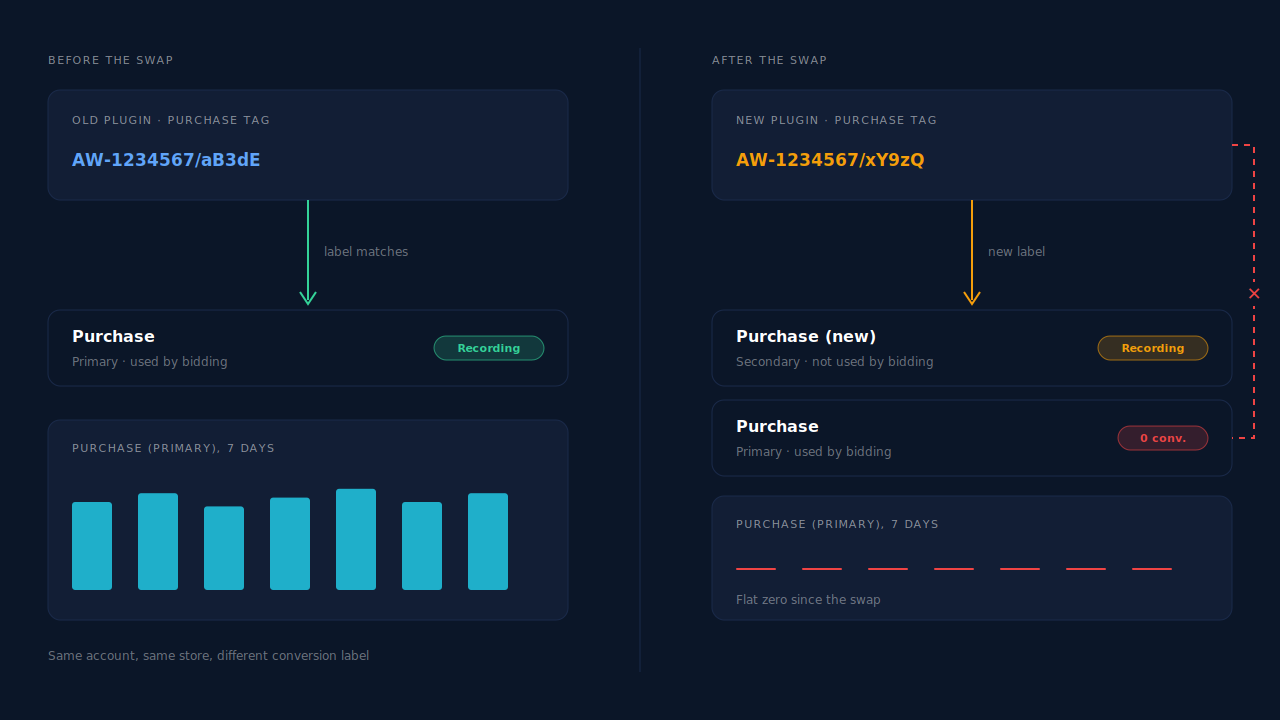
Five failure modes cover almost every “zero overnight” case.
The new plugin sends to a different conversion action. Some plugins connect to your Google Ads account and create their own purchase action. Conversions now land there. If that action is set to secondary, or your campaigns use a custom goal built around the old action, bidding and the Conversions column both show zero, even though the new action is quietly recording.
The new plugin sends to nothing. Plugins that ask you to paste a conversion ID and label do nothing until you paste them. A typo, a label copied from the wrong action, or an ID from a different Google Ads account produces requests Google can’t attach to anything.
The old plugin is still half there. Deactivating a plugin doesn’t always remove its settings, and a code snippet or Google Tag Manager container added “just in case” keeps firing. Two Google tags on one page can fight over configuration, and consent defaults set by one can hold back the other.
Your optimisation plugin doesn’t know the new script. Caching and “delay JavaScript” plugins often carry an exclusion list built for the old tracking plugin. The new plugin’s script gets delayed until a user interaction that never comes on a thank-you page, so the purchase request never leaves the browser.
The source of the conversion changed. If your old setup imported purchases from Google Analytics and the new plugin fires a direct Google Ads tag (or the reverse), the primary action your campaigns use may now be the one nothing feeds.
How do you find which cause you have?
Start in Google Ads, not in WordPress. Open Goals → Conversions and list every purchase action with its status, source and whether it’s primary. Then place one real test order and confirm which action it lands in. Which action receives the test order tells you whether it’s a mapping problem, a firing problem or a primary-goal problem.
- List every purchase action. Note each action’s name, source (website, Google Analytics, import), status, and primary or secondary.
- Open the new plugin’s Google settings. Write down the conversion ID and label it uses, and match them to an action from step 1. No match means the plugin is reporting to nothing.
- Check for leftovers. Search the thank-you page source for Google tags. More than one Google Ads configuration means the old setup is still running.
- Place a real order with your most-used payment method. Watch the browser network panel, or Google’s Tag Assistant, on the order-received page for a conversion request.
- Toggle caching and script optimisation off, then retry. If the request appears only now, add the new plugin’s script to your optimiser’s exclusions.
- Check the action a day later. The test order should appear in exactly one primary action. If it appears in a secondary one, that’s your mapping problem.
How do you switch WooCommerce tracking plugins without losing conversions?
Run both paths briefly on purpose, not by accident. Configure the new plugin against the same primary conversion action the old one fed, or set the new plugin’s action to primary and the old one to secondary on the same day. Confirm a test order lands before removing the old plugin, then remove its code, settings and any GTM duplicates.
A few habits make the next swap boring:
- Swap on a low-spend day and watch the Conversions column by day for the week after.
- Keep one primary purchase action. Two primary actions fed by two tags count the same order twice. Why Google Ads and Meta both claim the same conversion covers the cross-platform version of the same double count.
- Reconcile against orders, not against Google. Compare a week of paid WooCommerce orders from Google Ads traffic with conversions in Google Ads. Google’s number going up after a fix proves the tag works. It doesn’t tell you how many buyers the tag still misses.
Why is a browser tag the wrong place for your only purchase signal?
Because every plugin swap, theme update, consent change and cache setting sits between the sale and the tag. The tag reports a purchase only if the buyer’s browser reaches the order-received page and runs the right script, so a working order flow can still report zero. A signal built from the order itself doesn’t care which plugin is installed.
That signal is an offline conversion import. You keep Google’s click identifier from the landing page, attach it to the order on your server, and upload paid orders against that click. Importing conversions into Google Ads walks through the mechanics.
The fragile step is the click identifier. Google adds a gclid to ad clicks, and on some iOS traffic gbraid or wbraid instead. They exist only in the landing URL, so they have to be stored on the first pageview and carried to an order that may happen days later. Capturing gbraid and wbraid covers the storage side.
An import doesn’t replace your tag for everything. It’s slower, since Google processes uploads on its own schedule, and it only credits orders that carry a click identifier. It’s the backstop that keeps counting while you debug the tag, and a cross-check that tells you when the tag has gone quiet.
How does PartialLeads keep Google Ads purchases counting through a plugin swap?
By building Google Ads conversions from paid WooCommerce orders, not from a storefront tag. When an order reaches processing or completed, PartialLeads matches it to the visitor who placed it and writes a row to your Google Sheet with the gclid, gbraid or wbraid, hashed email and phone, value and currency. Google Ads imports that sheet on a schedule, whichever tracking plugin you run.
The purchase comes from the order webhook. The PartialLeads WooCommerce plugin records click identifiers when the visitor lands. The purchase itself is webhook-owned: nothing fires on the thank-you page, so a new tag plugin, a cache rule or a leftover script can’t stop the row being written.
The order is matched to the original click. The order is joined to the visitor by visitor ID, then email, then phone, then IP. A buyer who clicked an ad on Monday and bought on Thursday still carries Monday’s click. The pillar guide to attributing ecommerce revenue to the ad click explains that join.
Only paid orders become rows. Processing and completed orders are written. Pending, on-hold, failed and cancelled orders aren’t. Bank-transfer and cash-on-delivery orders are written once they’re marked paid. For WooCommerce Subscriptions, only the first payment is written; renewals are recorded in PartialLeads but never sent to the sheet.
The value is the order total. The row carries the full WooCommerce order total, including tax and shipping, after discounts, with the order’s currency. There is no subtotal option. An order is recorded once, so later edits to it don’t change the row. Sending dynamic conversion values to offline imports covers why a real per-order value matters for bidding.
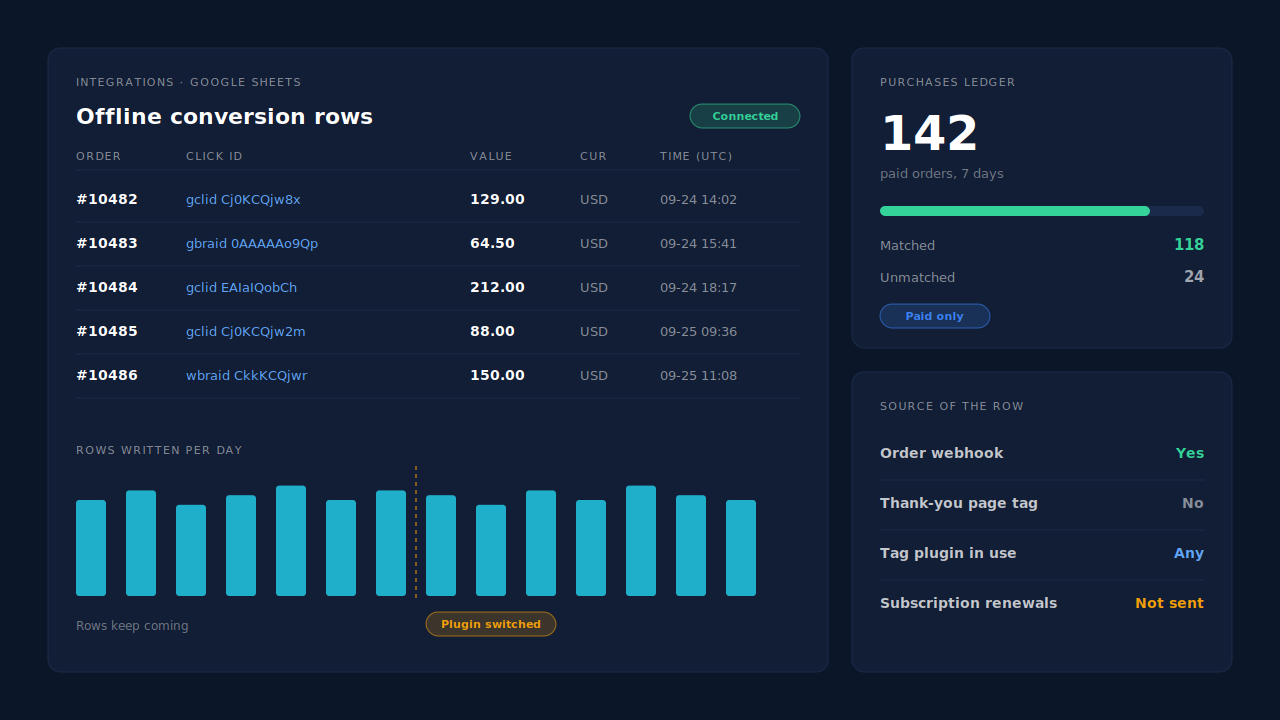
Where you see it working. Integrations → Google Sheets shows the connected sheet and the rows written for paid orders. The Purchases ledger lists every paid order PartialLeads recorded, matched or unmatched, so the day your tag drops to zero you can see orders still arriving and rows still being written. The API column on the Leads list shows which integrations each buyer was sent to.
The honest constraints.
- It’s a scheduled import. There’s a delay between an order and Google crediting it, set by the import schedule in your Google Ads account.
- A row credits a click only if a click was captured. Buyers from other channels, or whose click identifier never reached the site, can’t be credited to a Google ad. Google’s click window applies too. Why offline conversions don’t match the gclid covers those failure modes.
- Keep one source per purchase. PartialLeads uses its own event ids and doesn’t deduplicate against your tracking plugin’s tag. Make the import action primary and the plugin’s purchase action secondary, or turn the plugin’s purchase event off.
- Purchases only, for Google. WooCommerce funnel events such as add to cart go to Meta, Pinterest and TikTok, not Google. There is no GA4 integration.
- We control the row; Google controls the match. Every paid order produces a row. Whether Google ties it to a click depends on the identifiers captured and on Google’s own matching.
| What breaks | The mechanism | Where you see it in the dashboard |
|---|---|---|
| New plugin reports to a different or empty conversion action | Purchases written from the paid order, independent of any tag’s conversion label | Integrations → Google Sheets, one row per paid order |
| Old plugin leftovers or a cache rule block the new tag | Purchase is webhook-owned; nothing fires on the thank-you page | Purchases ledger, orders arriving on the zero day |
| Order session has no gclid after the buyer returns days later | Order matched to the visitor by visitor ID, email, phone or IP; stored click id carried to the row | Purchases ledger, matched vs unmatched |
| Unpaid or cancelled orders counted as sales | Only processing or completed orders written; first subscription payment only | Purchases ledger |
| Tag and import both count the same purchase | Not deduplicated across tools — one primary purchase action | Google Ads conversion settings, Leads-list API column |
Tell us what's broken. We'll fix your tracking — free.
Describe the tracking/attribution problem you're stuck on and we'll map it to a fix: server-side conversions to Meta, Google, TikTok and Pinterest, plus first-party tracking that survives Safari. No code required.