Your Google for WooCommerce purchase conversion shows Inactive because Google Ads stopped receiving conversions from the tag that feeds it. The plugin reports a purchase from a script that runs on the order-received page. If that page doesn’t load, the script doesn’t run, or it reports to a different conversion action, Google sees nothing, even while WooCommerce keeps taking orders.
The status describes Google’s side of the wire, not your store. Your orders are fine; the message about them isn’t arriving.
Below: what the status means, why the tag goes quiet, how to find your cause, and how to report paid orders from the order itself.
What does “Inactive” mean on a Google Ads conversion action?
It means Google Ads has not recorded recent activity for that conversion action. Every conversion action in your account carries a status in Goals → Conversions, and the status is Google’s view of whether data is still flowing into that action. It says nothing about whether your store is selling. An Inactive purchase action on a store with daily orders means the reporting path is broken.
Two details make the status confusing.
It lags. Google waits through a period of silence before changing the label, so the break usually predates it. Check your Google Ads conversion column by day: the drop to zero is when it actually broke. Google’s help centre lists the exact status definitions and time thresholds for your account.
It is per action, not per account. Google for WooCommerce creates its own purchase conversion action when you connect. If you reconnected the plugin, switched Google Ads accounts, or someone added a second purchase action by hand, you can have one action that is Inactive and another that is quietly recording. Before debugging the tag, check how many purchase actions exist and which one the plugin is actually sending to.
Why does the Google for WooCommerce purchase tag stop reporting?
Because it depends on a browser loading one specific page and running one specific script. Like most storefront tags, the plugin fires its purchase event when the customer reaches the order-received page. Anything between payment and that page, or anything on that page that stops scripts running, can break it: gateway redirects, caching and script optimisation, consent settings, ad blockers, or a plugin or theme update.
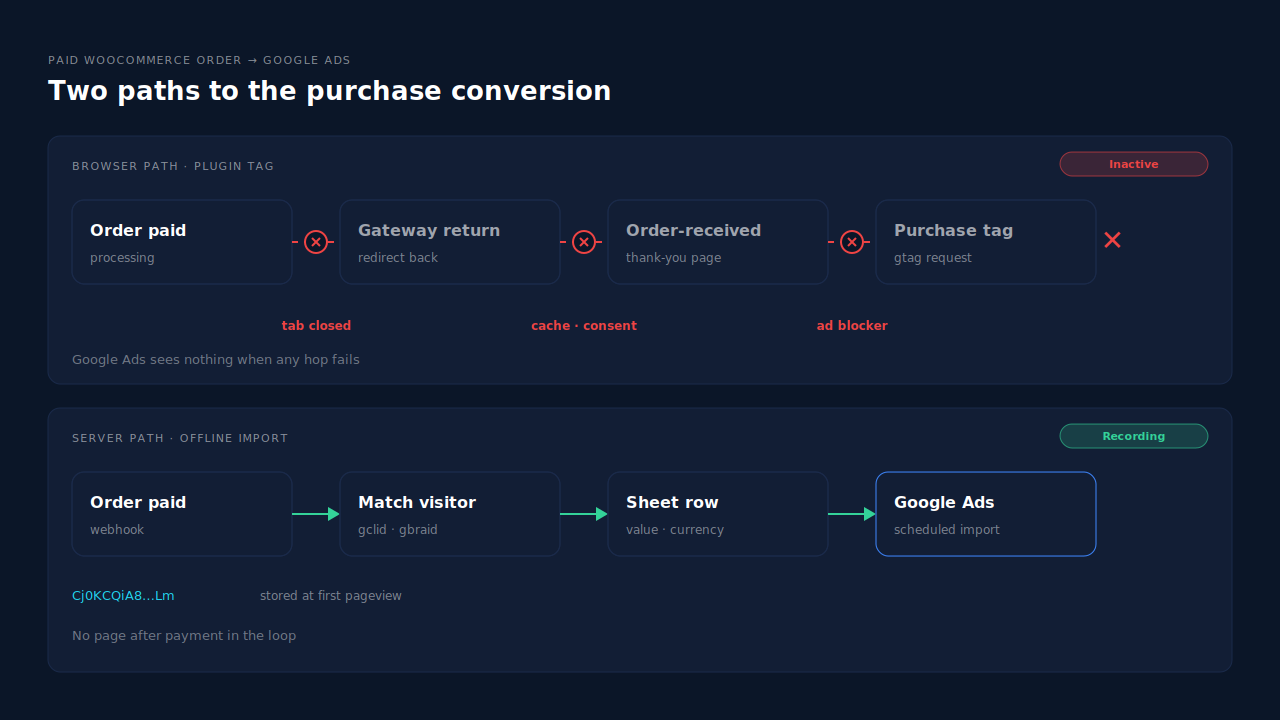
The customer never lands on the order-received page. Hosted payment pages, wallet buttons and bank redirects all send the buyer off your site. If the return trip fails, or the buyer closes the tab after paying, the order exists in WooCommerce and the purchase tag never runs.
A cache or optimisation plugin changes the page. Settings like “delay JavaScript”, “combine scripts” or full-page caching on checkout pages can stop the tag loading or serve a cached order-received page with no order data.
Consent blocks it. If your consent banner holds Google tags until the visitor accepts, buyers who decline or ignore it don’t send a purchase. A new banner, or a banner update that changed default settings, can take a working action to zero overnight.
Ad blockers and browser privacy settings drop it. Many blockers stop requests to Google’s ad domains outright. The request never leaves the browser, so there is no error to see, only a missing conversion. How ad blockers break conversion tracking covers the mechanics.
An update changed something. A plugin release, a theme change or a switch to the block-based checkout can change what runs on the order-received page. If the drop lines up with an update, start there, and check the plugin’s support forum for the same symptom.
How do you find which cause you have?
Work from the outside in: confirm which conversion action the plugin sends to, then place a real test order and watch whether the purchase request leaves the browser on the order-received page. If the page never loads, it is the payment flow. If it loads but no Google request fires, it is caching, consent, blocking or the plugin. If it fires and Google still shows Inactive, it’s the wrong action.
- List your purchase actions. In Google Ads, open Goals → Conversions and note every purchase action, its status and its source. Compare them with the conversion action the plugin shows as connected.
- Place a test order with a real payment method. Use the gateway most of your customers use, not a test gateway that skips the redirect.
- Watch the order-received page load. Did you land on it at all? If not, the payment return is the break.
- Check the network requests. With browser developer tools open (or Google’s Tag Assistant), look for a request to Google’s conversion endpoint when the page loads. No request means the tag never ran.
- Repeat with caching and optimisation off, then with consent accepted, then with extensions disabled. The first change that brings the request back is your cause.
- Compare against your order list. Count paid orders in WooCommerce for a week and compare with conversions in Google Ads for the same week. A gap that survives every fix is the share of buyers your browser tag cannot reach.
That last number matters most. Even a healthy thank-you page tag misses buyers who never return from payment, block Google, or decline consent.
Does an Inactive purchase conversion hurt your Google Ads campaigns?
Yes, if it is the primary purchase action your bidding uses. Smart Bidding strategies optimise toward the conversions they are told about. When the purchase action goes quiet, the campaign keeps spending but stops learning which clicks turned into buyers, and conversion-based targets such as target ROAS have nothing current to aim at. The spend continues while the signal stops. Before you pause a campaign that looks like it stopped converting, check the WooCommerce orders for the same period.
Can you report WooCommerce purchases to Google Ads without the thank-you page?
Yes, with an offline conversion import. You keep the Google click identifier from the landing page, attach it to the order on your server, and upload the order to Google Ads as a conversion against that click. The upload doesn’t depend on the buyer’s browser reaching any page after payment, so redirects, caching, closed tabs and blockers can’t stop it.
The click identifier is the part to get right. Google puts a gclid on ad clicks, and on some iOS traffic it uses gbraid or wbraid instead. They only exist in the landing URL, so they must be stored at the first pageview and carried to the order, which is often several pages and sometimes several days later. Capturing gbraid and wbraid for offline conversions covers that step, and attributing WooCommerce orders when the checkout is on another page covers the join to the order.
Three things to set up carefully:
- An import conversion action. Imports feed a conversion action whose source is an upload, separate from the tag-based one.
- One primary purchase action. If the plugin’s tag starts working again and both actions stay primary, the same purchase can be counted twice. Make one primary and the other secondary, or remove the tag’s purchase event.
- Clean timestamps and values. The conversion time must come after the click, in a format Google accepts. A timezone offset lost in a spreadsheet is the most common way to trip it.
How does PartialLeads keep WooCommerce purchases reaching Google Ads?
By reporting from the paid order, not from a page. When a WooCommerce order reaches processing or completed, PartialLeads matches it to the visitor who placed it and writes an offline-conversion row to your Google Sheet, with the gclid, gbraid or wbraid, hashed email and phone, the value and the currency. Google Ads imports that sheet on a schedule. No storefront tag has to fire.
The order is matched to the click, not the checkout session. The PartialLeads WooCommerce plugin stores the click identifiers when the visitor lands. When the order arrives, it is matched to that visitor by visitor ID, then email, then phone, then IP, so a buyer who landed from an ad, left and came back days later still carries the original click. The pillar guide to attributing ecommerce revenue to the ad click walks through that join.
Only paid orders are written. Orders in processing or completed become rows. Pending, on-hold, failed and cancelled orders don’t. A bank-transfer or cash-on-delivery order is written once it is marked paid. For WooCommerce Subscriptions, only the first payment is written; renewals are recorded in PartialLeads but never sent to the sheet.
The value is the order total. It is the full WooCommerce order total, including tax and shipping, after discounts, with the order’s currency. There is no subtotal option. An order is recorded once, so a later edit to the same order doesn’t change the row. Sending dynamic conversion values to Google Ads offline imports explains why a real per-order value matters for bidding.
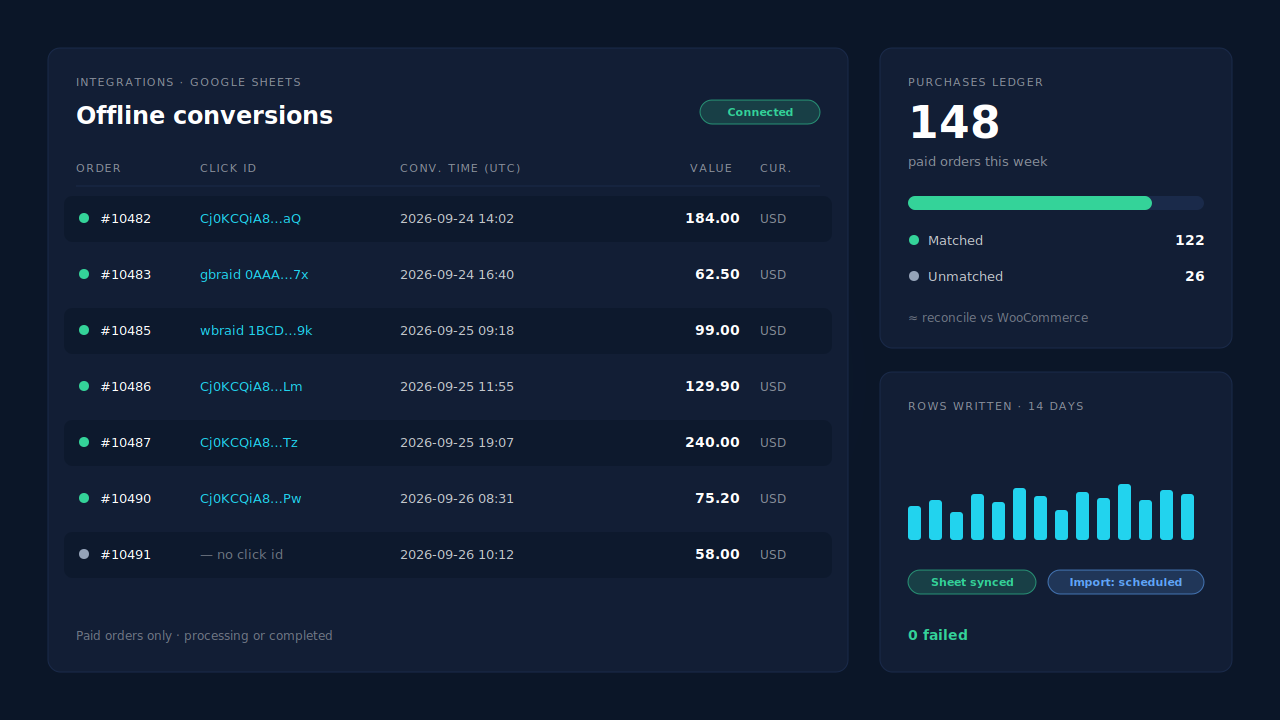
Where you see it working. Integrations → Google Sheets shows the connected sheet, and each paid order appears there as a row. The Purchases ledger lists every paid order PartialLeads recorded, matched or unmatched, so you can reconcile it against WooCommerce’s own order list. On the Leads list, the API column shows which integrations each buyer was sent to.
The honest constraints.
- It is a scheduled import, not a live send. There is a delay between an order and Google crediting it, set by the import schedule in your Google Ads account.
- A row needs a click identifier to credit a click. Buyers who never came from a Google ad, or whose click wasn’t captured, have no
gclidto match. Google’s own click window also applies; no vendor extends it. Why offline conversions don’t match the gclid covers the failure modes. - Keep one source per purchase. PartialLeads uses its own event ids and does not deduplicate against Google for WooCommerce. If you fix the plugin’s tag too, set its purchase action to secondary or turn off its purchase event.
- Purchases only, for Google. Funnel events go to Meta, Pinterest and TikTok, not Google, and there is no GA4 integration.
- We control the row; Google controls the match. Every paid order produces a row. Whether Google ties it to an ad click depends on the identifiers captured and on Google’s own matching.
| What breaks | The mechanism | Where you see it in the dashboard |
|---|---|---|
| Buyer never reaches the order-received page, so the tag never fires | Paid order written as an offline-conversion row from the order, not the page | Integrations → Google Sheets, one row per paid order |
| Caching, consent or an ad blocker stops the purchase tag | No storefront tag in the path; Google Ads imports the sheet on a schedule | Integrations → Google Sheets |
| The order session has no gclid after a redirect or return visit | Order matched to the visitor by visitor ID, email, phone or IP; stored click id carried to the row | Purchases ledger, matched vs unmatched |
| Unpaid or cancelled orders counted as sales | Only processing or completed orders written; first subscription payment only | Purchases ledger |
| Plugin tag and import both count the same purchase | Not deduplicated across tools — one primary purchase action | Google Ads conversion settings, Leads-list API column |
Tell us what's broken. We'll fix your tracking — free.
Describe the tracking/attribution problem you're stuck on and we'll map it to a fix: server-side conversions to Meta, Google, TikTok and Pinterest, plus first-party tracking that survives Safari. No code required.