To count Shopify contact form submissions as conversions without code, you need a tag that recognises the form’s submission and reads the email and phone typed into it, then sends a Lead event from a server. The form itself gives you nothing to hook into: no thank-you page, no conversion setting, and no field in Shopify that passes the lead to Meta or Google Ads.
So the messages land in your inbox, and your ad platforms never learn a campaign produced them.
Why doesn’t a Shopify contact form count as a conversion?
Because nothing in Shopify sends it anywhere except your inbox. The contact form posts back to the page it sits on and reloads that page with a success message. There’s no separate confirmation URL for a “page view equals lead” rule, and Shopify doesn’t pass contact messages to Meta, Google Ads or any other ad platform.
Most conversion tracking is built around one of two signals: a thank-you page loading, or a checkout completing. A contact form produces neither, so tools that only know those two signals never see it.
Store owners hit this the moment they ask where to add onclick code to the contact form. There’s no clean answer inside Shopify’s admin.
What does a Shopify contact form do when someone clicks Send?
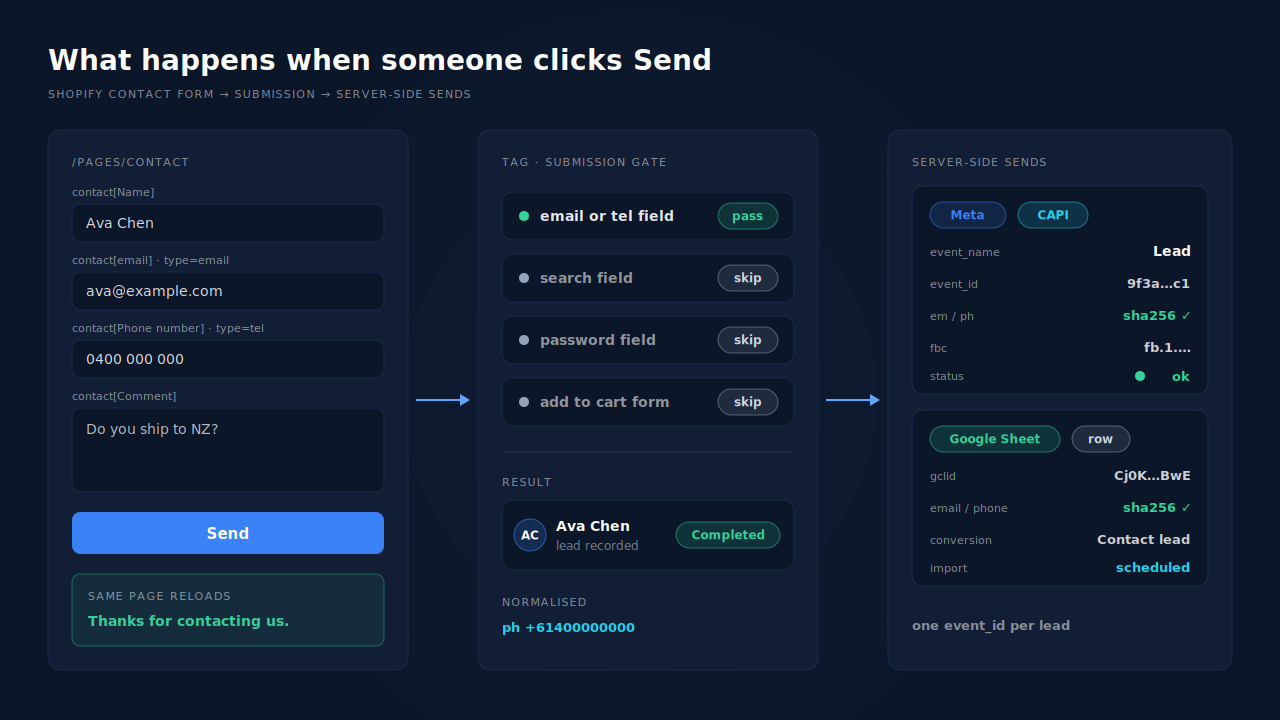
It posts the fields to Shopify and reloads the same page. In Shopify’s Dawn theme, the form is built with the {% form 'contact' %} tag, and on success the theme renders “Thanks for contacting us. We’ll get back to you as soon as possible.” above the form. The URL doesn’t change to a confirmation page.
Look at the fields in Dawn’s contact form and you’ll see why generic tracking scripts miss the phone number:
| Field | Input name in Dawn | Input type |
|---|---|---|
| Name | contact[Name] |
text |
contact[email] |
||
| Phone | contact[Phone number] |
tel |
| Message | contact[Comment] |
textarea |
The email field has a fixed name. The phone field is named after its translated label, so on a French store it isn’t contact[Phone number] at all. A script that looks for an input called phone finds nothing. The reliable signal is the input type — email and tel — not the name.
Why does counting clicks on the Send button overcount leads?
A click isn’t a submission. In Dawn, a malformed email is stopped by the browser before the form posts, and an empty one comes back from Shopify with an error message. Both fire the click; neither sends a message. Double-clicks fire twice. On a store that also has a newsletter box and a search bar, a loose “any button click” or “any form submit” rule catches those too.
That’s the trouble with the usual workarounds:
- An onclick snippet on the button counts attempts, including the ones the browser blocks and the ones Shopify sends back with an error.
- A tag manager “form submission” trigger fires for every form on the store unless you filter it, and Shopify themes are full of forms: search, newsletter, add to cart, cart notes.
- A page-view rule has no confirmation URL to match, because the form reloads the page it came from.
Each one hands Meta Leads that aren’t leads, and Meta optimises toward button-clickers.
What are your options for tracking a Shopify contact form?
There are four, and three of them involve code. You can edit the theme, subscribe to Shopify’s form_submitted pixel event in a custom pixel, filter a tag manager trigger, or use a tag that recognises contact forms for you. Which one fits depends on whether anyone on your team is comfortable in Liquid and JavaScript.
1. Edit the theme. Put your conversion code inside the form.posted_successfully? block of the contact form section, so it only runs when Shopify accepted the message. This is accurate, but it’s a theme edit, it has to be redone when you switch themes, and it only fires a browser event — ad blockers and closed tabs still lose it.
2. A custom pixel on form_submitted. Shopify’s web pixels API has a form_submitted standard event that “logs an instance where a form element on the page has been submitted”. Its data includes the form’s id, action and an elements list with each input’s name, type and value. You write a custom pixel in Customer events that filters for the contact form and forwards the email and phone. It’s no theme edit, but it’s still JavaScript you maintain, and it fires on submit, before Shopify has confirmed the message went through.
3. A filtered tag manager trigger. Restrict the trigger to the contact form’s id (ContactForm in Dawn). It works until a theme update renames the form.
4. A tag that does the detection itself. Install one tag, and it decides which forms are lead forms, reads the email and phone, and sends the conversion. That’s the no-code route, and it’s covered at the end.
Whichever you pick, the reasoning is the same as for any form without a confirmation step, covered in tracking form submissions when there’s no thank-you page.
What should a contact form conversion send to Meta and Google Ads?
Send Meta a Lead event with the visitor’s hashed email and phone, the page URL, and an event_id. Send Google Ads an offline conversion with the click id captured when the visitor landed. Without identifiers, both platforms receive a count but can’t tie it to the person who clicked your ad.
Meta. Lead is one of Meta’s standard events, and it’s the right one for a contact form. For which other events suit a lead-gen setup, see which CAPI events to send for lead gen. Send it through the Conversions API as well as, or instead of, the browser pixel: a server event isn’t lost to an ad blocker. Meta’s customer information parameters take the email and phone as SHA-256 hashes, normalised first — email lowercased and trimmed, phone as digits with the country code. How many of those identifiers you send drives your Event Match Quality score. The phone field is optional on Shopify’s contact form, so expect some Lead events to carry email only.
Google Ads. Google needs the gclid (or gbraid/wbraid) from the landing page, the conversion time and the conversion action name. The contact form doesn’t carry the click id, so it has to be captured when the visitor arrives and joined to the submission. The full import workflow is in importing lead conversions into Google Ads.
Both. Send each submission once. If two tools send the same Lead with different event ids, Meta counts it twice.
How do you check that contact form leads reach Meta and Google Ads?
Submit the form yourself and follow the lead through each system. In Meta, the test events tool in Events Manager should show one Lead within seconds, with email in its parameters. For Google Ads, the conversion appears after the next scheduled import. The count in each should match the messages in your inbox.
- Open your store from a URL carrying a test
gclid, so a click id exists. - Submit the contact form with a real email and phone.
- Check Meta’s test events for one Lead, not two, and your import source for the new row.
- After a week, compare Lead events with messages received. A large gap means the rule is too loose or too narrow.
How does PartialLeads count Shopify contact form submissions without code?
The PartialLeads tag detects the contact form’s submission and the email and phone typed into it, and records the visitor as a Completed lead. That lead is sent server-side as a Meta Lead event, and written as an offline-conversion row in the Google Sheet you import into Google Ads. No theme edit, and no Liquid or custom-pixel code to maintain.
Which forms count. A form becomes a lead only if it has an email or phone field. Forms with a search field or a password field are skipped, so the search bar and the customer login never show up as leads, and add-to-cart forms don’t either. A footer newsletter box does have an email field, so it can count too. Check the Leads list after a day and decide whether you want those sent as Leads.
What gets sent. The email is lowercased and trimmed, the phone normalised to E.164 using the visitor’s country when the number has no prefix, and both are SHA-256 hashed per platform spec. The Meta event carries the _fbc click id — rebuilt from fbclid in the landing URL if the cookie is missing — plus IP and user agent. The Google Sheet row carries the gclid, gbraid or wbraid captured at landing, with hashed email and phone.
It’s sent once. Each event has a deterministic event_id, so a retry can’t send the same lead twice. Those ids are PartialLeads’ own: if Shopify’s Facebook & Instagram app or another tool also fires a Lead on the contact form, turn one of them off. Keep one source per event.
Which leads go to Meta is your choice. The default sends a lead when the form is submitted. Rule-based sending, using trigger rules with AND/OR logic on lead fields, lets you narrow it — for example to keep newsletter signups out of your Lead event.
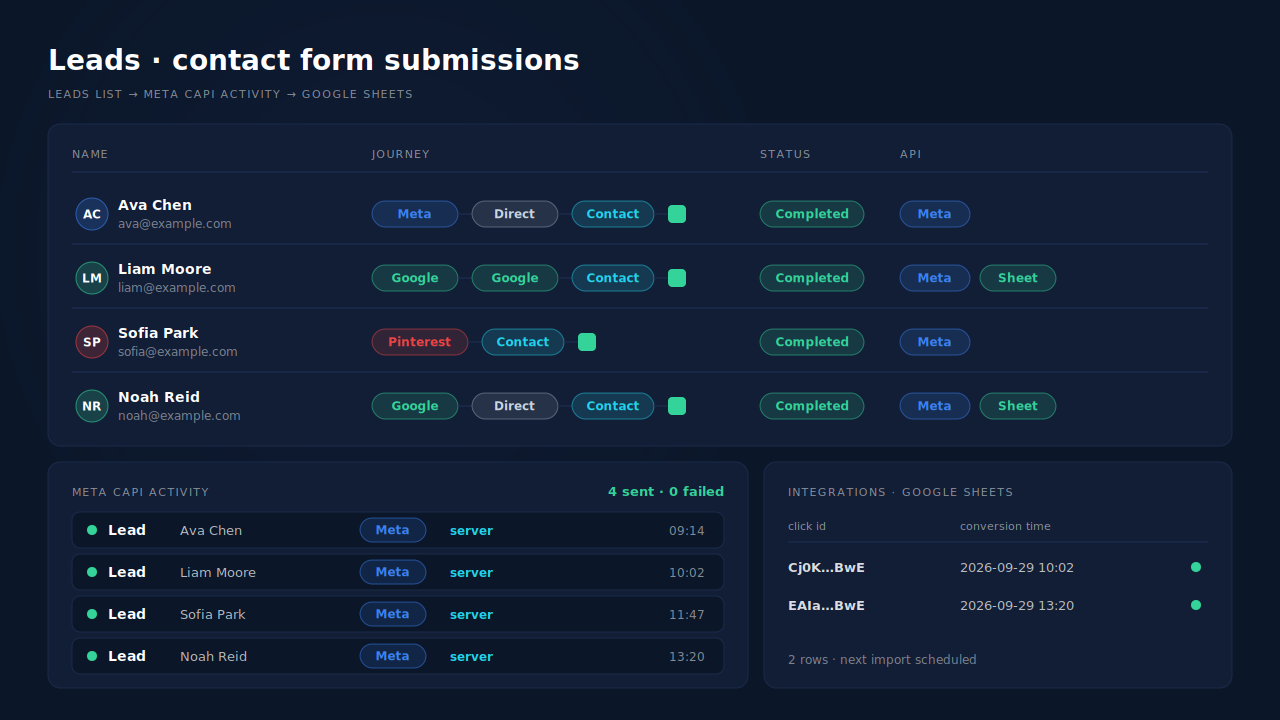
Where you see it working. The Leads list shows each contact form lead with a Completed badge, the source that brought them, and a Journey ribbon from the ad click to the contact page. Its API column names the conversion APIs that lead was sent to. The Meta CAPI activity log shows each Lead event and its delivery status, and your Google Sheet gains one row per lead with a click id.
The honest constraints. PartialLeads controls whether the lead is sent; whether Meta or Google ties it to a specific ad click is decided on their side, by their own matching. A lead with no Google click id can’t become a Google Ads offline conversion. And this is the contact form only — orders come from Shopify’s order webhooks, as covered in the hub on fixing Shopify tracking, attribution and catalog.
| What breaks | The mechanism | Where you see it in the dashboard |
|---|---|---|
| Contact form has no thank-you page to fire on | Tag detects the form’s submission itself | Leads list, Completed badge |
| Button-click rules count failed attempts and other forms | Only forms with an email or phone field count; search and password forms skipped | Leads list shows only lead forms |
| Phone field has a translated, unpredictable name | Fields read and normalised to E.164, then hashed | Lead detail, captured fields |
| Browser pixel lost to ad blockers | Lead event sent server-side through Meta CAPI | Meta CAPI activity log |
| Google Ads never sees the lead | gclid/gbraid/wbraid from landing written to a Google Sheet row | Integrations → Google Sheets |
| Two tools send the same Lead | Deterministic event_id — keep one source per event | Leads-list API column vs Events Manager |
Tell us what's broken. We'll fix your tracking — free.
Describe the tracking/attribution problem you're stuck on and we'll map it to a fix: server-side conversions to Meta, Google, TikTok and Pinterest, plus first-party tracking that survives Safari. No code required.
Sources
- https://registry.npmjs.org/@shopify/web-pixels-extension/-/web-pixels-extension-2.18.0.tgz
- https://raw.githubusercontent.com/Shopify/dawn/main/sections/contact-form.liquid
- https://raw.githubusercontent.com/Shopify/dawn/main/locales/en.default.json
- https://developers.facebook.com/docs/meta-pixel/reference
- https://developers.facebook.com/docs/marketing-api/conversions-api/parameters/customer-information-parameters
- https://developers.facebook.com/docs/marketing-api/conversions-api/deduplicate-pixel-and-server-events