Facebook for WooCommerce only syncs some of your products because it runs every product through a set of checks, and it quietly skips the ones that fail. A product set to “Do not sync”, saved as a draft, hidden from your shop, or sitting in an excluded category never reaches Meta. Products that pass still wait in a background queue, and when that queue stalls, new products and price changes stop arriving.
So “10 of my 38 products synced” is rarely a Meta problem. It’s usually one of six rules on your side, or a queue that isn’t running.
The plugin is now called Meta for WooCommerce. Everything below comes from reading its source code on GitHub, so you can check each rule yourself.
Which products does Facebook for WooCommerce refuse to sync?
The plugin’s product validator throws a product out if any of six checks fails: product sync is turned off globally, the product’s own sync setting says “Do not sync”, the product isn’t published, it’s hidden from your store catalog, it belongs to an excluded category or tag, or it’s in a non-default language. Any one of these is enough, and none of them shows an error on the product page.
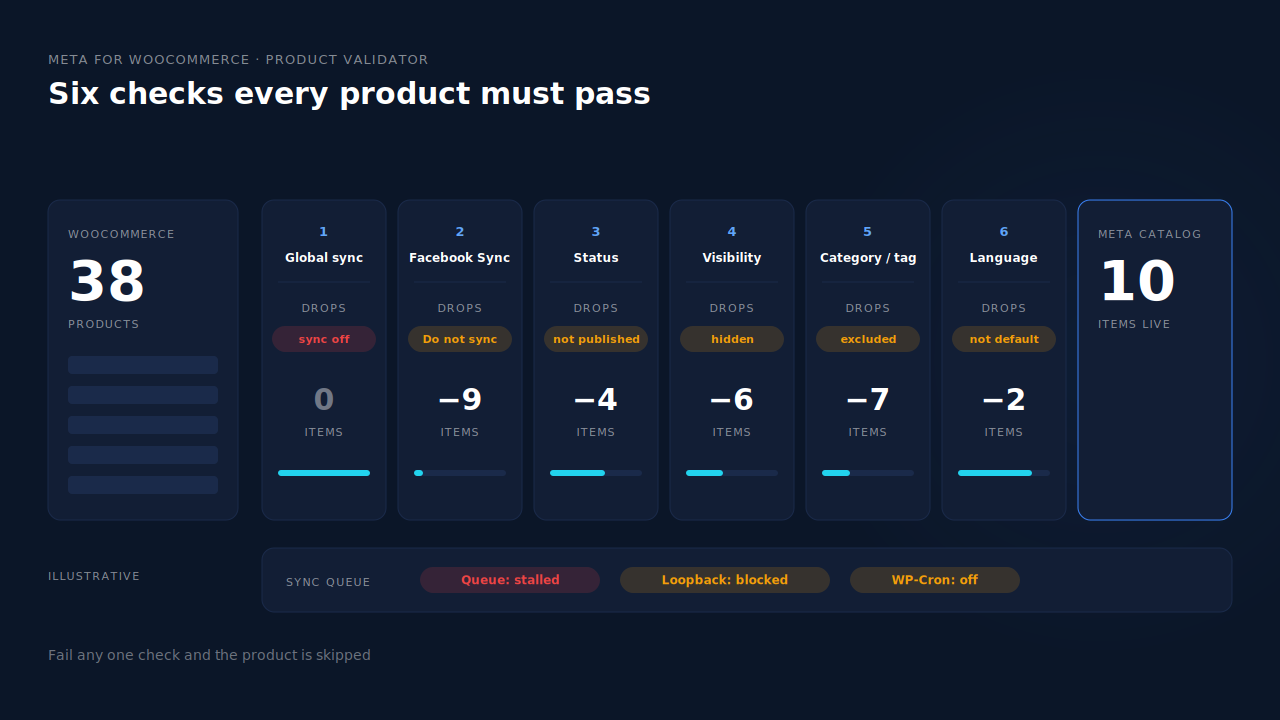
Here’s each check and where to look:
Is the product set to “Do not sync”?
Every product has a Facebook tab with a Facebook Sync setting: “Sync and show in catalog”, “Sync and hide in catalog”, or “Do not sync”. Products bulk-edited or imported with sync off stay off. For a variable product, the parent is skipped if every one of its variations is set to “Do not sync”.
The Products list in WooCommerce admin has a Facebook sync column. Sort by it first. It’s the fastest check there is.
Is the product published and visible in your shop?
The validator requires the product (or, for a variation, its parent) to have the status “publish”. Drafts, pending and private products are skipped. It also requires catalog visibility that includes the shop. A product whose visibility is “Search results only” or “Hidden” fails with the message “hidden from your store catalog.”
That one catches a lot of stores: hidden products used for upsells, bundles or landing pages never reach Meta.
Is it in an excluded category or tag?
The plugin’s settings let you exclude product categories and tags from sync. The check runs against the parent product’s categories and tags, so one old exclusion like “Sale” or “Uncategorized” can remove dozens of products at once. Check the excluded lists in the plugin’s product sync settings before anything else in bulk.
Is it in a language other than your default?
If you run a translation plugin and the plugin’s language-override feed is enabled, only products in your default language sync to the main catalog. Translations are skipped with a message naming both languages.
What about “Sync and hide” and out-of-stock items?
These products do reach Meta. They’re just marked hidden. The plugin automatically switches virtual products and variations to “Sync and hide”. And if WooCommerce’s “Hide out of stock items” option is on, out-of-stock products are sent as not visible. They exist in the catalog but won’t show in ads, which looks like a missing product from the outside.
Why do new products and price changes stop syncing even with sync on?
Product changes don’t go to Meta the moment you click Update. The plugin collects changed products during the request, creates a background job at shutdown, then starts it with a loopback request from your server to its own admin-ajax.php. A WP-Cron health check every five minutes restarts the job if it stops. If both paths are blocked, updates pile up and nothing arrives.
Three setups commonly break it:
- Loopback requests are blocked. Basic-auth staging passwords, some security plugins and some host firewalls stop your site calling itself.
- WP-Cron doesn’t run. With
DISABLE_WP_CRONset and no real server cron behind it, or on a site with almost no admin traffic, the health check never fires. - Changes skip WooCommerce’s save hooks. Direct database edits and some bulk-edit tools may change prices without ever adding the product to the queue.
WordPress’s own Site Health screen (Tools → Site Health) tests loopback requests and scheduled events. If either fails, that’s your answer to “auto-sync is on but nothing updates.”
Why does Meta show fewer products than the plugin sent?
Meta checks each item on arrival and can reject it even after the plugin sends it. Meta’s catalog field reference lists required fields for every item, including an ID, title, description, availability, condition, price, link and image. A product with no image or an empty price can pass the plugin’s checks and still fail Meta’s.
So compare three numbers, not two:
- Products that should sync in WooCommerce (published, visible, not excluded, sync on).
- Items the plugin sent, visible in the Products list sync column.
- Items live in the catalog, from Commerce Manager, plus its issues list for rejected ones.
A gap between 1 and 2 is a plugin rule or a stuck queue. A gap between 2 and 3 is Meta rejecting fields. The guide to checking whether your product feed will be rejected covers the fields that cause most rejections.
Also confirm the plugin is still connected. A broken connection stops every sync, and Meta for WooCommerce’s missing access token error is the usual cause.
How do you fix a Facebook for WooCommerce sync that keeps dropping products?
Fix the rules first, then fix the delivery. Turn sync back on for products set to “Do not sync”, publish or unhide the ones you want advertised, and clear stale category and tag exclusions. Then get loopback requests and WP-Cron passing in Site Health. If products still drift after that, stop relying on the plugin’s push and give Meta a feed it pulls on a schedule.
A scheduled data feed flips the direction. Instead of your store pushing changes through a queue, Meta fetches a URL on the schedule you set in Commerce Manager. If the store has a slow day or a blocked loopback, the next fetch still gets the full list. The guide to keeping your product catalog feed in sync with ad platforms explains why pull beats push for freshness.
One rule if you switch: use one source per catalog. Either put the feed in a new catalog, or turn off product sync in the plugin. Two sources writing different IDs into one catalog gives you duplicates, and catalog ads only work when your events send the same IDs as the catalog. That mismatch is covered in why your dynamic product ads show zero catalog match.
How does PartialLeads keep every WooCommerce product in your Meta catalog?
The PartialLeads WooCommerce plugin pushes your catalog to PartialLeads, which serves it as one hosted feed URL. You add that URL to your Meta catalog as a scheduled data feed, and Meta pulls it on its own schedule. No feed job runs on your store at fetch time. PartialLeads produces the feed; you create the catalog in Commerce Manager and connect it.
Switched on per store. Catalog push is optional and separate from conversion tracking. You turn it on for each WooCommerce store; tracking works without it.
One row per variant. The catalog is stored one row per variant, which is the grain Meta and Google Merchant Center use. Rows not seen in a completed sync are swept, and only active items render in the feed. Each row’s g:id is the variant ID and g:item_group_id the product ID. That’s the same variant ID PartialLeads sends as content_ids in its server-side ecommerce events, so the catalog and the events match. Where an item has no GTIN, MPN or brand, the feed sets g:identifier_exists to no.
Your store’s own price. The WooCommerce feed uses the price stored in WooCommerce, so tax treatment follows your store’s settings.
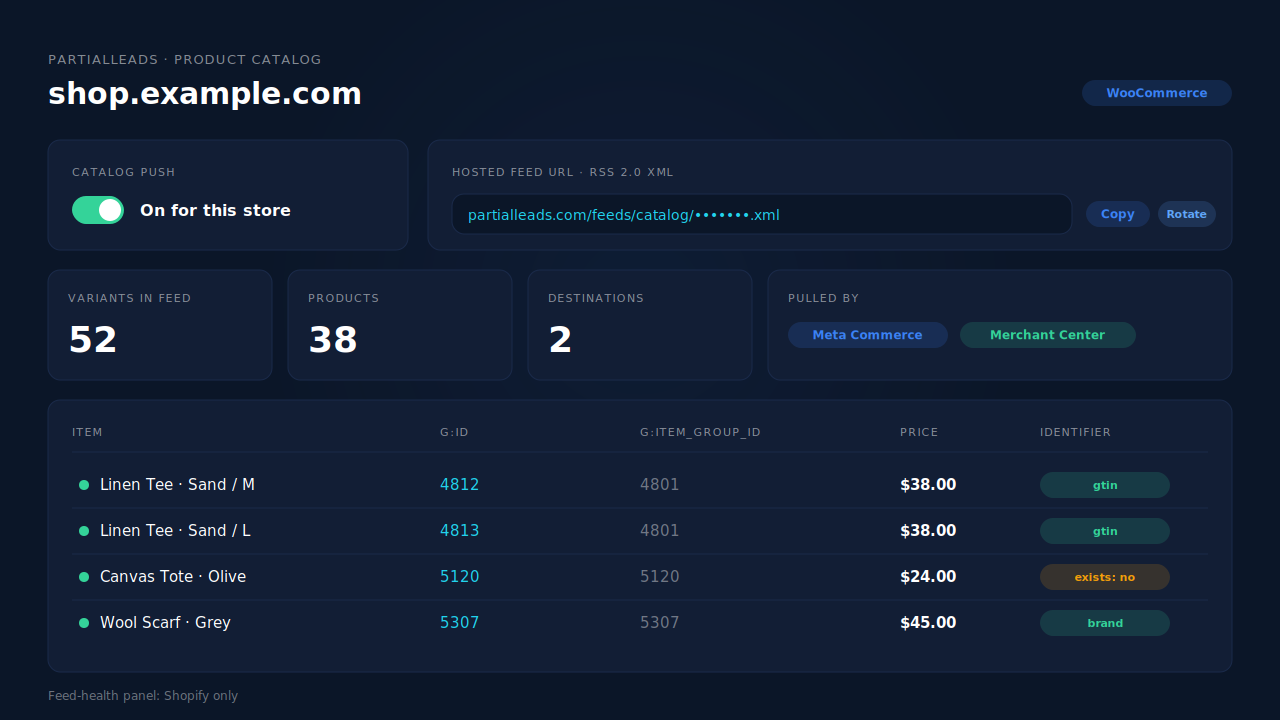
Where you see it working. Open Product Catalog in the dashboard and copy the feed URL into Commerce Manager. It’s one RSS 2.0 XML URL with Google’s g: namespace, so the same link works in Google Merchant Center. The URL carries an unguessable token, and you can rotate it.
The honest constraints. WooCommerce stores get the feed, not the feed-health scoring: that panel is Shopify-only, so Commerce Manager’s issues list stays your check for rejected items. PartialLeads doesn’t create a Meta shop or configure the sales channel. It doesn’t run Meta for WooCommerce’s exclusion settings either; if you want something out of the catalog, handle it in Meta or with product status. And PartialLeads doesn’t deduplicate against another plugin’s browser pixel. If Meta for WooCommerce’s pixel still sends product events, keep one source per event, as the guide to tracking WooCommerce purchases server-side to Meta explains.
| What breaks | The mechanism | Where you see it in the dashboard |
|---|---|---|
| Plugin queue stalls, updates never arrive | Catalog pushed to PartialLeads, Meta pulls one hosted feed URL on its schedule | Product Catalog, feed URL |
| Only some variants reach the catalog | One feed row per variant, unseen rows swept, only active items render | Product Catalog feed rows |
| Catalog and events use different IDs | g:id is the variant ID, the same ID sent as content_ids |
Meta CAPI activity log; event payloads |
| Items missing GTIN, MPN and brand | Feed sets g:identifier_exists to no |
The feed XML at the feed URL |
| Two sources send the same product event | PartialLeads never double-sends; you keep one source per event | Meta CAPI activity log |
Tell us what's broken. We'll fix your tracking — free.
Describe the tracking/attribution problem you're stuck on and we'll map it to a fix: server-side conversions to Meta, Google, TikTok and Pinterest, plus first-party tracking that survives Safari. No code required.
Sources
- https://github.com/woocommerce/facebook-for-woocommerce/blob/1d874f8fcb68f233ed20fd14575919defd00dfce/includes/ProductSync/ProductValidator.php
- https://github.com/woocommerce/facebook-for-woocommerce/blob/1d874f8fcb68f233ed20fd14575919defd00dfce/includes/Products.php
- https://github.com/woocommerce/facebook-for-woocommerce/blob/1d874f8fcb68f233ed20fd14575919defd00dfce/includes/Products/Sync.php
- https://github.com/woocommerce/facebook-for-woocommerce/blob/1d874f8fcb68f233ed20fd14575919defd00dfce/includes/Framework/Utilities/BackgroundJobHandler.php
- https://github.com/woocommerce/facebook-for-woocommerce/blob/1d874f8fcb68f233ed20fd14575919defd00dfce/includes/Admin.php
- https://developers.facebook.com/docs/commerce-platform/catalog/fields
- https://developers.facebook.com/docs/marketing-api/catalog