Meta for WooCommerce’s feed regeneration keeps failing because the plugin rebuilds your entire product feed file in one background job. It loads every product, writes a CSV file, then swaps it in. On a large catalog or a shared host, that job runs out of time or memory before it finishes. Action Scheduler marks it failed, and Meta keeps reading the last file that worked.
So a failed wc_facebook_regenerate_feed action isn’t a Meta outage. It’s your server not finishing a heavy job, and the catalog quietly going stale behind it.
The plugin used to be called Facebook for WooCommerce. Everything below comes from its source code on GitHub and from Action Scheduler, the job queue WooCommerce ships with, so you can check each step yourself.
What does the wc_facebook_regenerate_feed action actually do?
It’s the job that writes the product feed file Meta downloads. Once an hour, a WP-Cron heartbeat checks that the plugin is connected, product sync is on and feed file generation is on. If so, it makes sure a recurring wc_facebook_regenerate_feed action exists in Action Scheduler. By default that action runs once every 24 hours.
When it runs, the default (legacy) path does four things in a single PHP request:
- Gets the ID of every product eligible for sync.
- Loads each product, runs it through the plugin’s sync checks, and writes it as a CSV row to a temporary file in
wp-content/uploads/facebook_for_woocommerce/. - Renames the temporary file over the live feed file.
- Asks Meta to fetch the file from your store, at a URL built on
?wc-api=wc_facebook_get_feed_dataplus a secret.
Step 2 is the expensive one. Its cost grows with your catalog: every product and every variation is loaded and formatted inside the same request.
Why does the regeneration action keep failing?
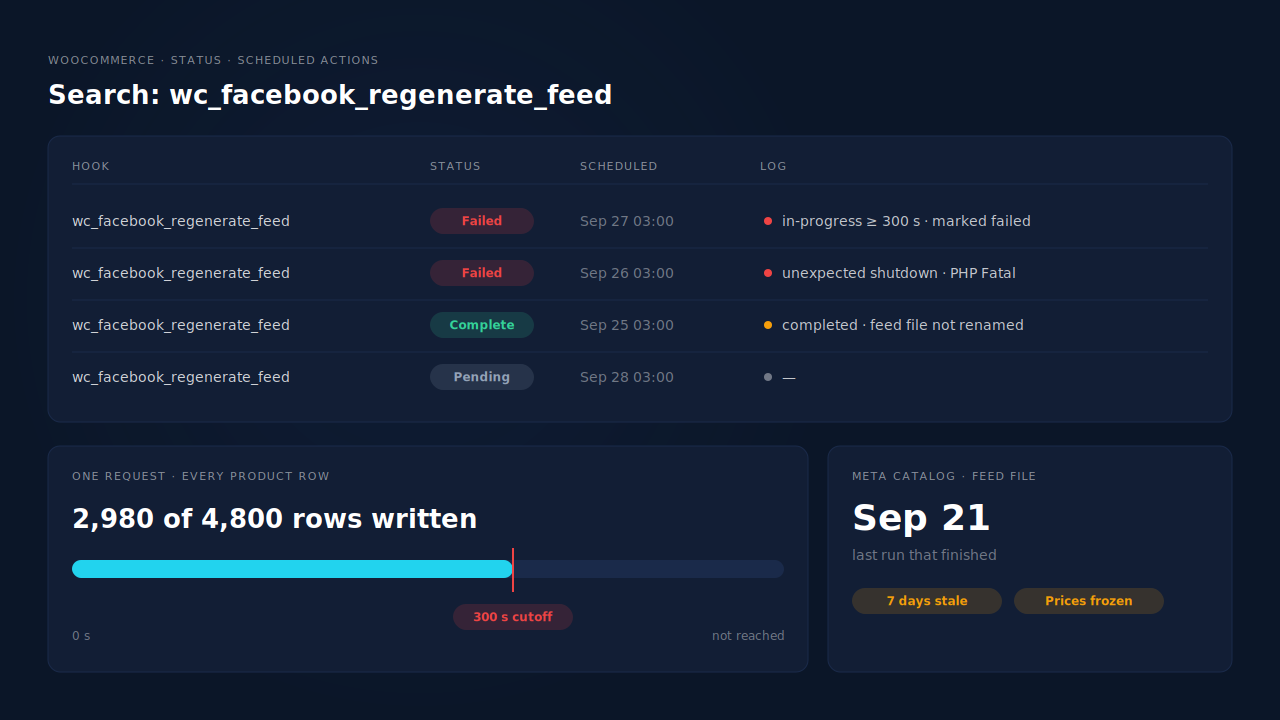
It fails in three ways: the job runs too long, it crashes, or it can’t write the file. Action Scheduler treats a job that’s still “in progress” after a cutoff as dead. By default that cutoff is 300 seconds, ten times its 30-second queue time limit. A PHP fatal error, usually memory, kills the job outright. File problems fail more quietly.
Is it timing out?
The action log says: “action was in-progress for at least 300 seconds without completing and has been marked as failed.” That’s Action Scheduler’s cleanup giving up on a job it can no longer see progressing. A few thousand variations on a slow shared host can take longer than that in one request, especially if other plugins hook into product loading.
The plugin’s own code admits this. The comment above its feed-generation switch says large stores, or stores on shared hosting with low resources, may have issues with feed generation.
Is PHP crashing?
The action log shows “unexpected shutdown: PHP Fatal error” followed by the error message, file and line. Memory exhaustion is the usual message. Loading every product object in one request holds a lot in memory, and your PHP memory limit sets the ceiling.
Can it write the file?
This one doesn’t show as a failed action at all. The plugin catches file errors, logs them and carries on, so the action can say “complete” while the feed file never changed. The messages land in WooCommerce’s logs instead: “Could not create product catalog feed directory”, “Could not open the product catalog temporary feed file for writing” or “Could not rename the product catalog feed file”. Permissions on the uploads folder, a full disk or a locked-down host are the usual causes.
Why does a failed regeneration leave your Meta catalog stale?
Because the live file is only replaced when a run finishes. A failed run leaves the previous file in place, and Meta keeps downloading it. Prices, stock and new products stop at the last good run. If failures repeat for a week, Meta is a week behind your store.
There’s a second trap. If the feed file doesn’t exist when Meta asks for it, the plugin generates it inside Meta’s download request. That’s the same heavy job, now racing an outside server’s patience.
Stale feed data also shows up in your ads. Out-of-stock items keep getting shown, and old prices can trip Meta’s item checks. The guide to checking whether your product feed will be rejected covers what Meta refuses.
How do you find out which failure you have?
Open WooCommerce → Status → Scheduled Actions and search for wc_facebook_regenerate_feed. Look at the Failed tab first, then open a row’s log. The log line tells you which of the three problems you have. If every run says “complete” but the catalog is still stale, go to WooCommerce → Status → Logs and look for the file errors instead.
| What you see | What it means | Where to start |
|---|---|---|
| “in-progress for at least 300 seconds… marked as failed” | Job ran out of time | Catalog size vs. host resources |
| “unexpected shutdown: PHP Fatal error” | Job crashed, usually memory | PHP memory limit |
| Action complete, catalog stale | File couldn’t be written or renamed | Uploads folder permissions, disk |
| No action scheduled at all | Plugin disconnected, sync or generation off | Plugin connection and settings |
That last row matters. The heartbeat removes the scheduled action when the plugin isn’t connected, so a broken connection looks like “the job disappeared”. The Meta for WooCommerce missing access token error is the usual reason.
How do you fix a feed regeneration that keeps failing?
Match the fix to the log. For timeouts and crashes, give the job more resources or make it smaller. For file errors, fix the uploads folder. If your host can’t handle it at all, switch to the plugin’s batched generator, turn file generation off, or feed the catalog from somewhere that isn’t your store.
Give it room. Ask your host for a higher PHP memory limit and execution time for background requests, and run WP-Cron from a real server cron so Action Scheduler isn’t waiting for site traffic. Developers can raise the failure cutoff with the action_scheduler_failure_period filter, but that only waits longer. It doesn’t make the job faster.
Fix the folder. Make sure wp-content/uploads/facebook_for_woocommerce/ exists and your web server can write to it.
Try the batched generator. The plugin has a newer generator that splits the feed into chained Action Scheduler jobs of 15 products each, so no single request carries the whole catalog. It’s off by default, the code calls it experimental, and there’s no settings screen for it. A developer turns it on with WP-CLI: wp option update wc_facebook_enable_new_style_feed_generator yes.
Or switch the file off. Setting the option wc_facebook_legacy_feed_file_generation_enabled to no stops the plugin scheduling feed generation. Individual product updates still go through the plugin’s per-product sync, but you lose the full daily refresh.
Or move the feed off your store. A scheduled feed from a hosted URL flips the direction. Meta fetches the URL on a schedule you set in Commerce Manager, and your store never has to build the whole file in one go. The guide to keeping your product catalog feed in sync with ad platforms explains why pulling from a live source beats nightly exports.
If you switch, use one source per catalog. Put the new feed in a new catalog, or turn product sync off in the plugin. Two sources writing different IDs into one catalog creates duplicates, and catalog ads only work when your events send the same IDs as the catalog. That mismatch is covered in why your dynamic product ads show zero catalog match.
How does PartialLeads take feed regeneration off your WooCommerce store?
The PartialLeads WooCommerce plugin pushes your catalog to PartialLeads, and PartialLeads serves it as one hosted feed URL. You add that URL to a Meta catalog as a scheduled data feed, and Meta pulls it on its own schedule. There’s no feed-regeneration job on your store and no CSV file in your uploads folder. PartialLeads produces the feed; you create the catalog in Commerce Manager and connect it.
Switched on per store. Catalog push is optional and separate from conversion tracking. You turn it on for each WooCommerce store, and tracking works without it.
One row per variant. The catalog is stored one row per variant, the grain Meta and Google Merchant Center use. Rows not seen in a completed sync are swept, and only active items render in the feed. Each row’s g:id is the variant ID and g:item_group_id the product ID. That’s the same variant ID PartialLeads sends as content_ids in its server-side ecommerce events, so the catalog and the events line up.
Your store’s own price. The WooCommerce feed uses the price stored in WooCommerce, so tax treatment follows your store’s settings. Where an item has no GTIN, MPN or brand, the feed sets g:identifier_exists to no.
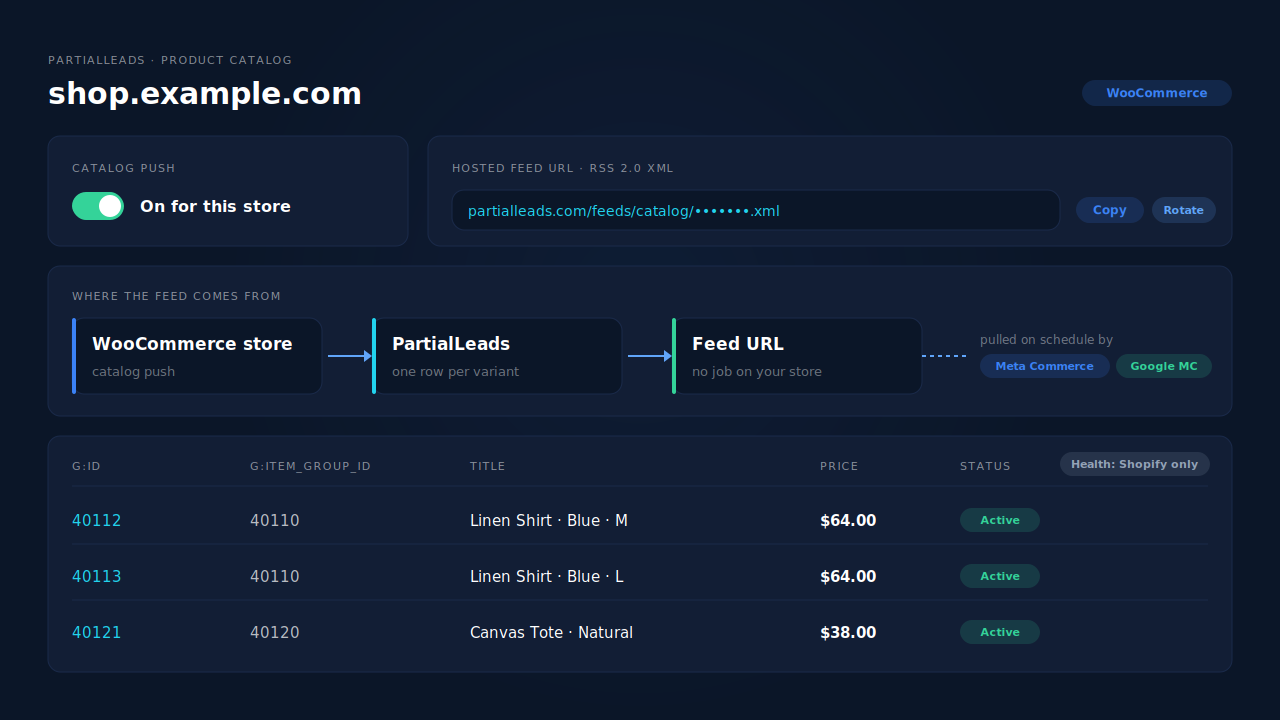
Where you see it working. Open Product Catalog in the dashboard and copy the feed URL into Commerce Manager. It’s one RSS 2.0 XML URL with Google’s g: namespace, so the same link works in Google Merchant Center. The URL carries an unguessable token, and you can rotate it.
The honest constraints. WooCommerce stores get the feed, not the feed-health scoring: that panel is Shopify-only, so Commerce Manager’s issues list stays your check for rejected items. PartialLeads doesn’t create a Meta shop or configure the sales channel. It doesn’t change Meta’s own fetch schedule, which you set in Commerce Manager. And it doesn’t deduplicate against another plugin’s browser pixel. If Meta for WooCommerce’s pixel still sends product or purchase events, keep one source per event, as the guide to tracking WooCommerce purchases server-side to Meta explains.
| What breaks | The mechanism | Where you see it in the dashboard |
|---|---|---|
| Feed job times out or crashes on the store | Catalog pushed to PartialLeads; Meta pulls one hosted feed URL on its schedule | Product Catalog, feed URL |
| Failed run leaves Meta on an old file | Feed served from PartialLeads’ stored catalog, not a file your store rebuilds | Product Catalog, feed URL |
| Deleted variants linger in the catalog | Rows not seen in a completed sync are swept; only active items render | Product Catalog feed rows |
| Catalog and events use different IDs | g:id is the variant ID, the same ID sent as content_ids |
Meta CAPI activity log; event payloads |
| Two sources send the same product event | PartialLeads never double-sends; you keep one source per event | Meta CAPI activity log |
Tell us what's broken. We'll fix your tracking — free.
Describe the tracking/attribution problem you're stuck on and we'll map it to a fix: server-side conversions to Meta, Google, TikTok and Pinterest, plus first-party tracking that survives Safari. No code required.
Sources
- https://github.com/woocommerce/facebook-for-woocommerce/blob/1d874f8fcb68f233ed20fd14575919defd00dfce/includes/Products/Feed.php
- https://github.com/woocommerce/facebook-for-woocommerce/blob/1d874f8fcb68f233ed20fd14575919defd00dfce/includes/fbproductfeed.php
- https://github.com/woocommerce/facebook-for-woocommerce/blob/1d874f8fcb68f233ed20fd14575919defd00dfce/facebook-commerce.php
- https://github.com/woocommerce/facebook-for-woocommerce/blob/1d874f8fcb68f233ed20fd14575919defd00dfce/includes/Utilities/Heartbeat.php
- https://github.com/woocommerce/facebook-for-woocommerce/blob/1d874f8fcb68f233ed20fd14575919defd00dfce/includes/Jobs/GenerateProductFeed.php
- https://github.com/woocommerce/action-scheduler/blob/b418701b1f2aa99ba892ba5cfc24459c1822e3ed/classes/ActionScheduler_QueueCleaner.php
- https://github.com/woocommerce/action-scheduler/blob/b418701b1f2aa99ba892ba5cfc24459c1822e3ed/classes/abstracts/ActionScheduler_Abstract_QueueRunner.php
- https://github.com/woocommerce/action-scheduler/blob/b418701b1f2aa99ba892ba5cfc24459c1822e3ed/classes/abstracts/ActionScheduler_Logger.php
- https://developers.facebook.com/docs/marketing-api/catalog
- https://developers.facebook.com/docs/commerce-platform/catalog/fields