Only some of your Shopify variants show up in your Meta catalog because Meta treats every variant as a separate catalog item, and each one has to pass on its own. A variant that isn’t available to the Facebook & Instagram channel, is missing a required field, or shares an ID with another variant gets dropped or rejected while its siblings sail through. “Not approved” is a different problem: a Meta review status, not a sync failure.
So the fix is not “resync harder.” It’s finding which variants fall out, at which step, and why. That’s a spreadsheet job, not a support ticket.
Below: how Meta stores variants, the four places they drop out, what “not approved” actually means, how to find the missing ones, and how to feed the catalog so every live variant arrives with the ID your ads need.
How does Meta store Shopify variants in a catalog?
Meta stores each variant as its own catalog item with its own id, and links siblings together through a shared item_group_id. A T-shirt in three colours and four sizes is not one item in Meta. It is twelve items that happen to share a group. Each of the twelve is checked, accepted or rejected, and shown or hidden separately.
That’s the key to the whole problem. Shopify shows you one product with a variant table. Meta shows you a list of items, some grouped, and it never sees “the product” as a unit. Meta’s catalog field reference lists item_group_id as the field that ties variants of one product together.
Two consequences follow:
- A problem on one variant only hurts that variant. The blue medium can be rejected while the blue small is live.
- Counting products tells you nothing. “All 40 products synced” can still mean dozens of variants are missing. Count variants, not products.
Why do some variants never make it into the catalog?
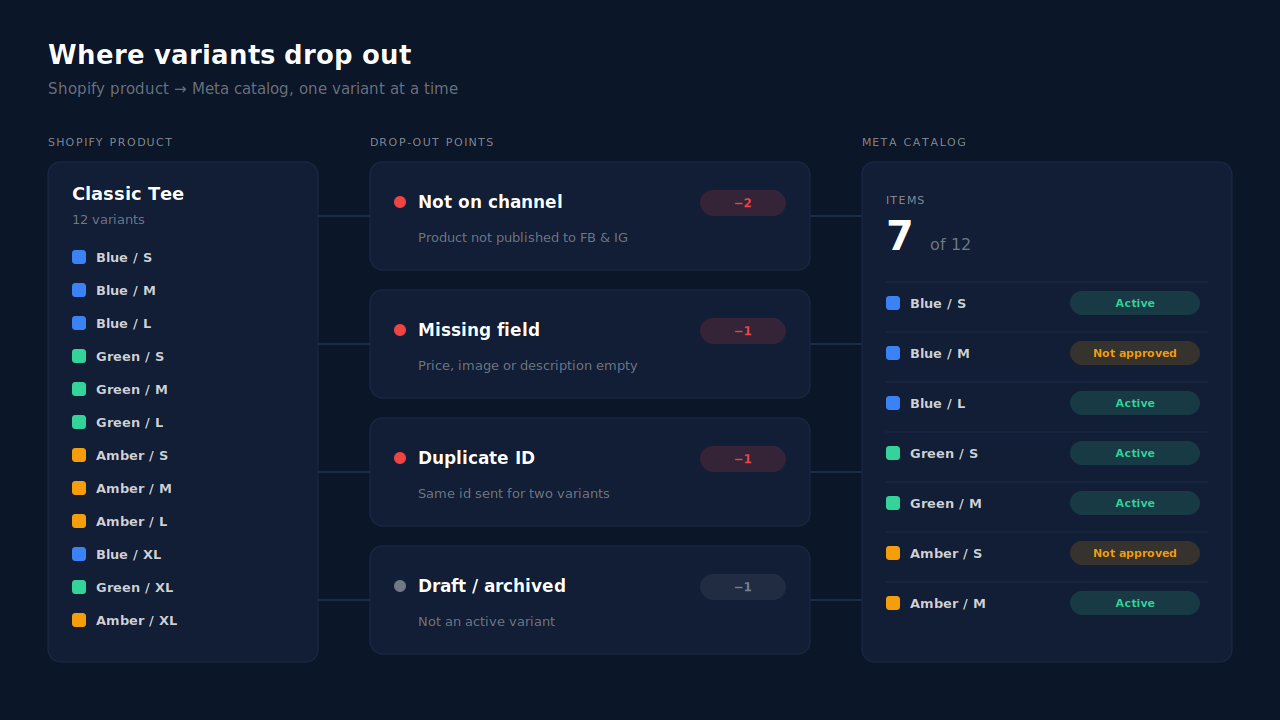
Variants go missing at four points: they were never offered to the channel, they arrived without a field Meta requires, they arrived with an ID another item already uses, or they were filtered out as not sellable. Each of these fails silently in Shopify, so the product looks fine in your admin while Meta holds fewer items than you expect.
Were the variants ever available to the channel?
The Facebook & Instagram channel only syncs products that are published to it. If a product was created before the channel was installed, imported in bulk, or added by an app that sets its own sales channels, it may simply not be available to Facebook & Instagram. Draft and archived products don’t sync either.
Check the product’s sales channels in Shopify first. It’s the cheapest fix there is.
Is a required field empty on some variants?
Meta’s field reference marks a set of fields as required for every item, including an ID, title, description, availability, condition, price, link and image. Brand is also expected. A variant with no image of its own usually inherits the product image, but a variant with a blank price, an empty description, or a broken image link can be rejected on its own.
Shopify’s admin is forgiving about all of this. Meta is not.
Do two variants share the same ID?
Meta uses the id as the unique key for an item. If two variants end up sending the same ID, the second one overwrites the first, and you see one item where you expected two. This mostly shows up when a custom feed or an old app used the product ID for every row instead of the variant ID.
Were the variants filtered out as not sellable?
Some sync tools skip variants that are out of stock, unpublished, or priced at zero, by design. If your missing variants are all sold out, check whether the tool you use drops them rather than sending them as out of stock.
What does “not approved” mean if the variant looks approved everywhere?
“Not approved” is Meta’s verdict, not Shopify’s. It means the item reached the catalog but failed one of Meta’s own checks, often a commerce or policy review that applies when products appear in a shop. Shopify has no view of that review, which is why the product looks fine in your admin and in the channel.
Open the catalog in Commerce Manager and look for its issues or diagnostics view. Meta lists each problem with the affected items and, usually, the field involved. Treat it as the source of truth, because only Meta knows why Meta said no.
Common causes worth checking first:
- Image problems: a placeholder image, an image with heavy text overlay, or a link Meta can’t fetch.
- Mismatched price or availability between the catalog and the product page.
- Policy categories: some product types need extra review or aren’t allowed in shops at all.
Rejected items don’t serve in catalog ads, so this is not cosmetic. And if your events send IDs that point at rejected items, those events can’t be used for retargeting either.
How do you find exactly which variants are missing?
Export both sides and compare them by variant ID. Export your products from Shopify (the CSV has one row per variant), download the item list from your Meta catalog, and match the two on ID. Any variant in Shopify with no matching Meta item is missing; any Meta item flagged in the issues view is rejected.
A short checklist that settles most cases:
- Count variants on both sides. Shopify variants that are active and on the channel versus items in the Meta catalog.
- Check the ID format. Meta items should carry the variant ID, with the product ID in
item_group_id. If every item shows the product ID, you have a duplicate-ID problem. - Sort the missing ones by product. If all variants of a product are missing, it’s a channel or product-status issue. If only some are, it’s field-level.
- Read the issues view for the rejected ones, and fix the fields it names.
- Check your events. The
content_idsyour pixel or Conversions API sends must match the catalog IDs. A mismatch here is its own failure, covered in why your dynamic product ads show zero catalog match.
Step three usually tells you which kind of problem you have.
What’s the fix when the channel sync keeps dropping variants?
Fix the fields first, then decide whether the channel is the right way to fill your catalog. If variants keep disappearing after every fix, add a scheduled data feed to the catalog in Commerce Manager. Meta fetches a URL you control, one row per variant, on a schedule you set, and every row’s result shows up in the catalog’s issues view.
A feed gives you two things the channel doesn’t. You can see exactly what was sent, row by row, and you control the ID on each row. The guide to keeping your product catalog feed in sync with ad platforms covers why a feed that re-fetches on a schedule stays fresher than one-off uploads.
One caution if you switch: point your catalog ad sets at the catalog your events match. Two catalogs with two ID schemes is how stores end up with a full catalog and a zero match rate.
How does PartialLeads get every live Shopify variant into your Meta catalog?
PartialLeads builds a hosted product feed from your Shopify store with one row per variant, and you add that URL to your Meta catalog as a scheduled data feed. Each row’s g:id is the variant ID and its g:item_group_id is the product ID, the same variant ID PartialLeads sends as content_ids in its server-side ecommerce events. It produces the feed; you create the catalog and connect it.
Setup is a token. You paste a Shopify custom-app Admin API token. It’s encrypted and checked live on save. Catalog sync is optional and separate from conversion tracking, and it does nothing until the token exists.
Every active variant, and only active ones. Products sync into one row per variant. Variants not seen in a completed sync are swept out, and only active variants render in the feed, so a draft or archived variant doesn’t leak into your catalog. Where a variant has no GTIN, MPN or brand, the feed says so with g:identifier_exists set to no. The sync sweep runs every 60 seconds against a 6-hour staleness threshold. How often Meta fetches the URL is set in Commerce Manager, on Meta’s clock.
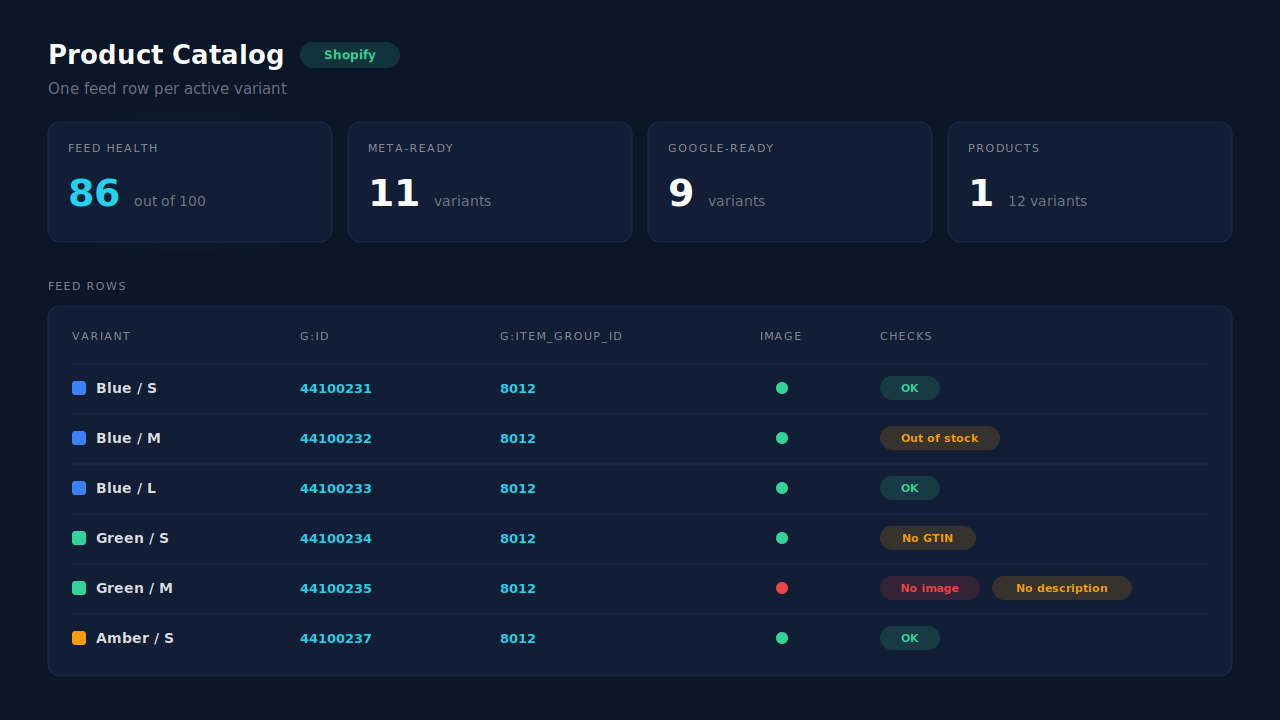
Where you see it working. Open Product Catalog in the dashboard. The feed URL is there to copy into Commerce Manager. The Shopify feed-health panel counts at variant level, not product level, which is the grain this problem lives at. It gives a 0–100 score, a Meta-ready count, and six checks: missing image and missing identifier (flagged as bad), plus out of stock, missing GTIN, missing product type and missing description (flagged as warnings). The guide to checking whether your product feed will be rejected walks through each check.
The honest constraints. The panel checks that fields are present, not that their values are valid. “Meta-ready” means the variant has an image, nothing more, so it can’t predict a policy rejection or a “not approved” verdict; Meta’s issues view is still the final word. The panel is Shopify-only. PartialLeads doesn’t create a Meta shop or configure the sales channel. And it doesn’t deduplicate against another app’s browser pixel: if Shopify’s Facebook & Instagram app is still sending product events with different IDs, keep one source per event, as the Meta CAPI on Shopify guide explains.
| What breaks | The mechanism | Where you see it in the dashboard |
|---|---|---|
| Only some variants reach the catalog | One feed row per active variant, unseen variants swept | Product Catalog, feed URL and composition |
| Two variants collide on one ID | g:id is the variant ID, g:item_group_id the product ID |
Product Catalog feed rows |
| Variants rejected for missing fields | Six presence checks at variant grain, 0–100 score (Shopify only) | Product Catalog, feed-health panel |
| Catalog is complete but events match nothing | Events send the variant ID as content_ids, same as the feed |
Meta CAPI activity log; server-side event payloads |
| Two sources send the same product event | PartialLeads never double-sends; you keep one source per event | Meta CAPI activity log |
For the wider picture of how tracking, attribution and catalog fit together on a Shopify store, see how to fix Shopify tracking, attribution and catalog in one place.
Tell us what's broken. We'll fix your tracking — free.
Describe the tracking/attribution problem you're stuck on and we'll map it to a fix: server-side conversions to Meta, Google, TikTok and Pinterest, plus first-party tracking that survives Safari. No code required.
Sources
- https://developers.facebook.com/docs/commerce-platform/catalog/fields
- https://developers.facebook.com/docs/marketing-api/catalog
- https://developers.facebook.com/docs/marketing-api/conversions-api/parameters/custom-data
- https://www.facebook.com/business/help/120325381656392