Meta for WooCommerce won’t finish setup because the connection completes on Meta’s side but never gets saved in WordPress. You approve access on Meta, Meta sends the access token and pixel back to your site, and somewhere on that return trip the handoff fails. Meta shows a connection. The plugin shows an empty token field and a setup screen that won’t move.
That split is the whole problem. Nothing is wrong with your Meta account or your pixel. The credential just never made it into your WordPress database.
Until it does, the plugin sends nothing: no browser pixel from it, no server events, no purchases. Every day it stays stuck is a day of sales Meta can’t learn from. Below: how the handshake works, where it breaks, the fixes to try in order, and how to stop your purchase tracking depending on a plugin handshake at all.
Why does Meta say you’re connected while the plugin has no token?
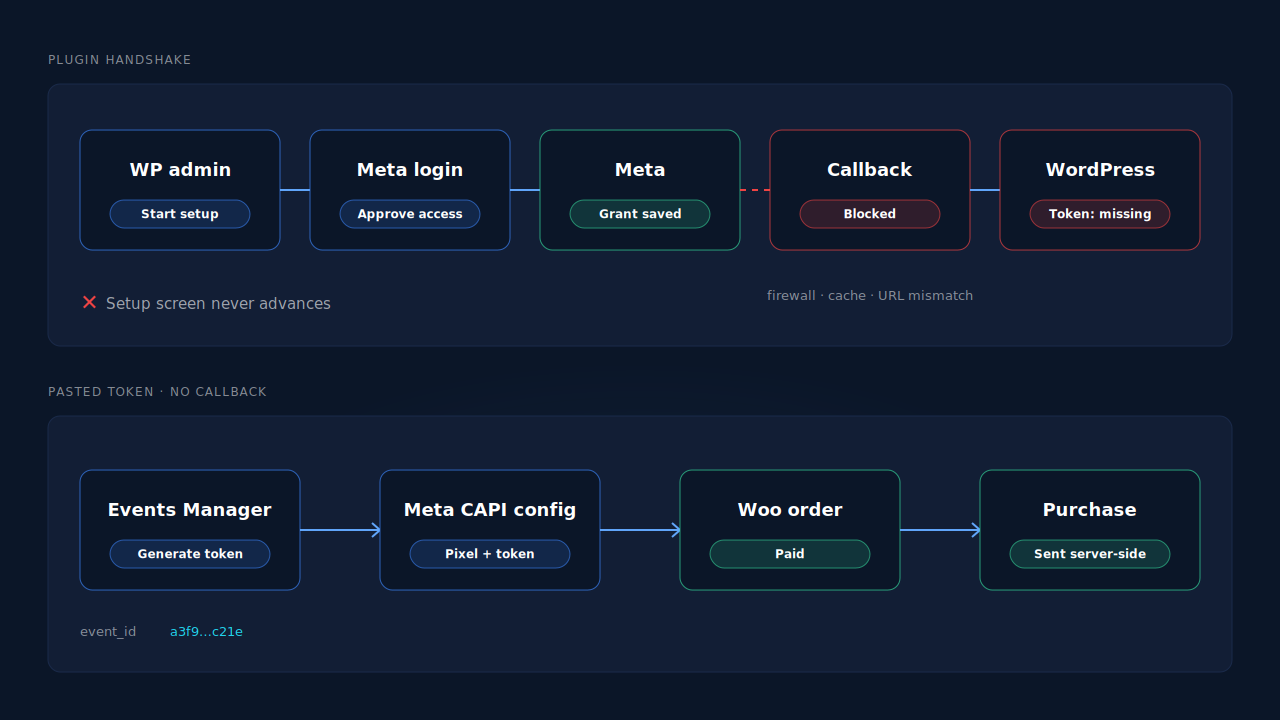
Because the setup is two steps on two systems, and only the first one succeeded. Step one happens on Meta: you log in, pick a business, a pixel and a catalog, and grant permission. Step two happens on your site: Meta sends the result back, and WordPress stores the access token and pixel ID. If step two fails, Meta keeps the grant and WordPress keeps nothing.
Meta for WooCommerce builds this flow on Meta’s Facebook Business Extension (FBE), a connection flow Meta offers to ecommerce platforms. It is an OAuth-style handshake: the plugin never sees your Facebook password, it receives a token that says “this site may send events and manage this catalog for this business.”
The token is the part that matters. A pixel ID is public; it sits in your page source. An access token is a secret. It is what lets a server send events through the Conversions API on your behalf. Without it, the plugin cannot send a single server event, which is why it refuses to call setup finished.
Where does the handshake usually break?
On the return trip to your site. Anything that stops Meta’s response from reaching WordPress, or stops WordPress from saving it, produces the same symptom. The usual suspects are a security layer blocking the callback, caching on admin or API routes, a site address mismatch, a browser that blocks the popup, or a plugin release with a bug.
A security layer blocks the callback. Security plugins, host firewalls and CDN rules exist to block unexpected incoming requests to your admin and API routes. A request from Meta carrying a token can look exactly like that. If the firewall drops it, nothing is saved and no error shows in the setup screen.
Caching serves a stale page. If a caching plugin or your host caches admin pages or the WordPress REST API, the setup screen can read an old, empty state even after a save, or the save request never reaches PHP at all.
The site address doesn’t match. If WordPress thinks your site is http:// and you browse on https://, or one says www and the other doesn’t, the return can land on a different address than the one you started from. You may be logged out there, so the save is refused.
The browser interferes. The flow opens Meta in a popup or new tab. Popup blockers, strict tracking protection and extensions that block Meta domains can cut it short or stop the result being passed back.
The plugin release itself. If setup worked before an update and broke right after, treat it as a version problem first. Support threads for this plugin are where that shows up; check them before you spend an afternoon on your firewall.
How do you fix the missing access token?
Work from cheapest to most involved: reset the connection cleanly, remove what blocks the callback, then rerun setup in a clean browser. Most stores get unstuck in the first three steps. If a specific plugin version is the cause, only an update or a rollback will help, and the checks below will all pass without fixing it.
- Disconnect on both sides. Disconnect in the plugin’s settings, then remove the WooCommerce connection from your Meta business settings too. A half-finished grant left on Meta’s side can confuse the next attempt.
- Check your site address. In WordPress → Settings → General, the WordPress Address and Site Address should match the exact URL you use, including
https://andwwwor not. - Open the door for the callback. Pause your security plugin or firewall rule during setup, or allow-list the plugin’s routes if it lets you. Exclude
/wp-admin/and/wp-json/from page caching and purge the cache. - Confirm the REST API answers. Visit
yoursite.com/wp-json/while logged in. If you get an error or a blank page instead of JSON, something is blocking it, and the handshake can’t finish until it is fixed. - Rerun setup in a clean browser window. One admin tab, extensions off, popups allowed, logged into the Facebook profile that is an admin on the right business.
- Read the log. WooCommerce → Status → Logs is where WooCommerce plugins write their errors. Look for entries from the Meta plugin with the time of your attempt.
- Change the version. If it started after an update, check whether a newer release fixes it, or roll back to the version that last worked on your site.
If you get through all seven and the token field is still empty, the handshake is not the part to keep fighting. The token itself is available elsewhere.
Can you get a Conversions API access token without the plugin?
Yes. Meta lets you generate a Conversions API access token directly in Events Manager, from the settings of the pixel (Meta now calls it a dataset) you want to send to. That token plus the pixel ID is everything a server-side sender needs. No handshake runs, so no callback can fail.
Meta’s own Conversions API setup guide describes this path. Two things to handle with care:
- Treat the token like a password. It goes in a server-side config, never in page source, a theme file or a public repository. Anyone holding it can send events into your dataset.
- Make one system the owner of each event. If you later get Meta for WooCommerce working as well, two senders will both report purchases. Either they share an
event_idso Meta can pair them, or one of them stops sending Purchase. The Meta CAPI deduplication debug guide covers that failure in detail.
A pasted token also fails differently. It doesn’t fail at setup; it fails later, when it is revoked, regenerated or tied to someone who lost access. Meta then rejects every event with an authentication error. Why Meta rejects CAPI events shows how to read that error.
What does a stuck setup cost you?
Every paid order that happens while the plugin isn’t connected is a Purchase Meta never receives. Meta’s campaigns optimise toward the people who buy, so a store with no purchase signal is asking the algorithm to find buyers without telling it who bought. The longer the gap, the less it can be repaired afterwards.
That last part is a hard limit, not a guess. The Conversions API only accepts events whose event_time is within the last seven days. Orders from a setup outage older than that cannot be sent with their real time. The 7-day event time window in Meta CAPI explains the rule. So a setup problem is worth solving the week it appears, even if the fix is a stopgap.
How does PartialLeads avoid the plugin’s access token handshake?
By not using one. You paste your pixel ID and a Conversions API access token from Events Manager into a Meta CAPI config in PartialLeads, and purchases come from WooCommerce order webhooks. No OAuth callback has to reach your WordPress admin, so security plugins, caching and address mismatches can’t leave a half-saved connection.
The credential is set once, directly. Each Meta config holds its own pixel ID and its own access token. If Meta later rejects the token, PartialLeads flips that config to a reconnect-needed state instead of retrying blindly, so a revoked token shows up as a status, not as a quiet drop in conversions.
Purchases come from the order, not a page. When a WooCommerce order reaches processing or completed, PartialLeads records it once and sends a server-side Purchase to Meta. Orders in pending, on-hold, failed or cancelled are not sent; a bank-transfer or cash-on-delivery order is sent when it is marked paid. The value is the full order total, including tax and shipping, after discounts.
Funnel events go server-side too. The PartialLeads WooCommerce plugin forwards view product, add to cart and begin checkout to Meta server-side, so the algorithm sees more than the final sale.
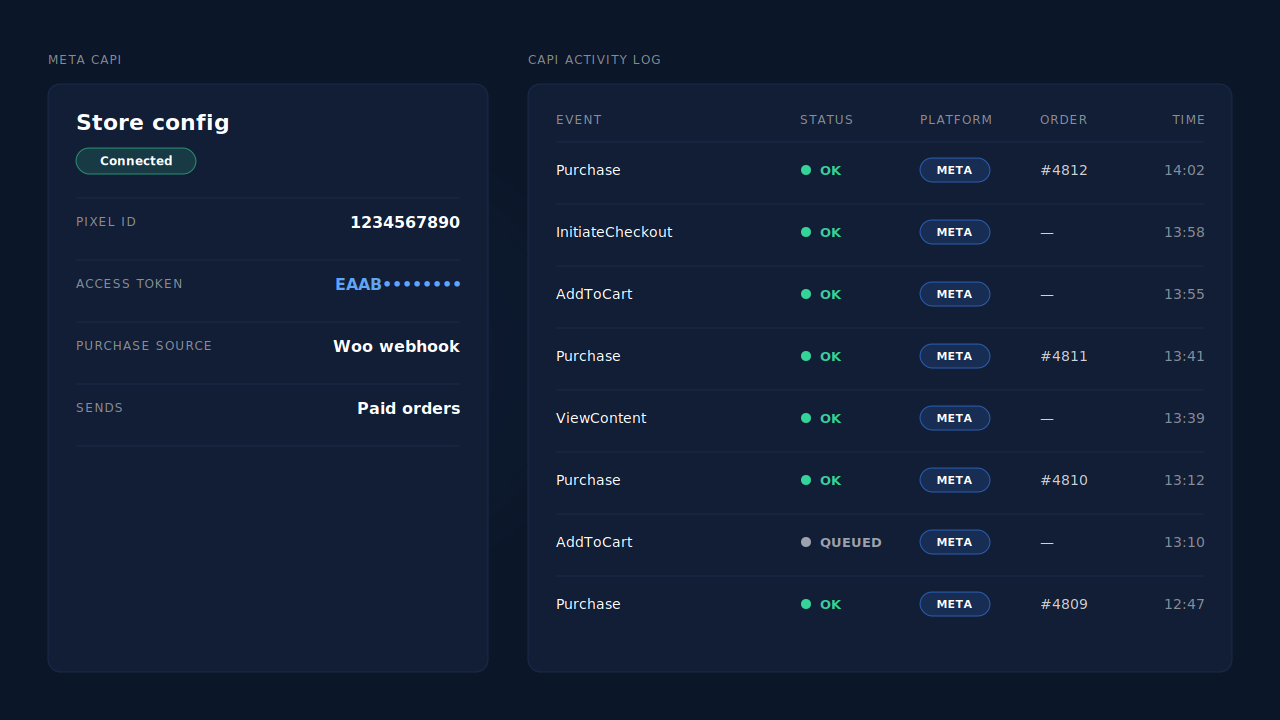
Where you see it working. The Meta CAPI page shows the config and its status. The CAPI activity log lists each send with its event name, status and any error text. The Purchases ledger lists every paid order PartialLeads recorded, so you can reconcile it against WooCommerce’s own order list.
The honest constraints. Keep a Meta base pixel on your site; it sets the _fbp cookie server events use for matching. PartialLeads rebuilds _fbc from the fbclid but cannot create _fbp from nothing. Its event ids are its own: if you later get Meta for WooCommerce working too, switch off its Purchase and keep one source per event. Delivery is the half PartialLeads controls. Whether Meta ties each Purchase to an ad click depends on the identifiers captured and Meta’s own matching. The pillar guide to tracking WooCommerce purchases server-side covers the full architecture.
| What breaks | The mechanism | Where you see it in the dashboard |
|---|---|---|
| Plugin handshake never saves the access token | Pixel ID and Events Manager token pasted into a Meta CAPI config, no OAuth callback | Meta CAPI page, config status |
| Token later revoked or regenerated | Auth failures flip the config to reconnect-needed instead of retrying | Meta CAPI page, reconnect-needed status |
| No purchases reach Meta while setup is stuck | Server-side Purchase from the WooCommerce order webhook for every paid order | CAPI activity log, Purchases ledger |
| Webhook redelivered or send retried | Order recorded once, deterministic event_id |
CAPI activity log, one row per event |
| Meta for WooCommerce fixed later and also sends Purchase | Not deduplicated across tools — keep one source per event | Events Manager senders vs the Leads-list API column |
Tell us what's broken. We'll fix your tracking — free.
Describe the tracking/attribution problem you're stuck on and we'll map it to a fix: server-side conversions to Meta, Google, TikTok and Pinterest, plus first-party tracking that survives Safari. No code required.
Sources
- https://developers.facebook.com/docs/marketing-api/conversions-api
- https://developers.facebook.com/docs/marketing-api/conversions-api/get-started
- https://developers.facebook.com/docs/facebook-business-extension
- https://developers.facebook.com/docs/marketing-api/conversions-api/parameters/server-event
- https://developers.facebook.com/docs/marketing-api/conversions-api/parameters/fbp-and-fbc