When Meta for WooCommerce disables itself after repeated crashes, treat it as a tracking outage first and a plugin bug second. The store keeps taking orders, but the plugin’s pixel and server events stop with it, so Meta receives no purchases. Find the error behind the crash, fix it, re-enable the plugin on staging first, then make purchase tracking independent of any storefront plugin.
The notice looks like housekeeping. Checkout works, orders arrive, customers get their emails. Nothing on the storefront tells you anything is wrong.
Ads Manager tells you, eventually. Purchases flatten, cost per purchase climbs, and campaigns start optimising without knowing who bought. This guide covers what the notice means, how to find the crash, how to bring the plugin back safely, and how to stop one plugin being the only thing standing between your orders and Meta.
What does “disabled due to repeated crashes” actually mean?
It means the plugin hit a fatal PHP error often enough that it was switched off to keep the rest of the site running. A fatal error stops PHP mid-request. If it happens on every page load, it can take the admin or the checkout down with it, so disabling the plugin protects your store at the cost of its features.
WordPress has its own version of this safeguard: when a plugin throws a fatal error, WordPress can pause it and email the site admin a link to log in and fix it. Whichever layer switched Meta for WooCommerce off, the result for tracking is the same. The plugin’s code isn’t running, so none of its jobs run either.
The word “repeated” matters. One crash can be a fluke. Repeated crashes mean something in the environment keeps triggering the same error, and re-enabling the plugin without changing anything will usually just crash it again.
Why do your Meta conversions stop when the plugin is disabled?
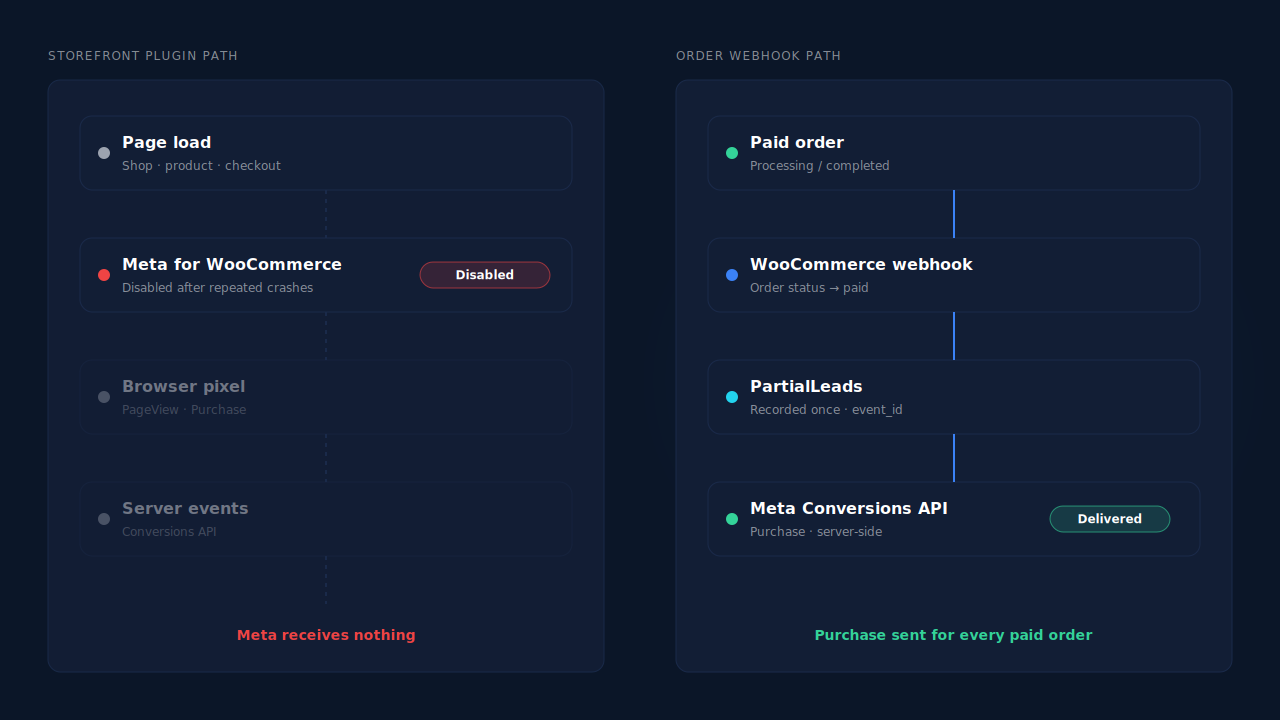
Because the plugin was doing all of the sending. Meta for WooCommerce typically loads the Meta Pixel in the browser and sends server events through the Conversions API. When it’s disabled, both stop at once. No pixel means no browser events. No plugin code means no server events. Your orders are fine; Meta just stops hearing about them.
A lot of stores run their entire Meta setup through this one plugin: the pixel, the Conversions API connection and often the catalog. That is convenient right up until the plugin stops. Then there is no second path.
It also stops quietly. The plugin can’t report its own failure to Meta, because reporting would need the plugin. Events Manager simply shows fewer events. That is why a crash can run for days before anyone connects the ad performance drop to a notice in the WordPress admin.
How do you find out what crashed the plugin?
Read the actual error before changing anything. The crash leaves a trace: a fatal error message naming a file and a line, usually pointing at the plugin itself or at the other plugin or theme it collided with. That one line tells you whether you are dealing with a PHP version problem, a memory limit, a conflict or a broken release.
Check these places, in this order:
- The recovery email. If WordPress paused the plugin, the site admin address gets an email with the error details and a recovery link.
- WooCommerce → Status → Logs. WooCommerce records fatal errors it catches here. Look for entries at the time the notice appeared.
- Your host’s PHP error log. Most hosting panels expose it. It catches errors that happened before WordPress could log anything.
- WooCommerce → Status → System status. Note your PHP version, WordPress version, WooCommerce version and memory limit. You’ll need them for whichever fix applies.
Then match the error to a cause:
- PHP version. The error mentions a function or syntax the server doesn’t support. Compare your PHP version with the plugin’s stated requirements.
- Memory. “Allowed memory size exhausted” means the plugin, often during a catalog sync, ran out of room. Raise the memory limit with your host.
- A conflict. The trace names another plugin’s file, or both. Recently updated plugins are the first suspects.
- A bad release. It started right after a Meta for WooCommerce update, and nothing else changed. Check the plugin’s support forum for the same error.
How do you re-enable Meta for WooCommerce without breaking the store?
Fix the cause first, then re-enable on a copy of the site before touching production. A plugin that crashed repeatedly will crash again if nothing changed, and a crash on the live store can take checkout down, not just tracking. Staging costs you an hour; a broken checkout costs you orders.
- Clone the site to staging. Most hosts offer one-click staging. Use it.
- Apply the fix there. Update PHP, raise memory, update or roll back the conflicting plugin, or install the plugin version that last worked on your setup.
- Re-enable and test. Load the shop, a product, the cart and checkout. Place a test order. Watch the logs for new fatal errors.
- Check events, not just pages. Use Events Manager’s test tools to confirm the pixel and server events arrive from staging. Testing Meta CAPI without polluting live data covers how to do that safely.
- Repeat on production only once staging is clean.
If you can’t find a fix quickly, leave the plugin disabled. A disabled plugin is a tracking outage. A crashing plugin can be a store outage. That trade is never close.
What does the outage cost you, and can you recover it?
Every paid order during the outage is a Purchase Meta never received. Campaigns lose the signal they optimise on, reporting undercounts, and some of that loss is permanent. Meta’s Conversions API only accepts events whose event_time is within the last seven days, so orders from a longer outage cannot be sent with their real time.
The 7-day event time window in Meta CAPI explains that rule in detail. In practice it turns a plugin crash into a clock. Orders from the first day of the outage fall out of range a week later, whether or not you’ve fixed anything.
It also skews your read of the ads. A week of missing purchases looks exactly like a week of bad creative or rising costs. If you cut spend based on that week, you are reacting to a tracking failure, not to performance. Mark outage dates in your reporting so nobody draws conclusions from them later.
How do you stop one plugin taking your Meta tracking down?
Send purchases from the order, not from a storefront plugin. When the Purchase event is triggered by the WooCommerce order record itself, through a webhook fired when the order is paid, it doesn’t depend on any plugin running on page loads, a thank-you page loading, or the browser cooperating. The storefront can break without the conversion breaking.
That is the architecture the guide to tracking WooCommerce purchases server-side walks through. The order is the source of truth, and the event is built from it.
There is one rule to respect once you have two paths. If Meta for WooCommerce comes back and also sends Purchase, Meta can count each order twice unless both senders share the same event ID for the same order. Two independent tools won’t. So pick one owner for Purchase and switch the other one’s Purchase off. The Meta Pixel vs Conversions API comparison explains why the server-side sender is usually the one to keep.
How does PartialLeads keep purchases flowing when Meta for WooCommerce is disabled?
PartialLeads sends Purchase server-side from WooCommerce order webhooks, not from a storefront plugin or the thank-you page. When an order reaches processing or completed, it’s recorded once and a Purchase goes to Meta through the Conversions API. If Meta for WooCommerce crashes, is disabled or is removed, paid orders still produce Purchase events.
Purchases come from the order. Orders in pending, on-hold, failed or cancelled are not sent. A bank-transfer or cash-on-delivery order is sent when it’s marked paid. The value is the full order total, including tax and shipping, after discounts. An order is recorded once; later edits to it don’t re-send the event.
Funnel events have their own path. The PartialLeads WooCommerce plugin forwards view product, add to cart and begin checkout to Meta server-side. It’s a separate plugin, so a crash in Meta for WooCommerce doesn’t switch these off.
Retries don’t double-count. Each send carries a deterministic event_id, so a redelivered webhook or a retried send can’t fire the same Purchase twice.
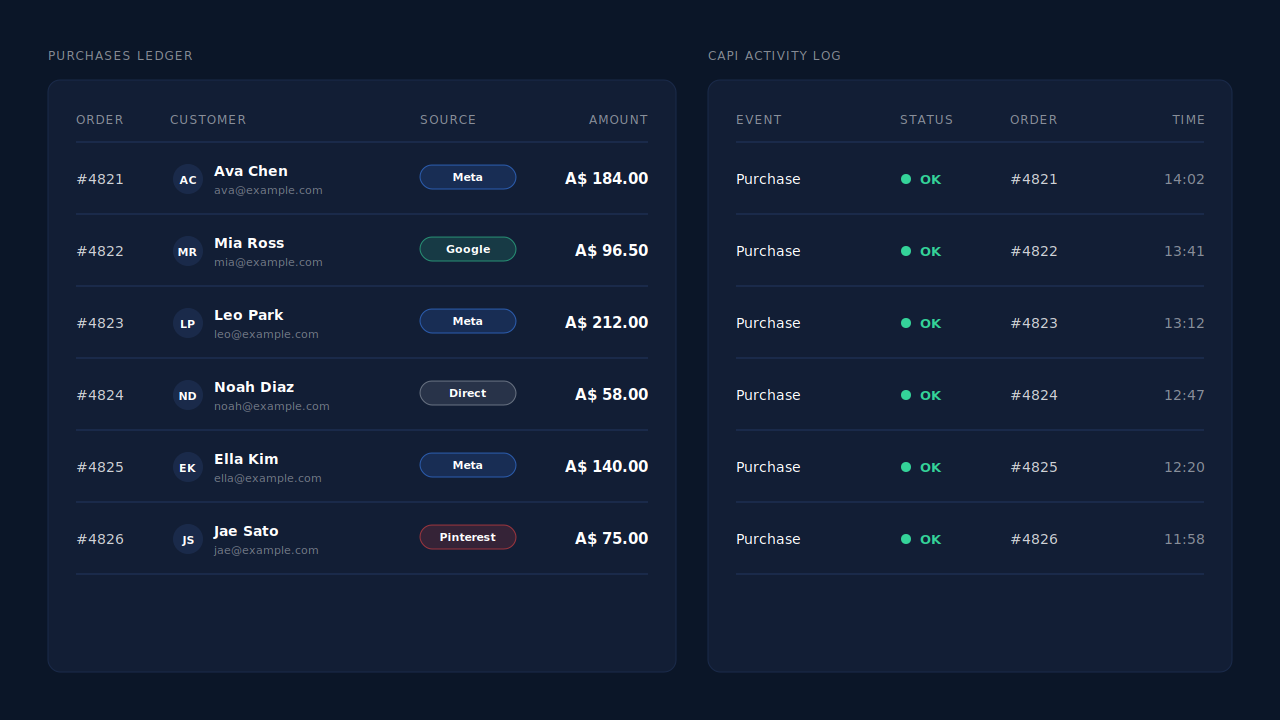
Where you see it working. The Purchases ledger lists every paid order PartialLeads recorded, matched or unmatched, so you can reconcile it against WooCommerce’s own order list for the outage dates. The CAPI activity log on the Meta CAPI page shows each Purchase send with its status and any error text. The Leads list’s API column shows which conversion APIs each lead was sent to.
The honest constraints. PartialLeads does not load a browser Meta Pixel, and Meta for WooCommerce may have been the thing setting the _fbp cookie. Keep a Meta base pixel on the site another way so server events keep that match signal; PartialLeads rebuilds _fbc from the fbclid but can’t create _fbp from nothing. Its event IDs are its own, so when Meta for WooCommerce comes back, switch off its Purchase and keep one source per event. PartialLeads can’t resend orders from before it was connected. And delivery is the half it controls: whether Meta ties each Purchase to an ad click depends on the identifiers captured and on Meta’s matching. A healthy Meta CAPI delivery rate tells you the sends are landing, not that every buyer matched.
| What breaks | The mechanism | Where you see it in the dashboard |
|---|---|---|
| Meta for WooCommerce disabled, Purchase stops | Server-side Purchase from the WooCommerce order webhook for every paid order | CAPI activity log, Purchases ledger |
| Browser pixel and funnel events go dark | PartialLeads Woo plugin forwards view product, add to cart, begin checkout server-side | CAPI activity log |
| Webhook redelivered or send retried | Order recorded once, deterministic event_id |
CAPI activity log, one row per event |
| Unsure which orders reached Meta during the outage | Every recorded paid order listed, per-lead dispatch shown | Purchases ledger, Leads-list API column |
| Meta for WooCommerce re-enabled and also sends Purchase | Not deduplicated across tools — keep one source per event | Events Manager senders vs the Leads-list API column |
Tell us what's broken. We'll fix your tracking — free.
Describe the tracking/attribution problem you're stuck on and we'll map it to a fix: server-side conversions to Meta, Google, TikTok and Pinterest, plus first-party tracking that survives Safari. No code required.
Sources
- https://developers.facebook.com/docs/marketing-api/conversions-api
- https://developers.facebook.com/docs/marketing-api/conversions-api/parameters/server-event
- https://developers.facebook.com/docs/marketing-api/conversions-api/deduplicate-pixel-and-server-events
- https://developers.facebook.com/docs/marketing-api/conversions-api/parameters/fbp-and-fbc
- https://developers.facebook.com/docs/marketing-api/conversions-api/using-the-api