Meta Purchase events usually stop after a Facebook for WooCommerce update because the update changed something the event depends on. The plugin fires Purchase when the order-received page loads. A reset connection, a missed thank-you page, a script clash or a regression stops it while orders keep arriving. Confirm the drop date, test an order, then move Purchase off the page.
The plugin, now published as Meta for WooCommerce, is still active. There’s no crash notice and no error on the storefront. Checkout works and customers get their confirmation emails.
The only symptom is in Ads Manager: purchases flatten the day after the update, and campaigns keep spending without knowing who bought. This guide covers why that happens, how to prove what changed, what to do about the update, and how to make Purchase tracking independent of any plugin release.
Why does the Purchase event depend on the order-received page?
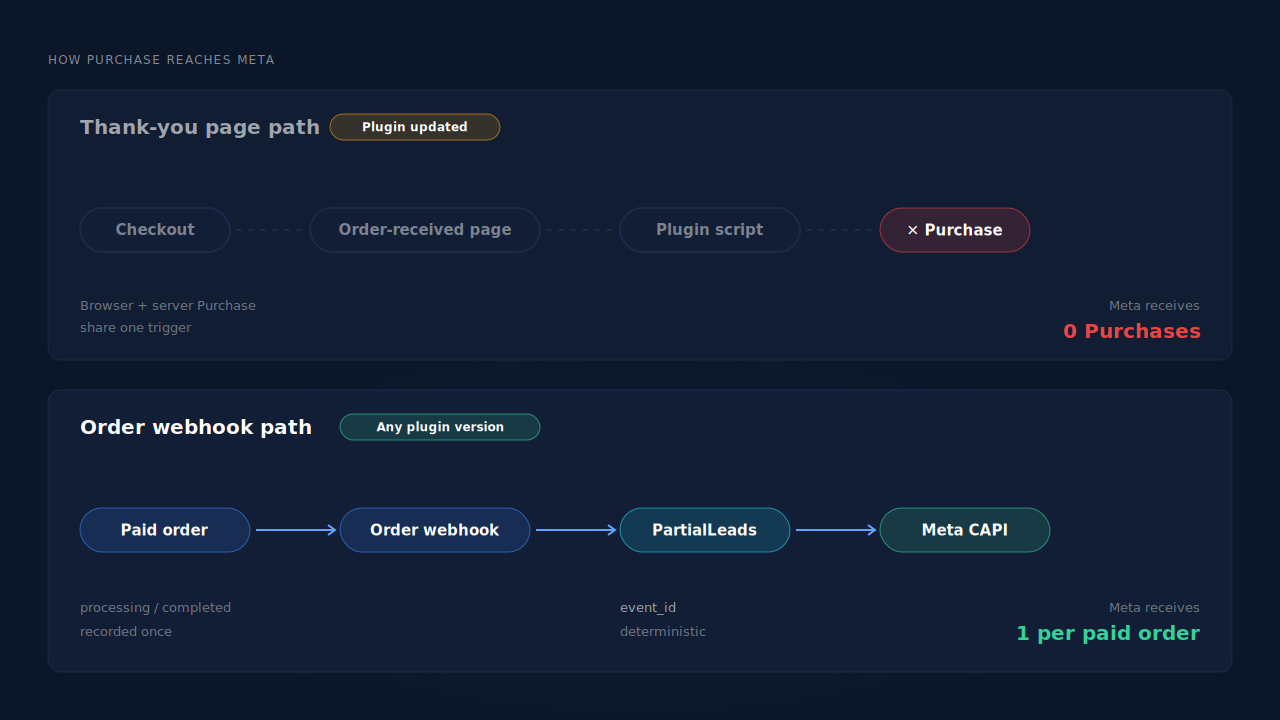
Because that page is where a browser-side Purchase gets its trigger. A storefront plugin typically fires Purchase when the customer lands on WooCommerce’s order-received (“thank you”) page, where the order total and items are available to read. If that page doesn’t load, doesn’t run the plugin’s code, or runs it with the wrong settings, no Purchase is sent. The order itself is unaffected.
That design has three weak points, and an update can touch any of them:
- The page has to load in the buyer’s browser. A shopper who closes the tab on a slow redirect from a payment gateway never reaches it.
- The plugin’s code has to run on that page. A new version can change which WooCommerce hook or page template it listens to.
- The plugin’s settings have to be intact. Pixel ID, access token and the Conversions API switch all have to survive the update.
Many setups also send a server event for Purchase through the Conversions API. When that server event is triggered from the same page load, it fails in the same moment. Two channels, one trigger.
What does a plugin update change that stops Purchase firing?
Usually one of four things: the Meta connection or its settings, the thank-you page path the plugin listens to, a script conflict that stops its code running, or a defect in the release itself. The first three are fixable on your side in minutes. The fourth needs a rollback until a fixed version ships.
Did the update reset the connection?
Open the plugin’s settings and check that the pixel ID and ad account are the ones you expect, and that the Conversions API connection is still on. A reconnect prompt, a blank field or a different pixel means events are either not sent or sent somewhere you’re not looking.
Does your store still use the standard thank-you page?
A custom thank-you page built with a page builder, a checkout plugin or a funnel tool may not run the hook the new version uses. The same goes for payment gateways that redirect buyers to their own confirmation screen. If Purchase stopped only for some payment methods, this is the likely cause.
Is another script breaking the page?
A JavaScript error earlier on the order-received page can stop later scripts running. Caching or optimisation plugins that defer, combine or delay scripts are frequent suspects after any update, because the new version’s files are different from the ones they were tuned for.
Is it the release itself?
If nothing else changed and the settings look right, check the plugin’s support forum and its public issue tracker for the version you installed. Post-update event loss is the kind of report that shows up there quickly, often with the exact version that introduced it.
How do you confirm exactly what stopped?
Line up three dates: when the update ran, when Purchase counts dropped in Events Manager, and when orders last produced a Purchase. If the drop starts on the update day while orders stay flat, the update is the cause. Then place one test order and watch which events arrive, from which source, in real time.
- Check the update date. WordPress shows the installed version; your host’s activity log or a backup timestamp usually shows when it changed.
- Open Events Manager’s Purchase event. Look at the daily count and split it by source. If browser and server both dropped, the trigger is gone. If only one dropped, that channel’s settings are the problem.
- Place a test order. Use Events Manager’s test tools so it doesn’t count as a real sale. Testing Meta CAPI without polluting live data walks through the setup.
- Open the browser console on the order-received page. A red error from the plugin’s script, or one just before it, points you to a conflict.
The point is to prove the update is the trigger before you start changing things. Rolling back a plugin that wasn’t the cause just adds a second change to untangle.
Should you roll back Facebook for WooCommerce?
Roll back when the settings are intact, no conflict shows up, and the drop lines up with the update. Install the previous version on a staging copy, place a test order, and confirm Purchase arrives. Then roll back production and pause automatic updates for that plugin until a fixed release is confirmed.
Speed matters here. Meta’s Conversions API only accepts events whose event_time is within the last seven days, so orders from a long gap can’t be sent later with their real time. The 7-day event time window in Meta CAPI explains that limit. Every day you wait, a day of orders falls out of range.
Two cautions. Test the rollback on staging first, because an older plugin version can clash with a newer WooCommerce or PHP version. And mark the gap in your reporting. A week with no purchases reads exactly like a week of failing ads, and nobody should cut budget on the strength of a tracking bug.
If the update didn’t just stop events but took the plugin down entirely, that’s a different problem: read the fatal error in your logs first, because a crashing plugin can take checkout down with it.
How do you stop a plugin update from silently killing purchases?
Send Purchase from the paid order, not from a page load. When the event is triggered by the WooCommerce order record, through a webhook fired as the order is paid, it doesn’t depend on a thank-you page, a template hook, a browser script or a storefront plugin’s version. Updates can change the storefront freely, and the conversion still goes out.
That’s the architecture laid out in the guide to tracking WooCommerce purchases server-side to Meta. The order is the source of truth, and the event is built from it.
Once two tools can send Purchase, pick one owner. Meta only merges a browser and a server event for the same order when both carry the same event ID, and two independent tools generate their own IDs. If Meta for WooCommerce keeps sending Purchase alongside a server-side sender, each order can count twice. Why Meta CAPI isn’t deduplicating shows how to spot that in Events Manager.
Then compare daily sent Purchases against paid orders every week. A silent regression is only silent if nobody reconciles.
How does PartialLeads keep Purchase flowing through Meta for WooCommerce updates?
PartialLeads sends Purchase server-side from WooCommerce order webhooks, so nothing fires on the thank-you page and no storefront plugin sits in the path. When an order reaches processing or completed, it’s recorded once and a Purchase goes to Meta through the Conversions API. A Meta for WooCommerce update can change its own events; it can’t touch this one.
Only paid orders are sent. Orders in pending, on-hold, failed or cancelled status are not sent. A bank-transfer or cash-on-delivery order goes out when it’s marked paid. The value is the full order total, including tax and shipping, after discounts. An order is recorded once, so a later edit to it doesn’t change the value or re-send the event.
Funnel events use a separate plugin. The PartialLeads WooCommerce plugin forwards view product, add to cart and begin checkout to Meta server-side. It’s a different plugin from Meta for WooCommerce, so an update to one doesn’t change the other.
Retries don’t double-count. Each send carries a deterministic event_id, so a redelivered webhook or a retried send can’t fire the same Purchase twice.
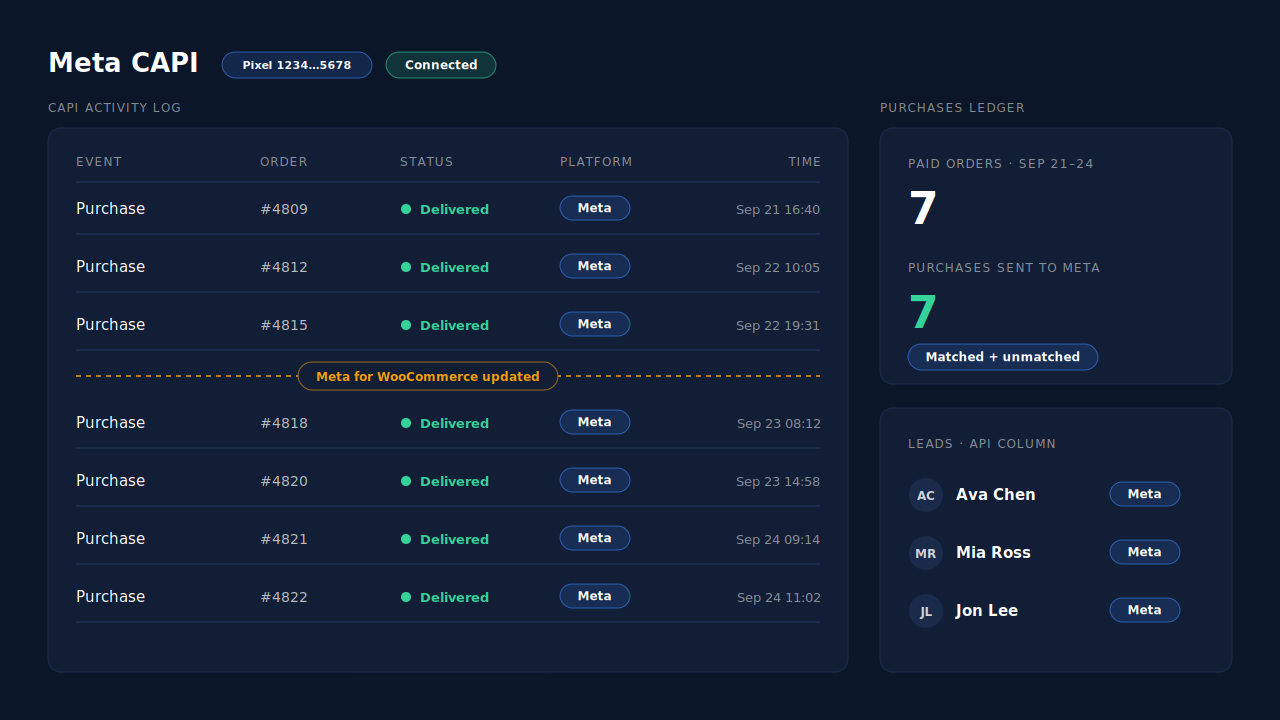
Where you see it working. The CAPI activity log on the Meta CAPI page lists each Purchase send with its status, time and any error text, so the days either side of an update sit next to each other. The Purchases ledger lists every paid order PartialLeads recorded, matched or unmatched, to reconcile against WooCommerce’s own order list. The Leads list’s API column shows which conversion APIs each buyer was sent to.
The honest constraints. PartialLeads doesn’t load a browser Meta Pixel, and Meta for WooCommerce may be what sets your _fbp cookie; keep a Meta base pixel on the site so server events keep that match signal. PartialLeads rebuilds _fbc from the fbclid but can’t create _fbp from nothing. It doesn’t alert you when another plugin stops sending, and it can’t resend orders from before it was connected. Its event IDs are its own, so switch off Purchase in Meta for WooCommerce and keep one source per event. Delivery is the half it controls; whether Meta ties each Purchase to an ad click depends on the identifiers captured and on Meta’s matching.
| What breaks | The mechanism | Where you see it in the dashboard |
|---|---|---|
| Plugin update stops Purchase on the thank-you page | Server-side Purchase from the WooCommerce order webhook for every paid order | CAPI activity log, Purchases ledger |
| Gateway redirect or custom thank-you page skips the event | Nothing fires on the thank-you page; the paid order triggers the send | Purchases ledger, one row per paid order |
| Unsure which orders reached Meta after the update | Every recorded paid order listed with per-lead dispatch | Purchases ledger, Leads-list API column |
| Webhook redelivered or send retried | Order recorded once, deterministic event_id |
CAPI activity log, one row per event |
| Meta for WooCommerce also still sends Purchase | Not deduplicated across tools — keep one source per event | Events Manager sources vs the Leads-list API column |
Tell us what's broken. We'll fix your tracking — free.
Describe the tracking/attribution problem you're stuck on and we'll map it to a fix: server-side conversions to Meta, Google, TikTok and Pinterest, plus first-party tracking that survives Safari. No code required.
Sources
- https://developers.facebook.com/docs/marketing-api/conversions-api
- https://developers.facebook.com/docs/marketing-api/conversions-api/parameters/server-event
- https://developers.facebook.com/docs/marketing-api/conversions-api/deduplicate-pixel-and-server-events
- https://developers.facebook.com/docs/marketing-api/conversions-api/parameters/fbp-and-fbc
- https://developers.facebook.com/docs/marketing-api/conversions-api/using-the-api