You know which products in your Shopping feed actually sell by joining your order history to the feed on the product ID, over a fixed window, and sorting every item into a bucket: sellers, slow movers, and items with zero sales. Your store knows what sold. Your ad platform knows what was shown and clicked. Neither one joins the two for you, so that join is your job.
Once every feed item carries a bucket, you write the bucket into a custom label. Then the campaign can bid hard on the sellers and stop spending on the rest.
Below: why the data sits in two places, what “sells” should mean, the manual method, how to turn it into labels, when not to exclude a product, and how often to redo it.
Why can’t you tell which products in your feed actually sell?
You can’t tell because the answer is split across two systems that don’t share a key by default. Shopify records orders and line items. Google Ads and Meta record impressions, clicks and the conversions they claim. The feed sits in the middle, and nothing in your stack lines up “sold 31 times” next to “feed item 4471” unless you build that join.
Each side looks complete on its own, which is why the problem is easy to miss:
- Your store’s sales report lists products by revenue, but it has no idea which of them are in the feed, which are excluded, or which are live in a campaign.
- Your ad platform’s product report lists items by clicks and cost, but it only counts the sales it can attribute, inside its own window, at the value it was sent.
- Your feed lists every item you’re advertising and says nothing about sales at all.
So a merchant with a long catalog ends up running Shopping on “all products” and hoping the algorithm figures it out. Sometimes it does. Often a handful of cheap, high-click items soak up the budget while your real sellers barely serve.
What should “actually sells” mean for a Shopping campaign?
“Actually sells” should mean units or revenue from real orders, per feed item, over a fixed window long enough to smooth out noise. Ninety days is a sensible default for most stores. Shorter windows swing on one busy week; longer ones keep crediting products that have since died.
Three decisions before you count anything:
- Store orders or ad-attributed orders? Store orders tell you what customers buy, whatever brought them in. Ad-attributed orders tell you what the campaign sells. Use store orders to decide what’s worth advertising, and the platform’s own product report to judge how the ads perform. They answer different questions, as the gap between Shopify attribution and ad platform numbers shows.
- Units or revenue? Revenue favours expensive items; units favour cheap ones. Pick the one that matches how you bid. If you bid on return on ad spend, bucket by revenue.
- Product or variant? Feeds are usually built one row per variant, while most sales reports group by product. Decide which grain your labels live at, and aggregate the other side to match.
Write these down. A label called “bestseller” means nothing six months later if nobody remembers what window or metric built it.
How do you find your sellers and non-sellers by hand?
Export both sides and join them on ID. Pull a sales-by-product report from Shopify for your window, pull the item list from your feed or Merchant Center, and match the two in a spreadsheet. Every feed item then has a sales figure, including zero, which is the number you can’t see anywhere else.
A workable sheet has five columns:
| Feed item ID | Product | Units (90d) | Revenue (90d) | Bucket |
|---|---|---|---|---|
| 4471-blue-m | Linen shirt | 31 | 1,860 | seller |
| 4471-blue-s | Linen shirt | 9 | 540 | slow |
| 5120 | Canvas tote | 0 | 0 | zero |
Illustrative numbers.
Set bucket rules that fit your catalog. One common split is: the items that together make up most of your revenue are sellers, anything with at least one sale is slow, and everything else is zero.
The fiddly part is the ID match. If your feed uses variant IDs and your sales report groups by product, sum the variants before you compare. If the IDs don’t match at all, fix that first, because the same mismatch also breaks catalog ads, as dynamic product ads showing zero catalog match explains.
How do you turn sales data into custom labels?
You turn sales data into custom labels by writing each item’s bucket into one of the feed’s custom label fields, then building your campaign’s product groups or listing groups on that label. Custom labels are free-text fields that exist only for your own segmentation. Customers never see them, and they don’t affect whether an item is approved.
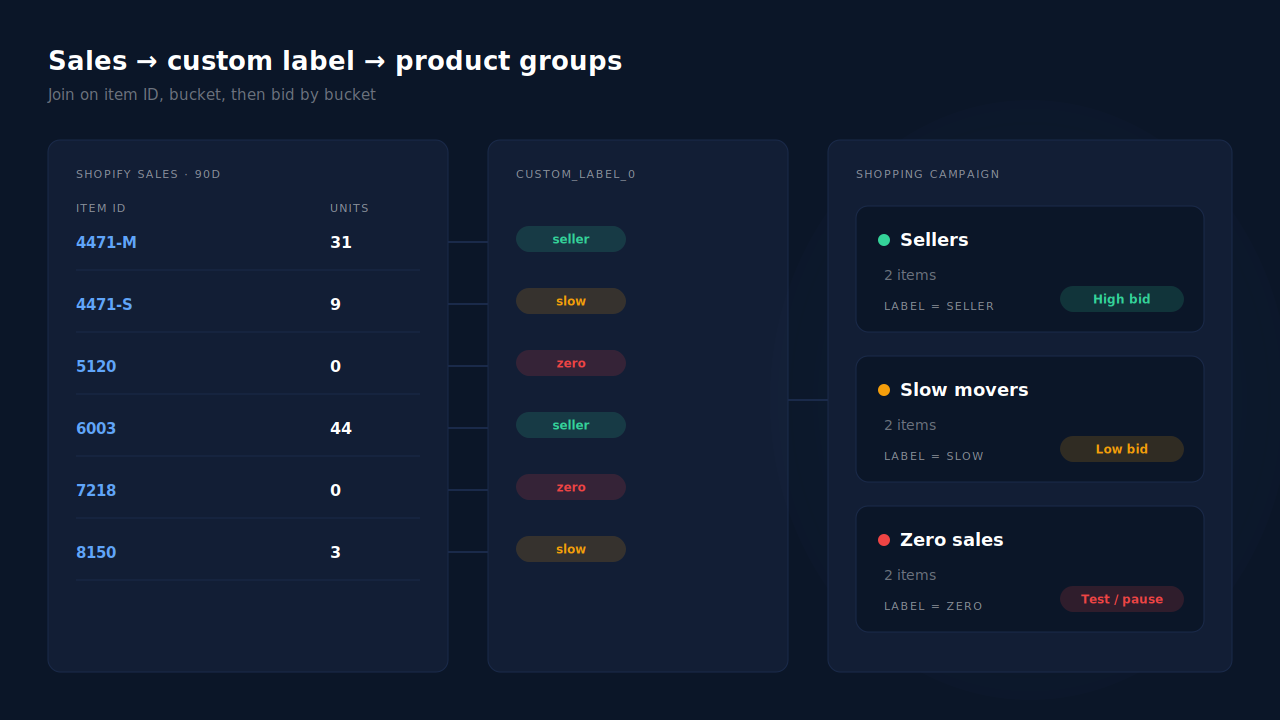
Merchant Center and Meta catalogs both offer five of these fields, custom_label_0 to custom_label_4. Meta’s catalog field reference lists them, and Meta’s product sets can filter on them for catalog ads.
Keep one label per job. A sensible layout:
custom_label_0= sales bucket (seller / slow / zero).custom_label_1= margin band, so a high-revenue item with thin margin doesn’t get the same bid as a fat-margin one.custom_label_2= season or launch date, so new products aren’t judged on a window they weren’t alive for.
To get the values into the feed without touching your store, add a supplemental feed keyed on item ID with just the ID and the label column. Most feed tools support that pattern, and it means your bucket sheet becomes the source.
Then split the campaign. Sellers get their own product group or campaign with the budget and bid they’ve earned. Slow movers stay in a lower-priority group. Zero-sale items get a decision, which is the next question.
Should you exclude products that never sell?
Not automatically. A zero-sale product either got traffic and didn’t convert, or it never got traffic at all. Those are different problems. Exclude the first kind; give the second kind a small, separate test before you judge it, because an item that was never shown hasn’t failed yet.
Check the ad platform’s product-level report for your zero bucket:
- Clicks but no sales: the ad works, the product page or price doesn’t. Excluding it saves money. Fixing the page might save the product.
- Impressions but no clicks: usually image, title or price against competitors. That’s a feed and merchandising fix.
- No impressions at all: it never entered the auction in any meaningful way. Put it in a low-budget test group for a few weeks before excluding it.
Also check the zero bucket for feed problems. An item with no image or identifier may be rejected or limited, and it will sit at zero sales for reasons unrelated to demand. The guide to checking whether your product feed will be rejected walks through those checks.
How often should you refresh the labels?
Refresh the sales labels on a fixed schedule, weekly for most stores and more often during peaks and launches. Labels go stale in both directions: a seller that sold out keeps pulling budget, and a new product that took off stays stuck in the “zero” bucket until someone reruns the sheet.
Two habits keep it honest. Rerun the same window and the same rules every time, so buckets move because sales moved, not because the method did. And keep feed freshness separate from label freshness: prices and stock should update continuously, as the pillar on keeping your product catalog feed in sync with ad platforms covers, while labels can move on a weekly clock.
How does PartialLeads show which feed items actually sell?
PartialLeads shows product-level sales next to the feed itself. On a Shopify store, the Product Catalog page lists your top products, how many products sold, and which products are not selling, over a 90-day window, built from the order line items PartialLeads records. The same page holds the hosted feed URL you give Merchant Center and Meta, so the sales view sits right next to the feed it describes.
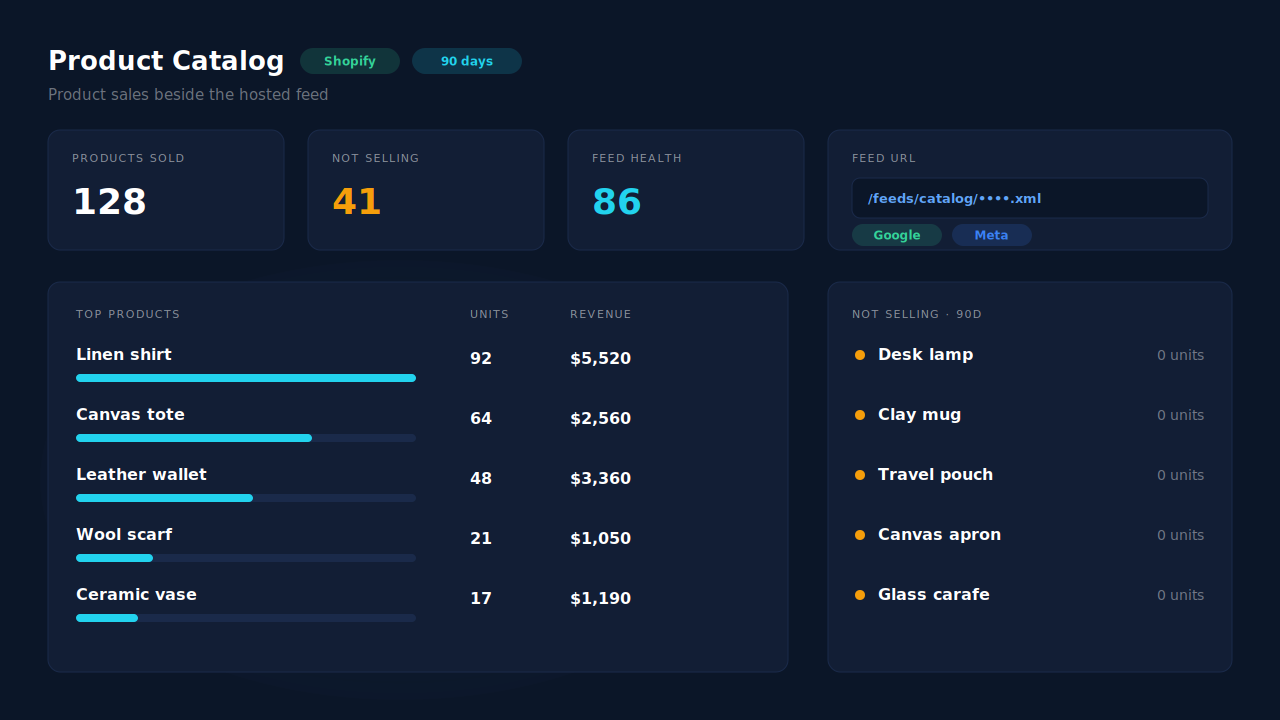
Where the data comes from. PartialLeads records one row per order line when orders arrive from Shopify. That’s the join you’d otherwise build in a spreadsheet: orders on one side, catalog products on the other. If an order payload arrives in an unexpected shape, the panel falls back to store-wide sales totals.
What you do with it. Read the top products and not-selling lists, set your buckets, and apply them as custom labels in Merchant Center or through a supplemental feed. Applying the labels, and deciding what to exclude, is your step. The feed itself is one hosted URL that both Merchant Center and Meta Commerce Manager can fetch on a schedule. Setting it up needs a Shopify custom-app Admin API token, and catalog sync is optional and separate from conversion tracking.
The honest constraints. The window is 90 days, fixed. The product sales view is Shopify-only; WooCommerce stores get the feed but not this panel or the feed-health scoring. Sales are store-wide, from every channel, so the panel tells you what customers buy, not what your Shopping ads sold. Use the ad platform’s product report for that. And the feed-health checks next to it test whether fields are present, not whether they’re valid, so they can’t predict a Merchant Center disapproval.
| What breaks | The mechanism | Where you see it in the dashboard |
|---|---|---|
| You can’t see which feed items sell | Order line items recorded per product, over a 90-day window | Product Catalog, top products and products sold |
| Budget spent on items that never sell | A not-selling list built from the same line items | Product Catalog, not selling |
| Zero-sale items are really rejected items | Presence checks for image, identifier, stock, type and description (Shopify only) | Product Catalog, feed-health panel |
| An odd order payload skews product figures | Falls back to store-wide sales totals | Product Catalog, sales top-line |
For how the catalog, tracking and attribution fit together on one store, see how to fix Shopify tracking, attribution and catalog in one place.
Tell us what's broken. We'll fix your tracking — free.
Describe the tracking/attribution problem you're stuck on and we'll map it to a fix: server-side conversions to Meta, Google, TikTok and Pinterest, plus first-party tracking that survives Safari. No code required.
Sources
- https://developers.facebook.com/docs/commerce-platform/catalog/fields
- https://developers.facebook.com/docs/marketing-api/catalog/guides/product-sets
- https://developers.facebook.com/docs/marketing-api/catalog