Merchant Center says your Shopify products have “limited performance due to missing identifiers” because they reach Google without the fields Google uses to recognise a product: a GTIN (the number under a barcode), an MPN (manufacturer part number), or a brand. The products aren’t banned. They still serve, but Google can’t match them to a known product, so they get less reach than they could.
The fix is a decision per product, not one global setting. Products with a real barcode get that barcode. Your own goods get your shop name as brand. Genuinely unbarcoded items get marked as having no identifier. What you never do is make a barcode up.
Below: what the warning means, what each identifier is, why the warning survives after you “fixed” it, how to decide per product, and how to find every affected item before Google does.
What does “limited performance due to missing identifiers” actually mean?
It means Google accepted the product but can’t place it. Google Shopping works by recognising that your listing is the same product other sellers list, so it can show it for the right searches and compare offers. Identifiers are how it does that. With none, the item is treated as an unknown thing with a title and a photo, and it competes at a disadvantage.
Two things are worth separating early, because merchants mix them up:
- Limited, not disapproved. A disapproved item doesn’t serve at all. A limited item serves, just not as widely. That’s why the warning sits in diagnostics for weeks without anyone panicking, and why it quietly costs you impressions the whole time.
- Missing, not wrong. This warning is about identifiers that are absent. A GTIN that’s present but invalid is a different problem with a different message. Don’t chase one when you have the other.
If you want the full picture of which feed problems reject an item and which only downrank it, the guide to checking whether your product feed will be rejected splits them into those two classes. Missing identifiers sit on the downrank side unless the item has nothing at all.
Which identifiers does Google want: GTIN, MPN or brand?
Google wants whichever identifiers your product really has. A GTIN if it was manufactured with a barcode. A brand for almost everything. An MPN when the maker assigns part numbers. There’s no single required trio. The rule is: send what exists, and say explicitly when something doesn’t.
Here’s what each one is, in plain terms:
- GTIN (Global Trade Item Number). The number printed under a retail barcode: UPC in North America, EAN in Europe, ISBN for books. It’s assigned by the manufacturer through GS1, the standards body that issues barcode numbers. If you resell a product made by someone else, it almost certainly has one on the box.
- MPN (Manufacturer Part Number). The maker’s own code for the item. Useful for parts, electronics and anything sold by model number.
- Brand. The name the product is sold under. For resold goods, the maker’s brand. For goods you make yourself, your own shop or label name.
In Shopify, the barcode lives on each variant, in the field labelled for barcodes such as ISBN, UPC or GTIN. Brand usually comes from the product’s Vendor field, but that depends on which app or feed builds your Google feed, so open the feed itself and check what lands in the brand column. Meta catalogs use the same three fields, which Meta’s catalog field reference lists alongside the rest of the feed schema.
Why does the warning stay after you mark products as custom?
It usually stays because the fix didn’t reach the feed Google actually reads, or it reached it at the wrong grain. You changed a setting in one place; Merchant Center is still processing rows from another. The common causes are few, and each takes minutes to check once you know to look.
1. Two data sources, one fixed. Many stores send products to Merchant Center through a sales-channel app and a separate feed file or supplemental feed. You set the flag in one; the other still sends the item without it. Look at the item in Merchant Center and check which data source each attribute came from.
2. Product-level fix, variant-level feed. Shopify feeds are usually built one row per variant. If you set a value on the product but the feed reads it per variant, some or all variants go out unchanged. A shirt in four sizes is four items to Google, and four rows to fix.
3. Brand still empty. Marking an item as having no GTIN doesn’t fill in the brand. If your Vendor field is blank, or holds a supplier name you don’t want shown, the item can still read as unidentified. For your own goods, set brand to your shop name.
4. The flag is on items that do have a barcode. Telling Google a product has no identifiers when it’s a manufactured item with a GTIN is its own problem, and it’s the one resellers hit most. The “custom product” setting is for things that genuinely have no barcode, not a switch to make warnings go away.
5. You haven’t waited for a reprocess. Merchant Center re-evaluates items when it next fetches and processes your data. Diagnostics trail the fix. Check the feed file first; if the fix is there, the warning is just late.
The quickest test for all five: open the actual feed URL or file Google fetches, find one affected variant, and read its gtin, mpn, brand and identifier_exists values. What’s in that row is what Google sees. Everything else is a setting that may or may not have reached it.
How do you fix missing identifiers product by product?
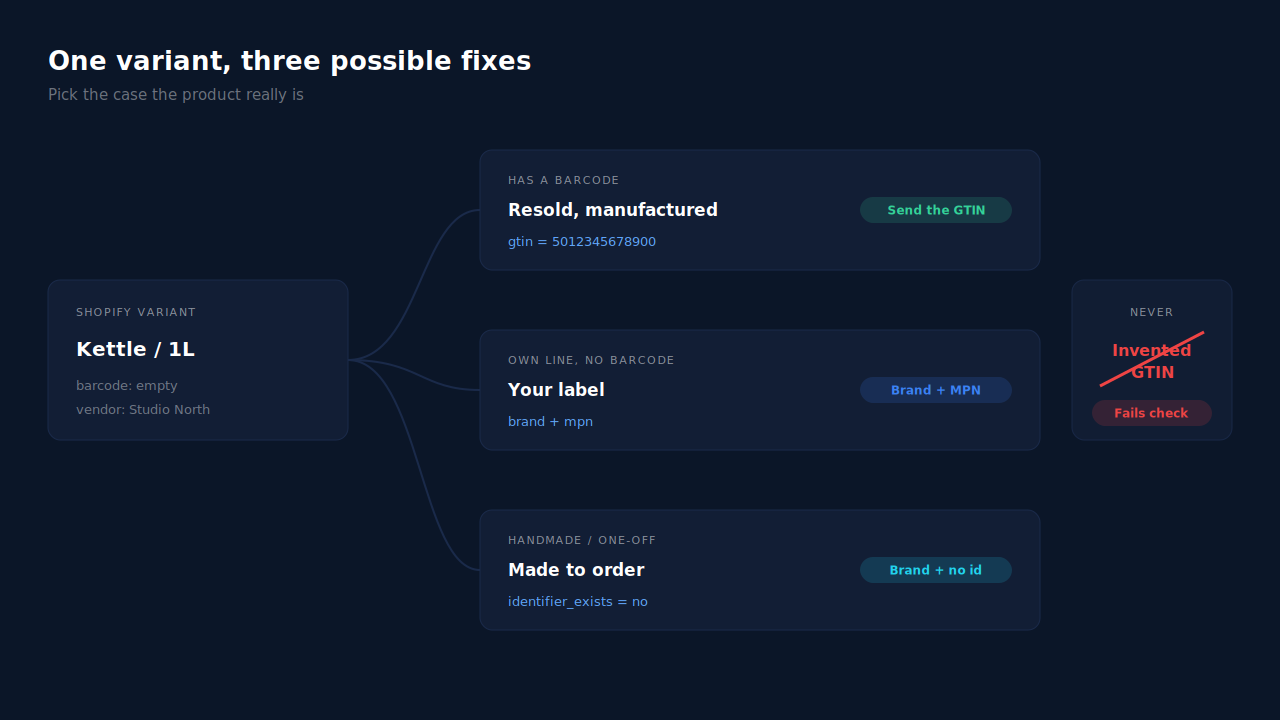
Sort every product into one of three cases and apply the matching fix. Manufactured goods with a barcode get their real GTIN. Your own products without a barcode get your brand, plus an MPN if you genuinely assign part numbers. One-off, handmade or custom goods get your brand and identifier_exists set to no. Don’t apply one answer to the whole store.
| Product type | What to send | What not to do |
|---|---|---|
| Resold, manufactured, has a barcode | Real GTIN from the packaging, plus brand | Mark it as custom to silence the warning |
| Your own line, no barcode | Brand = your label; MPN only if you assign part numbers | Put your SKU in the GTIN field |
| Handmade, one-of-a-kind, made to order | Brand = your shop name; identifier_exists = no |
Buy or invent barcodes just for Google |
A worked example. A ceramics shop sells two things: hand-thrown mugs made in its own studio, and a branded pour-over kettle it resells. The mugs are case three: brand is the studio’s name, identifier_exists is no, done. The kettle is case one: the barcode is on the box, and it goes into the variant’s barcode field. Marking the kettle as custom would be the wrong fix, even though it clears the same warning in the short term.
For resellers, ask the supplier for a GTIN list before touching the feed. Suppliers almost always have one, and it’s the fastest way to fix a large catalog in one pass.
Should you buy barcodes or make them up?
Don’t make them up, ever. A GTIN isn’t a random number: the last digit is a check digit calculated from the others, and the number is meant to be registered to the company that owns the product. An invented one either fails the check or collides with someone else’s product. Both are worse than sending none.
Buying barcodes only makes sense if you need them anyway, for example to sell through retailers or marketplaces that require them. If Google Shopping is the only reason, handmade and own-label goods are exactly what the “no identifier” route exists for. Buy from GS1 directly if you do buy, so the numbers are registered to you rather than to whoever sold them on.
How does PartialLeads show which Shopify products are missing identifiers?
On a Shopify store, the PartialLeads Product Catalog page includes a feed-health panel that counts the variants missing identifiers, before you submit anything. It flags items with no identifier at all (no GTIN, no MPN and no brand) as rejection-class, and items missing only a GTIN as a quality warning. It also shows a Google-ready share: variants that have an image and at least one identifier.
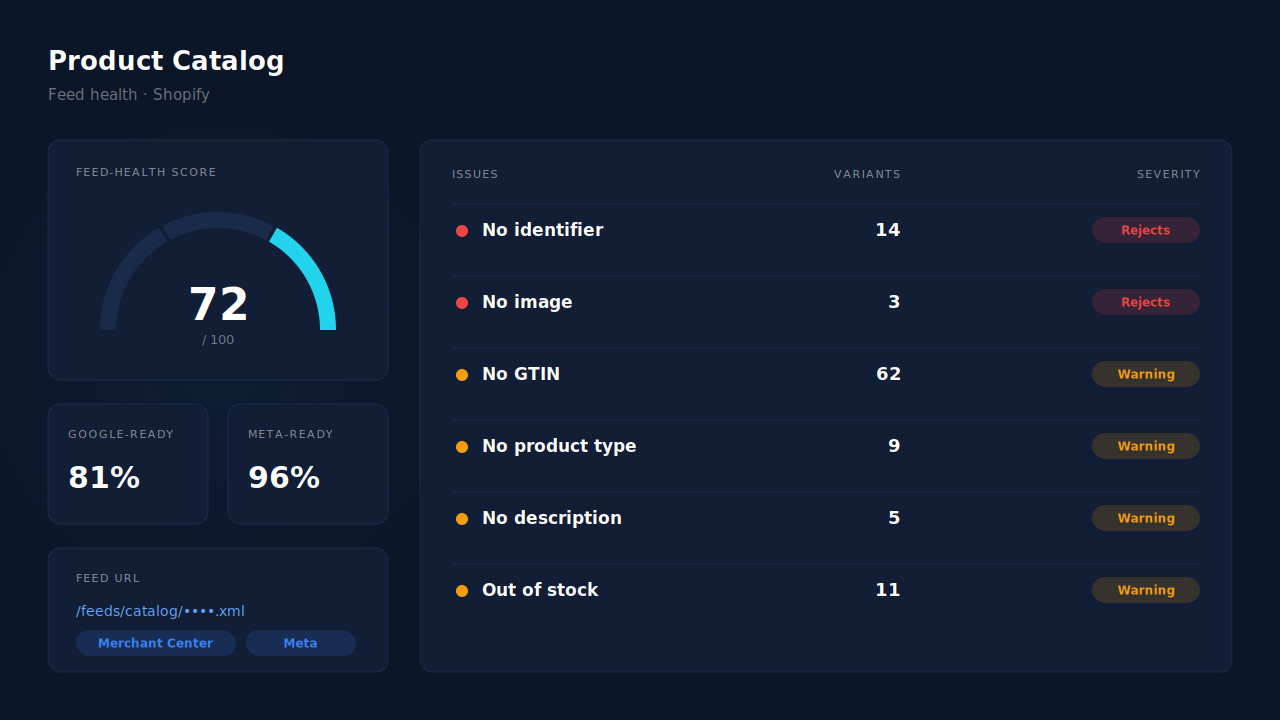
What that gives you. A work queue. The “no identifier” count is the list to fix first, because those items have nothing Google can use. The “no GTIN” count is the list to sort into the three cases above: some need a barcode, most handmade items need nothing more. Counts are per variant, which is the same grain Google sees, so a product with four sizes shows up as four.
Where the feed comes from. The panel sits beside a hosted feed URL that both Google Merchant Center and Meta Commerce Manager can fetch on a schedule, built from your Shopify catalog through a custom-app Admin API token. Catalog sync is optional and separate from conversion tracking. How often that feed refreshes, and why the gap matters, is covered in the pillar on keeping your product catalog feed in sync with ad platforms. Consistent product IDs between the feed and your events are covered in why dynamic product ads show zero catalog match.
The honest constraints. The panel checks whether identifier fields are present, not whether they’re valid. It doesn’t verify a GTIN’s check digit, doesn’t know whether a product truly lacks a barcode, and can’t tell you whether Merchant Center will still warn. An item with a brand but no GTIN counts as Google-ready in the panel and can still carry Google’s warning. The panel is Shopify-only; WooCommerce stores get the feed URL but no health scoring. Deciding which case each product falls into, and filling in real barcodes, stays your job.
| What breaks | The mechanism | Where you see it in the dashboard |
|---|---|---|
| Items reach Google with no GTIN, MPN or brand | Presence check per variant, marked rejection-class | Product Catalog, feed-health panel (“No identifier”) |
| Barcoded products sent without their GTIN | Separate presence check for GTIN, marked as a warning | Product Catalog, feed-health panel (“No GTIN”) |
| Feed looks fine for Meta but not for Google | Google-ready (image + an identifier) and Meta-ready (image) counted separately | Product Catalog, readiness shares |
| Fixes land in one source but not the one Google reads | One hosted feed URL for Merchant Center and Meta | Product Catalog, feed URL |
For how catalog, tracking and attribution fit together on one store, see how to fix Shopify tracking, attribution and catalog in one place.
Tell us what's broken. We'll fix your tracking — free.
Describe the tracking/attribution problem you're stuck on and we'll map it to a fix: server-side conversions to Meta, Google, TikTok and Pinterest, plus first-party tracking that survives Safari. No code required.
Sources
- https://developers.facebook.com/docs/commerce-platform/catalog/fields
- https://developers.facebook.com/docs/marketing-api/catalog
- https://developers.facebook.com/docs/marketing-api/catalog/reference