A pixel plugin breaks Stripe checkout on WooCommerce when its code runs inside the checkout request or the checkout page’s JavaScript. Stray output from a PHP hook corrupts the reply WooCommerce expects after Place order. A script error, or a handler that returns the wrong value, stops Stripe’s own code. The pixel itself isn’t the fault. Where it runs is.
The symptom usually shows up the day after an install or an update. A shopper fills in the checkout, enters a card, clicks Place order, and gets “There was an error processing your order.” Sometimes the spinner never stops. Sometimes the order appears in WooCommerce as Pending payment or Failed with no charge in Stripe.
This guide covers the three ways tracking code gets in the way, how to prove which plugin did it, and how to track purchases without putting anything in the payment path.
How does a tracking plugin get in the way of a Stripe payment?
A tracking plugin gets in the way by running code at the two moments WooCommerce’s checkout depends on: the JavaScript that runs when the shopper clicks Place order, and the server request that creates the order and returns a JSON reply. Anything that throws an error, prints extra text or changes the order of events at either moment can stop the payment.
Here’s what happens on a classic WooCommerce checkout with the official Stripe gateway when everything works:
- The click. WooCommerce’s checkout script triggers a
checkout_place_orderevent, then a gateway-specific one,checkout_place_order_stripe. - Stripe’s turn. The Stripe gateway’s handler collects the card details from the Stripe payment form and returns
false, which tells WooCommerce “I’ll take it from here.” - The order request. The form is posted to WooCommerce’s checkout endpoint, which creates the order and replies with JSON: a
resultand aredirect. - Confirmation. If the bank wants 3D Secure, the reply sends the shopper back to the checkout with a
#wc-stripe-confirm-hash, and Stripe’s script opens the authentication step.
A tracking plugin can break steps 1, 3 and 4. It almost never touches step 2 directly. It just stops it from running properly.
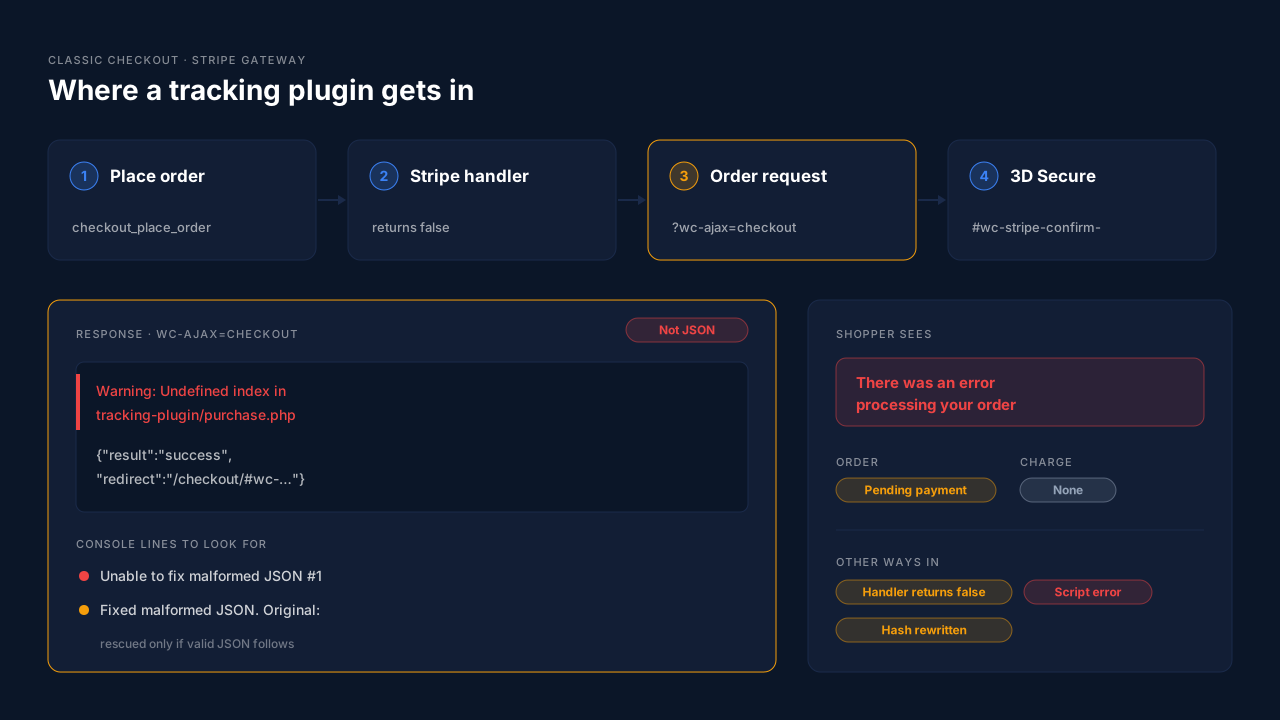
Stray output corrupts the checkout reply
This is the most common pattern. WooCommerce expects the checkout request to return clean JSON. If a plugin hooked into order creation prints anything first, such as a PHP warning, a debug line or a script tag meant for the thank-you page, the reply is no longer valid JSON.
WooCommerce tries to rescue it. Its checkout script searches the reply for a block starting {"result and, if it finds valid JSON there, logs “Fixed malformed JSON. Original:” to the console and carries on. If it can’t, it logs “Unable to fix malformed JSON #1” (or #2), and the shopper sees WooCommerce’s generic message: “There was an error processing your order. Please check for any charges in your payment method and review your order history before placing the order again.”
A script error or a wrong return value stops the click
WooCommerce only posts the order if no handler on those two events returns exactly false. The Stripe gateway’s own test suite spells out why the return value matters: “core submits the form unless a checkout_place_order_* handler returns exactly false. Returning early without false lets the form POST with no payment method, which creates an order and then fails it.”
So a tracking script that listens to the same events can cause two different failures. If it returns false itself, the order is never submitted and the button appears to do nothing. If it throws an error before Stripe’s handler runs, the payment details may never be prepared, which matches the “order created, then failed, no charge” pattern.
The 3D Secure step never opens
Stripe’s classic checkout script watches for a URL hash starting #wc-stripe-confirm- to open the bank’s authentication step. A script that reloads the page or rewrites the URL at the wrong moment can stop that step from opening, and the order stays unpaid. This is rarer than the first two, but it fits when only cards that need 3D Secure fail.
How do you prove the pixel plugin is the cause?
Prove it on a staging copy with Stripe in test mode. Place a test order with the browser’s developer tools open, read the console and the checkout request’s response, then deactivate the tracking plugin and place the same order again. If the error disappears with the plugin off and comes back with it on, you have your cause.
Work through it in this order:
- Open the console before you click Place order. Look for the WooCommerce lines above (“Unable to fix malformed JSON”, “Fixed malformed JSON. Original:”) and for red errors that name a tracking plugin’s script file.
- Read the checkout response. In the Network tab, find the request to
?wc-ajax=checkoutand open its response. Clean JSON starts with{"result". Anything before that, such as a script tag, a PHP notice or a blank line of output, came from a hook. - Check the server logs. Turn on WordPress debug logging and check WooCommerce > Status > Logs. A PHP error that fires during order creation will name the file it came from.
- Test with a card that needs 3D Secure. Stripe’s test mode has cards that force authentication. If those fail and plain test cards pass, look at the hash and reload behaviour above.
- Switch one plugin off at a time. Deactivate the tracking plugin and retest. If checkout works, reactivate it and switch off its individual features, such as purchase tracking, checkout events or “fire on order received”, to narrow it to one setting.
Don’t test on your live store with real cards. A broken checkout that half-works can create unpaid orders, and the failed orders it leaves behind can still trigger a Purchase in setups that fire on order creation. Meta counting unpaid or cancelled WooCommerce orders as purchases is a close cousin of this problem.
How do you fix it once you’ve found the plugin?
Fix it by taking the tracking plugin out of the payment step. Update it first, since the conflict may already be fixed in a newer release. If an update doesn’t help, switch off the plugin feature that hooks into order creation or the checkout button, report the console and response output to its developer, and send purchases from somewhere that runs after payment.
In practice you have three options, from quickest to most durable:
- Update both plugins. Update the tracking plugin and the Stripe gateway. Retest on staging before you assume the conflict is gone.
- Switch off the feature, not the plugin. Many tracking plugins let you disable checkout-page or purchase events separately. Keep page views and add-to-cart, and stop the part that touches checkout.
- Move the Purchase off the checkout entirely. A Purchase sent from the order record after payment doesn’t need any code in the checkout request or on the thank-you page. That’s the approach in tracking WooCommerce purchases server-side to Meta.
The third option also fixes a quieter problem. Tracking that depends on the thank-you page misses buyers who never get there, which is the subject of why some Stripe orders go missing from WooCommerce conversion tracking.
Why does it matter that tracking stays out of checkout?
It matters because checkout is the one page where a tracking bug costs you sales, not just data. A broken pixel on a blog post loses an event. A broken pixel in checkout loses the order, and the shopper may not come back. Tracking code belongs where it can only observe, not anywhere it can stop a payment.
There’s a second cost. When a payment fails, many setups still record the attempt. You end up with fewer real orders and a Conversions API or pixel feed that reports checkouts that never paid. Your ads optimise toward shoppers who never paid, while the real problem sits in the browser console.
How does PartialLeads track WooCommerce purchases without changing the checkout?
PartialLeads doesn’t change the WooCommerce checkout. Its plugin listens for cart and checkout-page events in the browser, fires nothing on the thank-you page, and records the purchase from WooCommerce’s order webhook after payment. Only paid orders, with status processing or completed, are sent. The Purchase never depends on code running during the payment step.
What the plugin does on the page. It sends view product, add to cart and begin checkout from its browser script, and forwards them server-side to Meta, Pinterest and TikTok. The add-to-cart listener observes requests. It doesn’t modify them. Google doesn’t receive these funnel events.
Where the Purchase comes from. WooCommerce sends the order to PartialLeads through its webhook. PartialLeads matches it to the shopper’s earlier sessions and sends the Purchase with the full order total. Pending, on-hold, failed and cancelled orders are not sent, so a payment that failed at checkout never becomes a conversion.
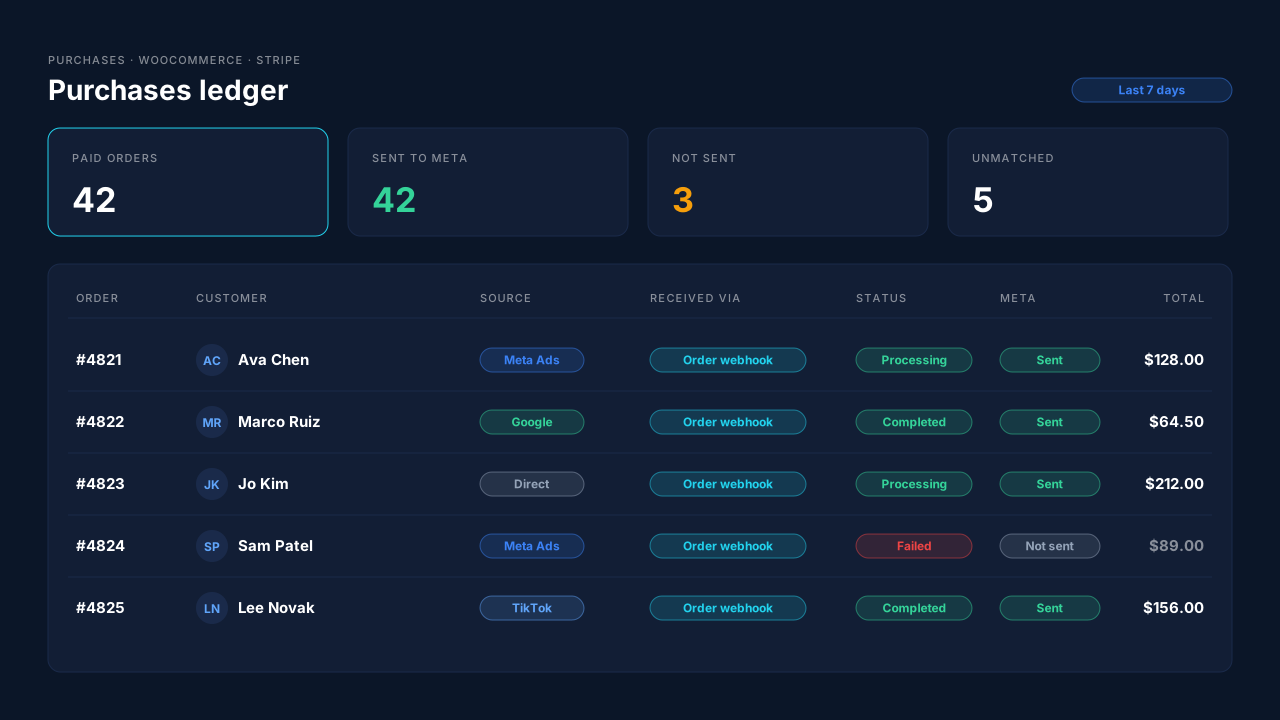
Where you see it working. The Purchases ledger lists each paid order with its source and match. Compare its count against your paid WooCommerce orders for the same day. They should line up.
The honest constraints. The plugin still loads a script on the checkout page to send begin checkout, so if you suspect a conflict, run the same deactivate-and-retest check on it. It also doesn’t deduplicate against another tracking plugin. If you keep an old pixel plugin’s Purchase event switched on, Meta counts both. Choose one source for each event.
| What breaks | The mechanism | Where you see it in the dashboard |
|---|---|---|
| Hook output corrupts the checkout JSON | Purchase comes from the order webhook, no code in the checkout request | Purchases ledger |
| A script stops Stripe’s Place order handler | Add-to-cart listener observes requests, doesn’t modify them | Meta CAPI activity, funnel events |
| Failed payments still count as purchases | Only processing and completed orders are sent | Purchases ledger, paid orders only |
| Thank-you page never loads after 3D Secure | Nothing fires on the thank-you page | Purchases ledger vs WooCommerce paid orders |
| Old plugin and new tool both send Purchase | Own event ids, no cross-tool dedup, keep one source | Meta CAPI activity vs Events Manager |
Tell us what's broken. We'll fix your tracking — free.
Describe the tracking/attribution problem you're stuck on and we'll map it to a fix: server-side conversions to Meta, Google, TikTok and Pinterest, plus first-party tracking that survives Safari. No code required.
Sources
- https://github.com/woocommerce/woocommerce/blob/trunk/plugins/woocommerce/client/legacy/js/frontend/checkout.js
- https://github.com/woocommerce/woocommerce/blob/trunk/plugins/woocommerce/includes/class-wc-frontend-scripts.php
- https://github.com/woocommerce/woocommerce-gateway-stripe/blob/develop/client/classic/upe/init.js
- https://github.com/woocommerce/woocommerce-gateway-stripe/blob/develop/client/classic/upe/__tests__/deferred-intent.test.js