To see which Google Ads campaign led to each Shopify order, you have to put the campaign into the ad’s landing URL, store it when the shopper arrives, and join each paid order back to that stored visit. Google Ads reports conversions per campaign but never lists which order each one was, and Shopify lists orders but can’t read a campaign out of a Google click ID.
So the answer is a join, not a report you haven’t found yet. Two systems each hold half the story, and nothing connects them by default.
Below: why the two reports never meet, the URL setup that fixes it, the join itself, and where it still breaks.
Why can’t Google Ads or Shopify show the campaign per order?
Because each one only holds half of the record. Google Ads knows the click and the campaign, and receives a conversion back, but reports it as a count and a value per campaign, not as an order list. Shopify knows the order and the buyer, but only sees what the landing URL told it. If that URL carried a click ID and no campaign, Shopify has nothing readable to show.
Google Ads’ auto-tagging adds a gclid to every ad click. That identifier is opaque by design. It means something inside Google Ads, which uses it to credit the right campaign, and nothing anywhere else. Your store sees a long random string, not “Brand Search” or “PMax Summer Sale”.
Shopify’s order page can show a short summary of the visits it saw before an order. That summary is only as good as the URL of the landing visit. When the shopper arrived with a gclid and no UTM parameters, Shopify can tell you the visit came from Google at best, and often files it as Direct or an unknown source when the visit and the order didn’t stay connected. Why Shopify attribution differs from your ad platforms covers the model differences behind that.
The result is two true reports that can’t be joined:
- Google Ads: “Campaign A, 18 conversions, $2,340.”
- Shopify: “Order #1042, $129, source: Google” or “Direct”.
Nothing says order #1042 was one of Campaign A’s 18.
How do you get the campaign name into the visit?
Add UTM parameters to every Google Ads final URL, using Google’s ValueTrack placeholders so they fill themselves in at click time. The simplest place is the Final URL suffix at account level, so every campaign inherits it. Google then appends your parameters, plus its own gclid, to each landing URL, and the campaign arrives in a field any tool can read.
A suffix that works for most stores:
utm_source=google&utm_medium=cpc&utm_campaign={campaignid}&utm_content={adgroupid}&utm_term={keyword}
{campaignid}, {adgroupid} and {keyword} are ValueTrack parameters. Google swaps each one for the real value when the ad is clicked, so a shopper lands on a URL like:
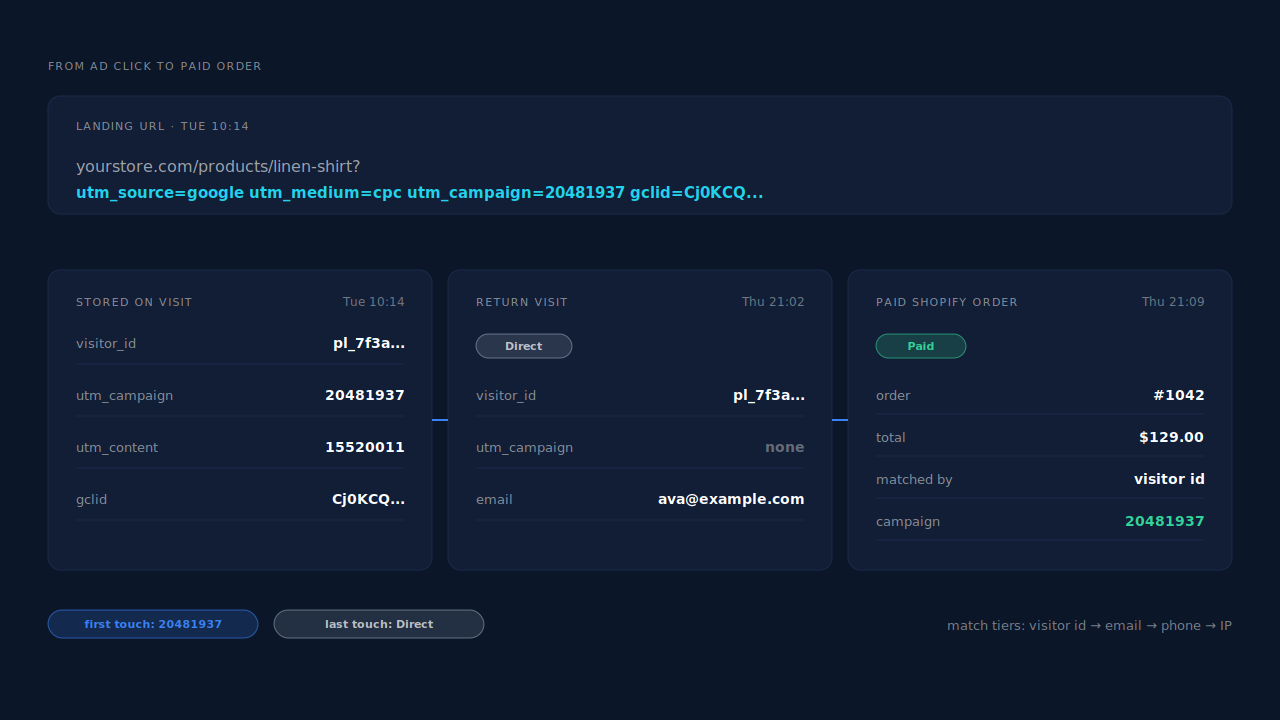
https://yourstore.com/products/linen-shirt?utm_source=google&utm_medium=cpc&utm_campaign=20481937&utm_content=15520011&utm_term=linen+shirt&gclid=Cj0KCQ...
Three details decide whether this holds up.
IDs, not names. {campaignid} gives you a number. That number is stable when someone renames a campaign, which makes it the safer key. Match it to names with the campaign ID column in Google Ads. If you want readable names in your reports, set utm_campaign by hand in each campaign’s own Final URL suffix, which overrides the account-level one, and check Google’s ValueTrack reference for what your account supports.
Keep auto-tagging on. UTMs name the campaign for you; the gclid is what Google needs to credit a conversion back to the click. You want both on the URL.
Test the landing URL. Redirects, geo-routing apps and some theme links drop query strings before the page loads. Click a live ad, or use the ad preview, and confirm the parameters survive to the page the shopper actually sees. Why gclid goes missing on landing pages lists the usual culprits; the same ones strip UTMs.
How do you join the order back to the campaign?
Store the UTMs on the visitor when they land, keep them through checkout, and look them up when the order arrives. The order has an email, sometimes a phone, and the browser it was placed in. Match on those to the visitor who landed with the campaign, and copy that visit’s campaign onto the order. That is the whole trick, and it is where most setups break.
The landing page and the order are rarely the same visit. A typical path:
- Tuesday: the shopper clicks a Performance Max ad on their phone. The URL carries
utm_campaign=20481937. - They browse two products and leave.
- Thursday: they type your store name into the browser, return, and buy.
Thursday’s visit has no UTMs at all. If you only read the order’s own session, the order is Direct. To credit the campaign you need Tuesday’s visit, which means you need something that ties Tuesday’s visitor to Thursday’s buyer: the same browser ID, or the email they entered at checkout matched to an email they gave you earlier.
Checkout itself is another break. Shopify’s checkout runs in its own environment, and the session can split at that hop, so the order can look like a fresh visit even within one sitting. Why attribution breaks between your landing page and Shopify checkout explains that split.
You can do a rough version of this yourself with a spreadsheet: export orders with customer emails, export form signups or email captures that stored UTMs, and match on email. It works for buyers who gave you their email before buying. It misses everyone who didn’t, and it has to be redone every week.
What should you look at once each order has a campaign?
Look at campaigns by paid orders and revenue, then check first touch against last touch before moving budget. Once each order carries a campaign, you can group revenue by campaign in your own numbers instead of trusting a platform’s count. The first-touch view shows which campaign started buyers; the last-touch view shows which one closed them.
The two often disagree, and the disagreement is useful. A brand search campaign tends to look strong on last touch, because shoppers who already know you search your name before buying. A prospecting or Performance Max campaign can look weak on last touch but strong on first touch, because it found people who bought later through another route.
Three reads to do every week:
- Revenue per campaign, first touch vs last touch. Big gaps tell you which campaigns open journeys and which close them.
- Orders with no campaign. If a large share of Google-sourced orders has no campaign, your URL setup is leaking.
- Your count vs Google’s count. Google Ads uses its own attribution model and conversion window, so the totals won’t match exactly. A persistent gap in one direction is worth investigating.
How to read an attribution report goes deeper on reading those models without fooling yourself.
How does PartialLeads show the campaign behind each Shopify order?
It stores the campaign on the visit and carries it to the order. The PartialLeads tag reads UTMs and Google click IDs from the landing URL. When Shopify reports a paid order, PartialLeads matches it to the visitor by visitor ID, then email, then phone, then IP, and writes a first-touch and a last-touch attribution row with that visitor’s source, medium and campaign. The guide to attributing ecommerce revenue to the ad click covers the full pipeline.
The order comes from Shopify, not from a thank-you page. Paid orders arrive through Shopify’s order webhooks, so a closed tab or a blocked script after payment doesn’t lose the order. Only orders Shopify marks paid are recorded as purchases.
The campaign survives the return visit. Sessions from the same person are stitched into one identity, so Thursday’s Direct buyer inherits Tuesday’s campaign as first touch. When the checkout visit itself loses its source, a sibling session from the same visit can pass its UTMs and click IDs to it.
Where you see it working.
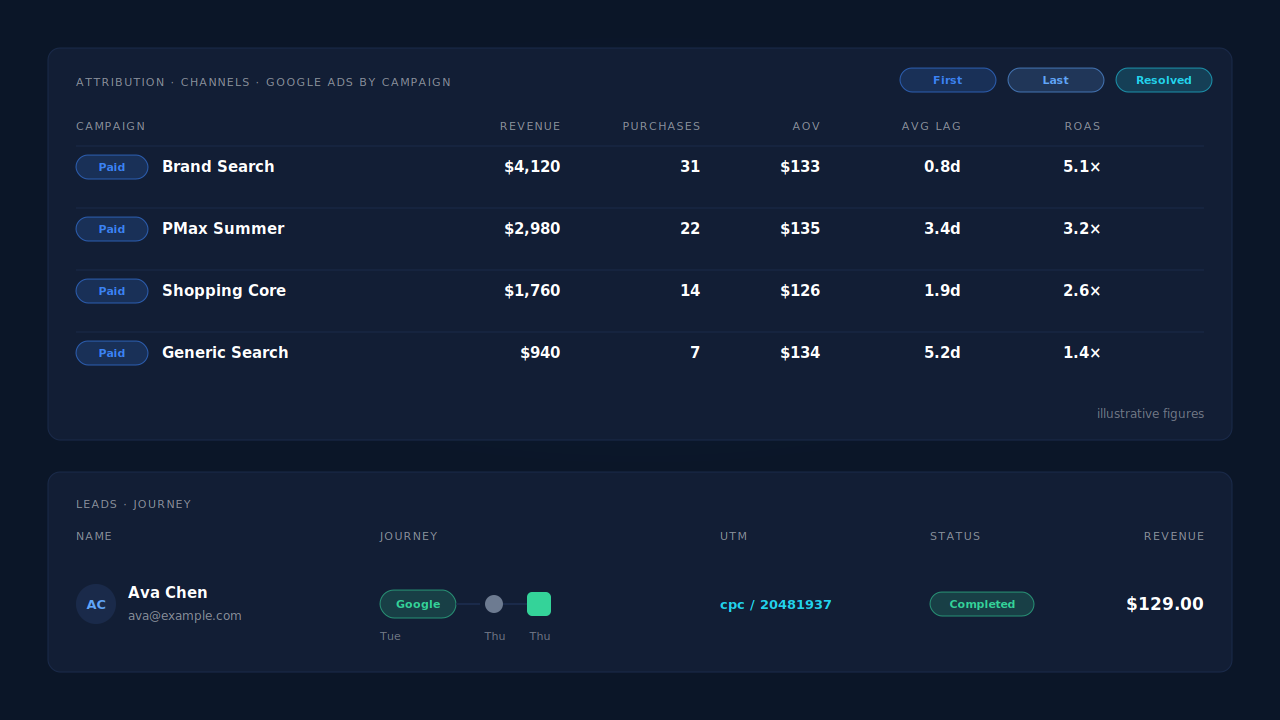
- Attribution report, grouped by campaign. First touch and last touch sit side by side, and you can group by source, medium, campaign, content or term. In the Channels table, Google Ads expands to its campaigns with revenue, purchases and ROAS.
- Leads list. Each buyer’s row shows the UTM column, the Journey ribbon (for example, Google, then Direct, then the purchase) and the Revenue column, so you can read one order’s campaign without opening anything.
- Purchases ledger. Every paid order PartialLeads recorded, matched or unmatched, so you can reconcile against Shopify’s order list.
The same paid order also goes back to the ad platforms server-side: a row in your Google Sheet for Google Ads to import, and a Purchase through Meta’s Conversions API if you run Meta too.
The honest constraints.
- The campaign must be on the URL. PartialLeads has no Google Ads API connection, so a
gclidalone won’t name the campaign. Add the Final URL suffix above. - Campaign IDs show as IDs unless you set readable
utm_campaignvalues yourself. - Matching is maximized, not guaranteed. A buyer who switched devices and gave you no email before checkout can’t always be tied to the click.
- PartialLeads doesn’t write tags back into Shopify. The campaign per order lives in the PartialLeads dashboard, not on Shopify’s order page.
- It starts at install. Visits before the tag was installed weren’t captured.
| What breaks | The mechanism | Where you see it in the dashboard |
|---|---|---|
| Ad URL carries a gclid but no readable campaign | UTMs with ValueTrack campaign ID read from the landing URL and stored on the visit | Leads list, UTM column |
| Buyer returns days later as Direct | Sessions stitched into one identity; first touch keeps the campaign | Attribution report, first vs last touch |
| Checkout session loses its source | Order matched by visitor ID, email, phone or IP; sibling session passes its UTMs | Leads list Journey ribbon |
| Thank-you page script never runs | Paid orders taken from Shopify’s order webhooks | Purchases ledger, matched vs unmatched |
| Google Ads shows counts, not orders | Revenue and purchases grouped by campaign from your own orders | Attribution report, Channels table by campaign |
Tell us what's broken. We'll fix your tracking — free.
Describe the tracking/attribution problem you're stuck on and we'll map it to a fix: server-side conversions to Meta, Google, TikTok and Pinterest, plus first-party tracking that survives Safari. No code required.