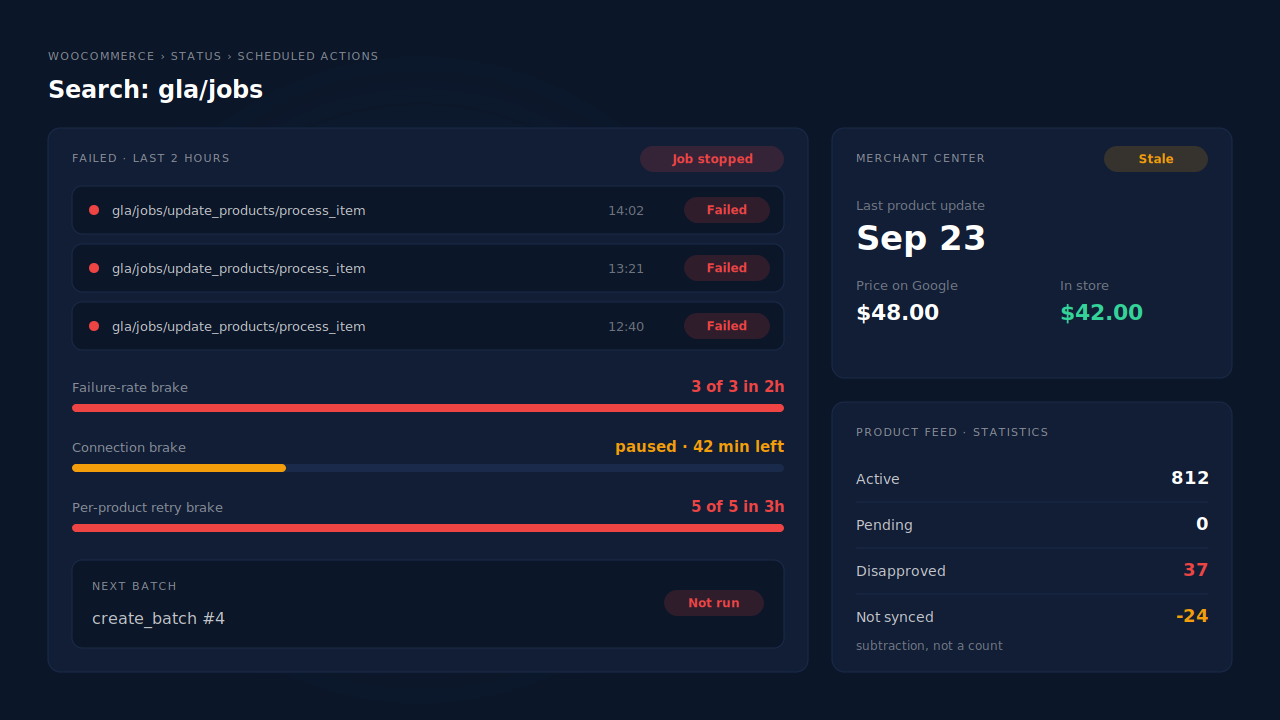
Google for WooCommerce product sync keeps pausing or failing because every product update runs as a background job on your own server, and the plugin has three brakes that stop those jobs. A job that fails three times in two hours stops retrying. A rejected WordPress.com connection pauses all syncing for an hour. A product that fails five times in three hours stops retrying.
When any brake trips, Merchant Center keeps the last data it received. Prices, stock and new products stop updating, and nothing on your storefront tells you.
Google for WooCommerce was previously called Google Listings & Ads, and its code still uses that name. Everything below comes from the plugin’s source code on GitHub (version 3.9.4), so you can check each step yourself.
How does Google for WooCommerce send products to Merchant Center?
It pushes them from your store in background jobs. When you save, create, trash or restore a product, the plugin hooks into WooCommerce and schedules an update or delete job in Action Scheduler, the job queue WooCommerce ships with. A full sync works through your catalog in batches of 100 products by default.
Each batched job runs as a chain of two kinds of action in Scheduled Actions:
- A
create_batchaction picks the next 100 products and schedules the batch. - A
process_itemaction sends that batch to Google.
The hooks are named after the job, so a full sync shows up as gla/jobs/update_all_products/create_batch and gla/jobs/update_all_products/process_item. Single product edits run as gla/jobs/update_products/process_item.
Two things follow from this design. First, nothing reaches Google unless your server runs those actions, so a slow or stalled WP-Cron means a slow feed. Second, a sync only starts when WooCommerce’s product hooks fire. Tools that write stock or prices straight to the database, skipping WooCommerce’s product save, can change your store without ever queuing a sync.
What makes the sync pause or stop?
Three separate brakes, each with its own trigger and scope. One stops a specific job after repeated failures. One pauses everything when Google’s side rejects your site’s connection. One gives up on a single product. They look alike from the outside, because in all three cases Merchant Center simply stops changing.
The job failure-rate brake
Before a job action runs, the plugin counts how many actions with the same hook and arguments have failed in the last two hours. At three, it refuses to run and throws: “The “…” job was stopped because its failure rate is above the allowed threshold.” On the Product Feed page, the product statistics card can show “The scheduled job has been paused due to a high failure rate.”
Timeouts feed this brake. If PHP kills a job with a “Maximum execution time” error, the plugin reschedules it straight away, but only until the failure count hits the threshold. A host that times out every run burns through three attempts quickly.
The connection brake
Every request to Google goes through a WordPress.com proxy, signed with your site’s Jetpack connection. If that proxy rejects the token, the plugin pauses syncing for one hour, then tries a single probe. A request that succeeds ends the pause early.
Syncing is also blocked outright in three cases: Merchant Center isn’t connected, the WordPress.com connection has no owner user, or the site URL no longer matches the URL you claimed in Merchant Center. Changing your domain, or moving from staging to live, can trip that last check. The error reads: “Google Merchant Center has not been set up correctly. Please review your configuration.”
The per-product retry brake
When Google returns an internal error for a product, the plugin retries it. After five failed attempts within a three-hour window, it stops retrying that product. Products with data errors are marked “has errors” and wait for you to fix the product.
Why is the “not synced” count negative?
Because it’s a subtraction, not a count. When the plugin refreshes product statuses, it takes the number of published products in your store and subtracts the number of products Merchant Center reported statuses for. If Merchant Center still holds products your store no longer counts as published, such as items you moved to draft, the result drops below zero.
A negative number is a symptom, not the fault. It usually means the status data and the product list have drifted apart, often because the jobs that would reconcile them have stopped. Fix the stalled jobs first, then let the status refresh run again.
How do you find out which brake tripped?
Open WooCommerce → Status → Scheduled Actions and search for gla/jobs. Check the Failed tab first, then open a failed row’s log. If nothing has failed but nothing is running either, the connection brake or a stalled WP-Cron is the likelier cause.
| What you see | What it means | Where to start |
|---|---|---|
| “job was stopped because its failure rate is above the allowed threshold” | Same job failed 3 times in 2 hours | The first failed row’s log |
| “Maximum execution time” in failed rows | Batches time out on your host | PHP time limit, real cron |
| “has not been set up correctly” | Not connected, no connection owner, or URL mismatch | Plugin connection, claimed URL |
| No gla/jobs rows at all for hours | Connection pause or WP-Cron not running | WordPress.com connection, cron |
| Products marked “has errors” | Data problem on specific products | Product Feed issues list |
How do you get the sync running again?
Fix the cause the log names, then give the jobs room to finish. The failure-rate brake resets itself as old failures age out of the two-hour window, so a fix plus patience restarts most syncs. What doesn’t work is clicking resync repeatedly on a host that can’t finish a batch.
Give the jobs a real clock. Run WP-Cron from a server cron instead of waiting for site visits, and ask your host for a longer PHP execution time on background requests. Developers can shrink batches with the woocommerce_gla_batched_job_size filter so each request does less.
Repair the connection. Reconnect the WordPress.com account from the plugin’s settings with an admin user, and make sure the site URL matches the URL claimed in Merchant Center.
Check how products change. If stock or prices come from an importer or ERP, confirm it saves through WooCommerce so the product hooks fire. Otherwise Google only learns about changes on the next full sync.
Keep products from expiring. Merchant Center products expire if they aren’t resubmitted. The plugin runs a job every 24 hours that resubmits products within three days of expiring. If jobs are stalled, that one stalls too, which is how a sync problem turns into products vanishing from Shopping ads.
Or stop pushing and let Google pull. A hosted feed URL flips the direction. You add it to Merchant Center as a data source with a scheduled fetch, and Google downloads it. Your store never has to finish per-product jobs for Merchant Center to be current. The guide to keeping your product catalog feed in sync with ad platforms explains why a live source beats periodic pushes.
If you switch, give Merchant Center one source per product. Two sources submitting the same items can create duplicate offers. Before you do, it’s worth running your data through the checks in how to tell whether your product feed will be rejected.
How does PartialLeads take product sync jobs off your WooCommerce store?
The PartialLeads WooCommerce plugin pushes your catalog to PartialLeads, and PartialLeads serves it as one hosted feed URL. You add that URL to Merchant Center as a scheduled fetch, and Google pulls it. There are no per-product sync jobs racing a failure threshold on your store. PartialLeads produces the feed; you add it in Merchant Center.
Switched on per store. Catalog push is optional and separate from conversion tracking. You turn it on for each WooCommerce store, and tracking works without it.
One row per variant. The catalog is stored one row per variant, the grain Merchant Center uses. Rows not seen in a completed sync are swept, and only active items render. Each row’s g:id is the variant ID and g:item_group_id the product ID. That’s the same variant ID PartialLeads sends in its server-side ecommerce events, which is what catalog ads need, as why your dynamic product ads show zero catalog match explains.
Your store’s own price. The WooCommerce feed uses the price stored in WooCommerce, so tax treatment follows your store’s settings. Where an item has no GTIN, MPN or brand, the feed sets g:identifier_exists to no.
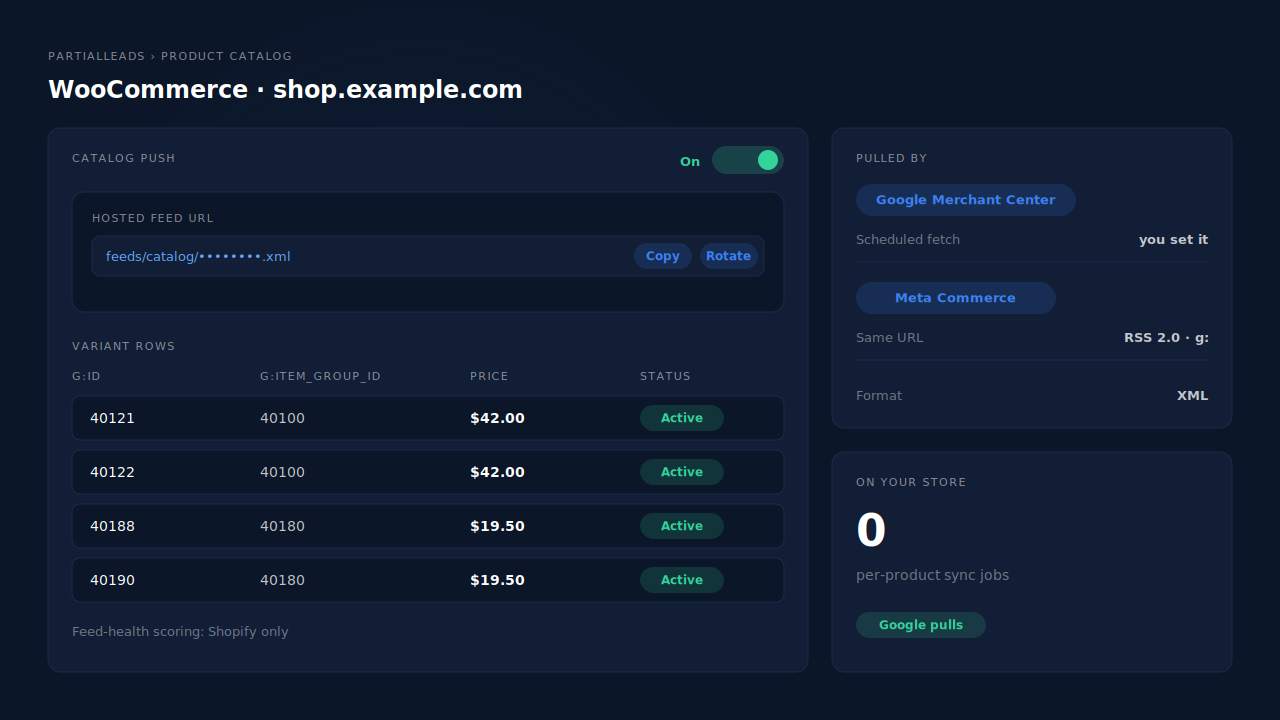
Where you see it working. Open Product Catalog in the dashboard and copy the feed URL. It’s one RSS 2.0 XML URL with Google’s g: namespace, so the same link also works in Meta Commerce Manager. The URL carries an unguessable token, and you can rotate it.
The honest constraints. WooCommerce stores get the feed, not the feed-health scoring: that panel is Shopify-only. PartialLeads doesn’t validate your products against Merchant Center’s rules, so Merchant Center’s own diagnostics stay your check for disapproved items. It doesn’t set Google’s fetch schedule; you choose that in Merchant Center. And it doesn’t deduplicate against another plugin. If you also run a Meta pixel from another plugin, keep one source per event, as the guide to tracking WooCommerce purchases server-side to Meta explains.
| What breaks | The mechanism | Where you see it in the dashboard |
|---|---|---|
| Sync jobs hit the failure threshold and stop | Catalog pushed to PartialLeads; Merchant Center fetches one hosted feed URL | Product Catalog, feed URL |
| Connection pause leaves Merchant Center stale | Google pulls the feed on its own schedule; no per-product pushes from the store | Product Catalog, feed URL |
| Drafted or deleted variants linger | Rows not seen in a completed sync are swept; only active items render | Product Catalog feed rows |
| Items missing GTIN, MPN and brand | Feed sets g:identifier_exists to no |
Product Catalog feed rows |
| Catalog IDs don’t match event IDs | g:id is the variant ID, the same ID sent in ecommerce events |
Event payloads in the CAPI activity log |
Tell us what's broken. We'll fix your tracking — free.
Describe the tracking/attribution problem you're stuck on and we'll map it to a fix: server-side conversions to Meta, Google, TikTok and Pinterest, plus first-party tracking that survives Safari. No code required.
Sources
- https://github.com/woocommerce/google-listings-and-ads/blob/c86d46e79f47feeb4e41eb8a5a1d1ffb1645e30d/src/Jobs/AbstractBatchedActionSchedulerJob.php
- https://github.com/woocommerce/google-listings-and-ads/blob/c86d46e79f47feeb4e41eb8a5a1d1ffb1645e30d/src/Jobs/ActionSchedulerJobMonitor.php
- https://github.com/woocommerce/google-listings-and-ads/blob/c86d46e79f47feeb4e41eb8a5a1d1ffb1645e30d/src/Jobs/JobException.php
- https://github.com/woocommerce/google-listings-and-ads/blob/c86d46e79f47feeb4e41eb8a5a1d1ffb1645e30d/src/API/Google/JetpackAuthCircuitBreaker.php
- https://github.com/woocommerce/google-listings-and-ads/blob/c86d46e79f47feeb4e41eb8a5a1d1ffb1645e30d/src/MerchantCenter/MerchantCenterService.php
- https://github.com/woocommerce/google-listings-and-ads/blob/c86d46e79f47feeb4e41eb8a5a1d1ffb1645e30d/src/MerchantCenter/MerchantStatuses.php
- https://github.com/woocommerce/google-listings-and-ads/blob/c86d46e79f47feeb4e41eb8a5a1d1ffb1645e30d/src/Product/ProductSyncer.php
- https://github.com/woocommerce/google-listings-and-ads/blob/c86d46e79f47feeb4e41eb8a5a1d1ffb1645e30d/src/Product/SyncerHooks.php
- https://github.com/woocommerce/google-listings-and-ads/blob/c86d46e79f47feeb4e41eb8a5a1d1ffb1645e30d/src/Product/ProductRepository.php
- https://github.com/woocommerce/google-listings-and-ads/blob/c86d46e79f47feeb4e41eb8a5a1d1ffb1645e30d/src/Jobs/ResubmitExpiringProducts.php