Google Ads rejects the row because the conversion time you uploaded is earlier than the time Google recorded the click. It will not accept a conversion that appears to precede its own cause. Almost always the conversion did happen after the click, and the timestamp is what is wrong — a missing time-zone offset, a spreadsheet that reformatted the cell, or a clock running fast.
So this is a data-formatting bug wearing the costume of a logic error. Here is how to find the clock that lied.
What does “conversion time precedes click time” actually mean?
Google records a timestamp for every click it issues a click ID for. When you upload an offline conversion, it looks up that stored click time and compares it to the conversion time on your row. If yours is earlier, the row is refused. The check runs per row, not per file.
That last part matters. A file of 400 conversions can import 380 rows and reject 20, and those 20 are usually the rows where the gap between click and conversion was smallest — the ones a time-zone shift could push over the line.
The error is also honest about what Google can see. It is not claiming your conversion is fake. It is saying the two timestamps it has been handed are in an impossible order, and it will not guess which one to trust.
Why do time zones cause a rejection when the times look right?
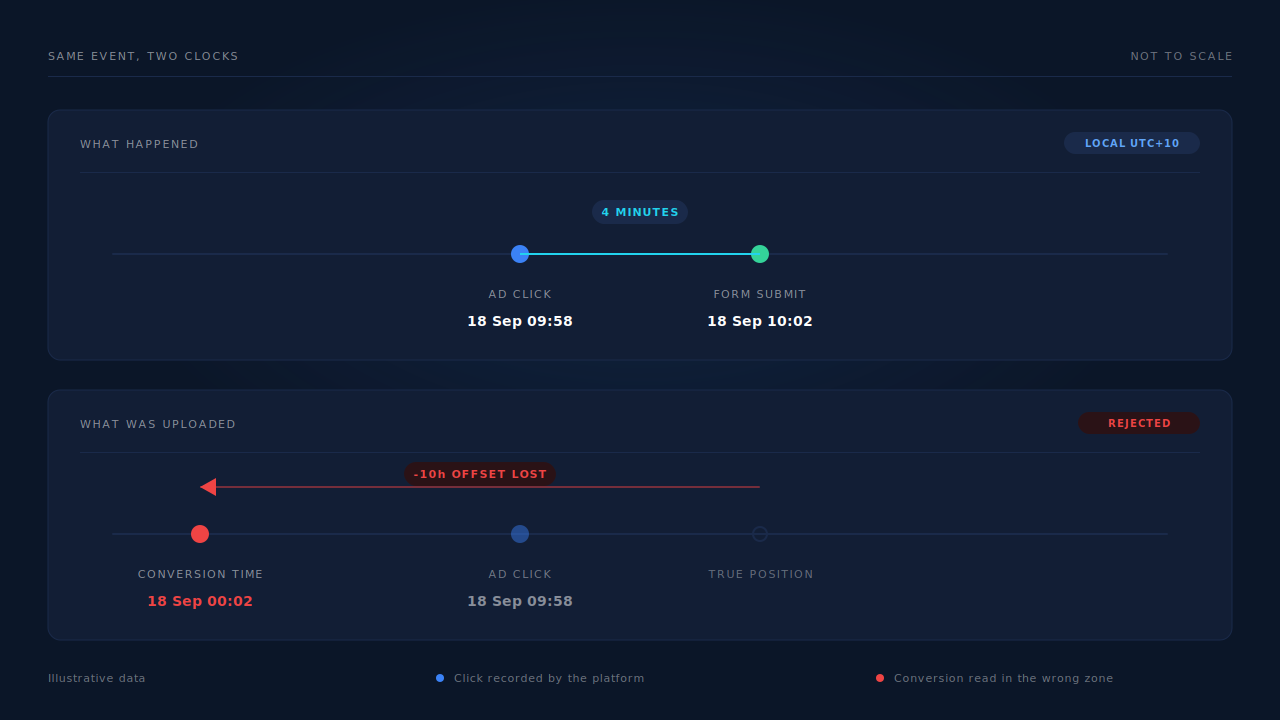
Because a timestamp with no offset attached is not a moment in time — it is a moment in someone’s time zone, and the reader has to guess which. Your CRM may export UTC while your Google Ads account runs on Australian Eastern Time. Ten hours of drift is enough to move a conversion behind the click that caused it.
Picture a lead that converts on the same visit. The click lands at 09:58 local. The form is submitted at 10:02 local — four minutes of gap. Your database stores that submission in UTC as 23:02 the previous day. Upload that number with no offset, and Google reads it as 23:02 local, roughly eleven hours before the click. Rejected.
Now picture the identical bug on an ecommerce order placed six days after the click. The same eleven-hour shift still leaves the conversion comfortably after the click, so the row imports. No error, no rejection, and a conversion time that is wrong by eleven hours sitting in your account forever. The rejection you are annoyed about is the version of this bug that had the decency to announce itself.
Three shapes this takes in practice:
- A bare timestamp read in the wrong zone. The classic. The delta is a clean whole or half-hour number.
- A daylight-saving transition. Everything imports for eight months, then breaks in spring for accounts whose zone shifts and whose export does not.
- A double conversion. Something already converted UTC to local, then the upload converted it again. The delta is double the offset.
If your account’s reporting time zone and your data warehouse disagree, this will surface somewhere eventually. It shows up in dashboards the same way it shows up here, which is why your dashboard time zone quietly changes your numbers even when nobody has touched the data.
Which clock actually wrote your conversion time?
Trace the timestamp back to where it was created, because each candidate clock fails differently. There are usually only three: the visitor’s browser, your own server or CRM, and whatever spreadsheet assembled the upload file.
The browser clock belongs to the user. It can be minutes or hours off, deliberately or otherwise, and no amount of validation on your side fixes a wrong clock on theirs. If a form writes new Date() from the client into a hidden field and you upload that, you have outsourced your timestamps to strangers.
Your server clock is usually right, but only if time synchronisation is running. A container image with no NTP daemon can drift steadily, and a server that runs a few minutes fast produces conversions that precede clicks by exactly those few minutes — the confusing, small-delta version of this error.
The spreadsheet is the most common culprit for sheet-based imports and the hardest to see. Paste an ISO timestamp into a cell and the sheet may store it as a date serial, drop the seconds, drop the offset, or render it in the spreadsheet’s own time-zone setting rather than the one it arrived in. The column looks correct on screen. What gets read on upload is something else.
To tell them apart, compute the delta between what you uploaded and the click time Google shows you. A clean 1, 5, 8, 10 or 11 hours is a time-zone bug. A handful of seconds or minutes is clock drift. Days or weeks is not a timestamp problem at all — see below.
How do you fix a file that is being rejected right now?
Correct the timestamps and re-upload; rejected rows can be re-submitted once the times are right. Work in this order:
- Take one rejected row and put both numbers next to each other — the conversion time you sent, and the click time Google reports for that click ID. Do not skip this. The delta names the bug.
- Make the time zone explicit rather than implied. Either attach the offset to every timestamp or declare the time zone for the upload where the interface gives you the option. Copy the exact format from the template Google hands you on the upload screen rather than from any blog post, including this one — that template is the only version guaranteed to be current.
- Store and export UTC end to end. Convert once, at the boundary where a human reads it. Every additional conversion step is another chance to convert twice.
- Stop the spreadsheet owning the timestamp. Format the column as plain text before anything is pasted into it, or generate the file directly from the database and never open it.
- Check your server’s clock sync if the delta is small and stubborn.
- Re-upload the corrected rows. They import.
One fix to avoid: padding every conversion time by an hour to clear the error. It works, in the sense that the rejection goes away. It also puts a systematic lie into your conversion lag data, and on a short attribution window it can push conversions across a boundary that decides whether they count at all. You will be reading those numbers later and trusting them.
What if the conversion really did happen before the click?
Then the row is telling you the truth and the click ID is wrong. The timestamp is fine; the join is not. This is rarer than the time-zone case but worth ruling out when the delta is days rather than hours.
The usual cause is a click ID that got attached to the wrong record. A CRM that keeps one click ID field per contact will overwrite it when that person clicks a second ad, so an old conversion ends up carrying a click that happened after it. A shared device or a record merged from two people does the same thing. So does a click ID stored globally on a session store rather than per visitor.
The fix is structural: store click IDs per session with the time they arrived, keep the history rather than the latest value, and pick the click that preceded the conversion when you build the upload. This is the same discipline that keeps gclid from going missing on your landing pages in the first place, and the same reason gbraid and wbraid need capturing alongside it for iOS traffic where no gclid is issued.
Why does this hit lead gen harder than ecommerce?
Because lead gen has the smallest gap between click and conversion, and the size of the gap decides whether a time-zone bug throws an error or hides. A form filled four minutes after the click has four minutes of tolerance. A purchase made six days later has six days of it.
The advertisers who see this error constantly are the ones running fast lead forms, and they are also the ones most likely to conclude their upload is fundamentally broken. It usually is not. Theirs is just the configuration where a timestamp problem cannot hide.
Ecommerce advertisers have the same bug in silence. If your reported time-to-purchase shifts by a whole number of hours when nothing about the business changed, you are looking at accepted rows with wrong times. Reading that distribution honestly is part of reading an attribution report without fooling yourself.
File uploads are not the only place timestamps are policed. Meta’s Conversions API takes an event_time and enforces its own window on how old an event may be, so late-arriving conversions need handling on the server-side path too (Meta for Developers, Conversions API parameters).
How does PartialLeads keep conversion time and click time on the same clock?
By recording both on one server-side record rather than reconstructing them from two systems afterwards. The click ID arrives on the session that carried it and is stored there with that session. When a purchase or a completed lead lands, it is matched back to that person — visitor ID first, then email, then phone, then IP — so the click and the conversion end up on the same journey rather than in two exports that have to be joined by hand later.
That removes the step where the bug usually enters. Nothing has to look up a click ID from a contact record days later and hope it is still the right one — the association was written when the click happened.
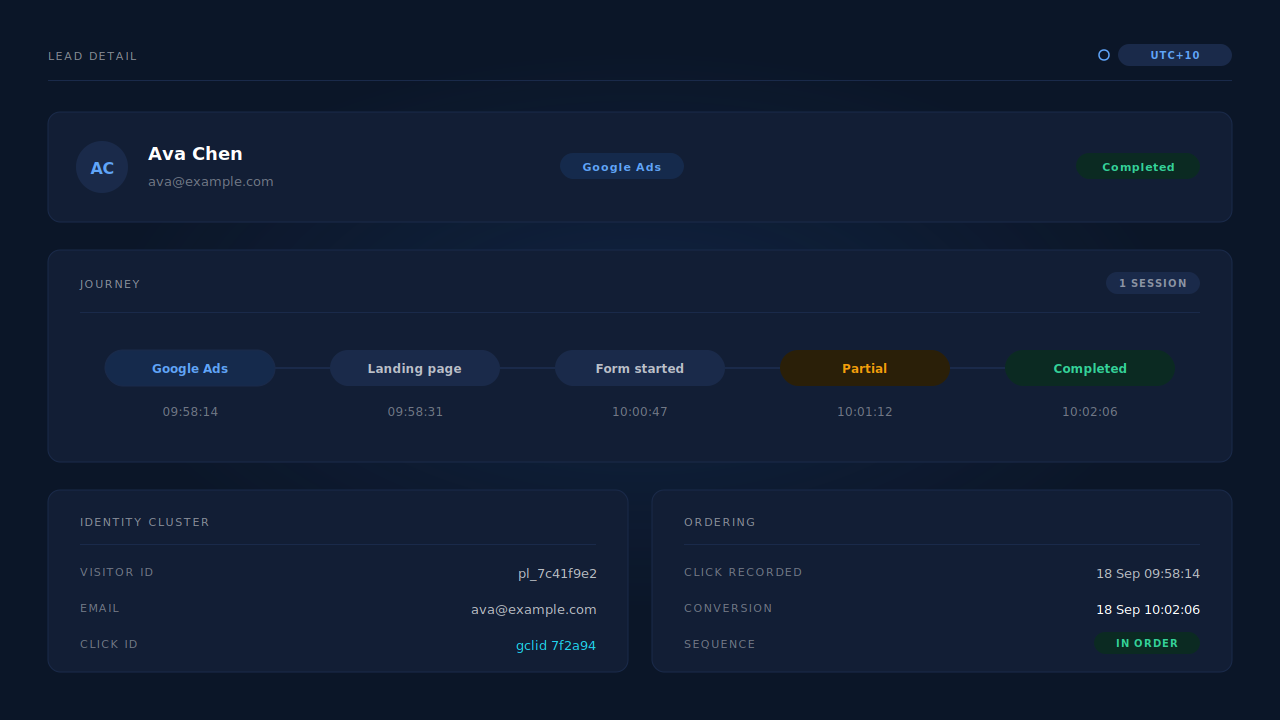
Timestamps on the capture and purchase paths are written server-side, when the event reaches the server, rather than taken from the visitor’s browser clock. Events arrive from the tag, from Shopify, WooCommerce, Stripe, GoHighLevel or a universal webhook, and are normalised through one pipeline before anything is dispatched. On the Conversions API path, event times are additionally clamped to the platform’s accepted window with a guard against future-dated events, so a machine running fast does not produce an event stamped ahead of now. That ordering discipline is what visitor identity resolution is for: one person, one cluster, one chronology.
For Google specifically, matched conversions are written as rows into your Google Sheet for Google’s scheduled import, carrying the click IDs captured at first touch — gclid, gbraid, wbraid — alongside hashed email and phone. The broader setup, including what the conversion action needs to look like on the Google side, is covered in importing lead conversions into Google Ads.
The constraints, stated plainly:
- The sheet’s timestamp format is still Google’s contract, not ours. Confirm the column format against the template Google gives you for your account’s time-zone setting; that is the authority.
- We do not control Google’s clock. If Google recorded the click at a time you disagree with, the upload will be judged against Google’s record, not yours.
- Reporting time zone is an account-level decision. Dashboard reports carry an operator time-zone selector so you can line our numbers up with the platform’s, but changing the display does not restate what was already uploaded.
- A corrected row has to be re-sent. Fixing the source data does not retroactively repair a row Google already accepted with a wrong time.
| What breaks | The mechanism | Where you see it in the dashboard |
|---|---|---|
| Conversion time lands before the click Google recorded | Click ID stored on the session that carried it; conversion matched back to that session | Journey timeline, session click-ID columns |
| Timestamps taken from an untrusted browser clock | Capture and purchase events recorded server-side as they arrive | Lead detail event times |
| A conversion joined to the wrong, later click ID | Six-tier identity cluster resolves the person before the click is chosen | Lead detail identity panel, Journey ribbon |
| Events dispatched with times outside the platform’s window | Event time clamped to the accepted window, with a future-skew guard | CAPI activity log |
| Reports and the ad platform disagree by whole hours | Operator time-zone selector applied across reports | Time-zone chip on the Attribution report |
| Click IDs never captured, so nothing can be ordered | gclid, gbraid and wbraid captured from the landing URL at first touch | Sessions click-ID columns |
| Buyers who never submitted the form have no row to time-stamp | Email and phone captured on input, before submit | Leads list, Partial badge |
Tell us what's broken. We'll fix your tracking — free.
Describe the tracking/attribution problem you're stuck on and we'll map it to a fix: server-side conversions to Meta, Google, TikTok and Pinterest, plus first-party tracking that survives Safari. No code required.
Sources
- Meta for Developers — Conversions API: https://developers.facebook.com/docs/marketing-api/conversions-api
- Meta for Developers — Conversions API server event parameters (
event_time): https://developers.facebook.com/docs/marketing-api/conversions-api/parameters/server-event