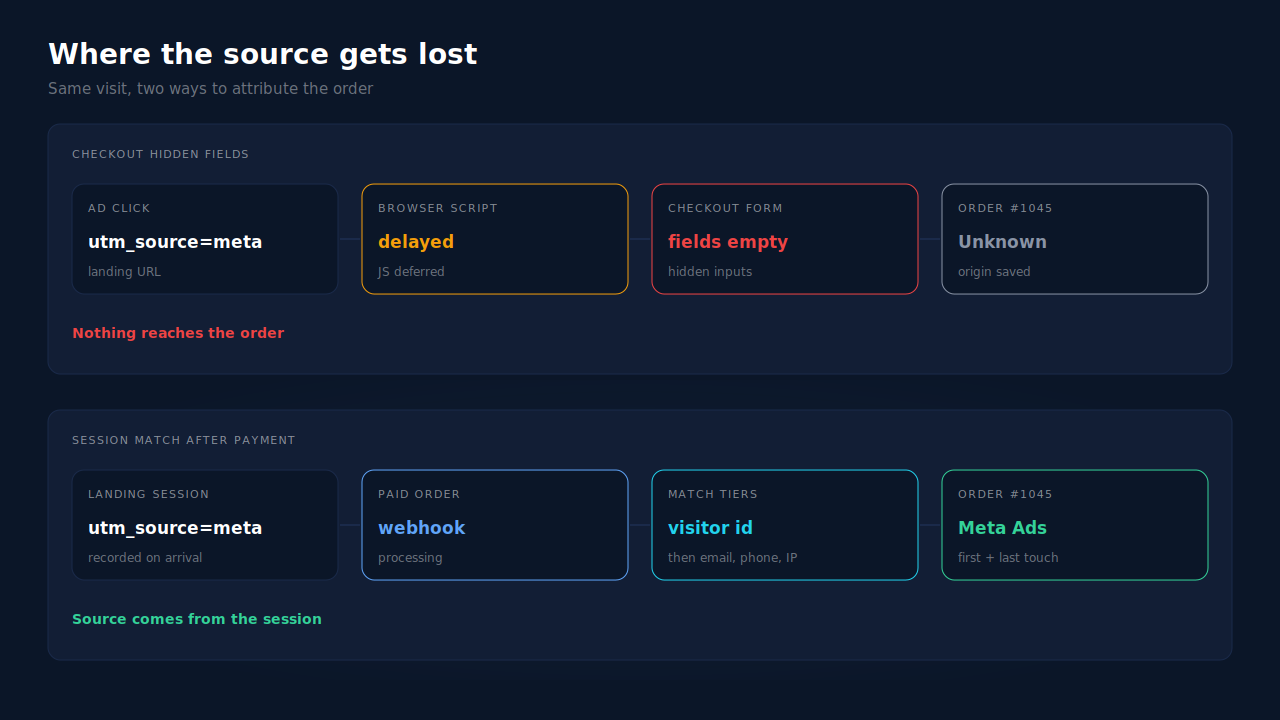
WooCommerce order attribution says “Unknown” when the attribution data never made it into the order. The source is recorded in the buyer’s browser and handed to the order through hidden fields on the checkout form. If the script that fills those fields runs late, gets delayed, gets blocked, or never runs at all, the fields are empty, and WooCommerce has nothing to save.
That is why the share of Unknown orders can grow even when your ads are tagged perfectly. The UTMs were in the landing URL. They just didn’t survive the trip from the landing page into the order record.
It matters because Unknown orders are revenue you can’t credit to any campaign. A report where a big slice of sales has no source makes paid channels look weaker than they are. Below: where the data drops, how to find the pattern on your store, what you can fix yourself, and how to attribute paid orders without those fields.
What does “Origin: Unknown” actually mean in WooCommerce?
It means WooCommerce received no usable attribution data for that order. It is not the same as Direct. A Direct visit is one where the buyer arrived with no referrer and no campaign tags, and WooCommerce knew that. Unknown means the order was saved without any source information at all, so WooCommerce can’t say where the buyer came from.
The distinction matters when you diagnose it. A rising Direct share usually points at traffic that genuinely arrived without tags, or at referrers being stripped. The guide to why ad conversions show as Direct covers that failure. A rising Unknown share points at the plumbing between the browser and the order.
WooCommerce’s order attribution is a first-party feature. It doesn’t talk to Google or Meta. It records the source a buyer’s browser reports and stores it on the order, which is exactly why it breaks whenever the browser side breaks.
Why does WooCommerce save an order as Unknown?
Because the order is only as good as the hidden checkout fields it receives. A script in the browser tracks the visitor’s source, then writes it into hidden inputs on the checkout form just before the order is placed. Anything that stops that script, delays it, or bypasses the form produces an order with empty fields, and that order is saved as Unknown.
Here are the common ways the handoff breaks:
- The script runs too late. Performance plugins that delay or defer JavaScript until the visitor scrolls or clicks can hold the attribution script back. If the order is submitted first, the fields are still empty.
- Consent timing. On stores with a cookie banner, the attribution script may wait for consent. A buyer who accepts late, or not at all, reaches checkout with nothing recorded.
- Blocking. Ad blockers and privacy browsers can stop tracking scripts and cookies, so there is no source to write in.
- Cached checkout pages. A page cache can serve checkout HTML where the fields don’t fill as expected.
- Checkouts that skip the form. Express wallet buttons and some checkout flows can create the order without submitting the classic form the fields live in.
- Orders that never saw a storefront session. Orders created in the admin, imported, or created by another system have no browser visit behind them at all.
The public WooCommerce bug report behind this topic shows the pattern clearly. A store owner reported orders saved as Unknown “even when the customer clearly enters the site via a URL containing valid UTM parameters and completes checkout in the same session.” A second tool running on the same store had the UTM data for those orders. The data existed; it wasn’t captured into the order. The reporter suspected timing: when the attribution script runs, themes that defer WooCommerce’s JavaScript, and consent timing. The issue is marked as a confirmed bug.
How do you find out why your own orders are Unknown?
Export recent orders with their origin, then look for what the Unknown orders have in common. If they cluster by payment method, device, checkout type or a date when a plugin changed, you have found your leak. Then reproduce one Unknown order yourself with a tagged URL and check whether the hidden fields filled.
- Export 30 days of paid orders with origin, payment method, and created-via information if your export includes it. Leave pending, failed and cancelled orders out.
- Group the Unknown orders. Check payment method (wallet buttons versus card), device, and whether the order was created by a customer or by an admin, import or subscription renewal. Orders with no storefront visit will always be Unknown; they are not a tracking failure.
- Plot Unknown share by day. A step change on a specific date usually lines up with a WooCommerce, theme, caching or optimisation-plugin update.
- Place a test order in a private window from a URL like
yoursite.com/?utm_source=test&utm_medium=cpc&utm_campaign=unknown-check. Then open the order in the admin and read its attribution panel. - Inspect the checkout form in your browser’s developer tools before you place the test order. Look for the hidden inputs whose names mention attribution. If they are empty right before you click Place order, the script didn’t run in time.
Repeat step 4 with your consent banner declined, and again with your ad blocker on. The difference between the three test orders tells you how much of your Unknown share each cause explains.
How do you reduce Unknown orders without a new tool?
Get the attribution script to run before the order is placed, on every checkout path. That means excluding it from JavaScript delay settings, excluding checkout and cart from page caching, keeping WooCommerce current, and checking how your consent tool gates it. These fixes shrink the Unknown share. They can’t close it, because blocked browsers and off-storefront orders never produce data.
Exclude the attribution script from JS delay and defer. Most optimisation plugins have an exclusion list. Add WooCommerce’s order attribution script and its dependencies, then repeat the test order.
Keep checkout and cart out of the page cache. Checkout pages should be dynamic anyway. If a cache plugin or host-level cache is serving them, fix that first.
Update WooCommerce. The bug report above is marked as a confirmed bug, so check your version’s changelog for order attribution fixes before you rebuild anything.
Check consent configuration. Make sure the script is categorised the way your policy intends. Don’t try to run it before consent to win back orders; fix the category rather than working around consent.
Keep a second record. A developer can store the landing page UTMs on the order from your own code as a cross-check. That is still a browser-dependent record with the same weak points, just a different implementation.
The limit of every fix here is the same: attribution is decided in the browser, at the moment of checkout, and the browser doesn’t always cooperate. That’s the part worth taking away from the checkout form.
How does PartialLeads attribute WooCommerce orders that show as Unknown?
By attributing each paid order from its own session match instead of WooCommerce’s hidden checkout fields. The order arrives through the store’s webhook, and PartialLeads matches it to the buyer’s earlier session: first by the visitor id echoed from the site, then by email, then phone, then IP. The source comes from the session the tag recorded on landing, not from the form.
Sessions are recorded on landing. The PartialLeads tag captures UTMs, click ids like gclid and fbclid, the referrer and the landing page when the visitor arrives. Nothing needs to be carried through checkout fields at the last moment. If a visit has no UTMs, the referrer fills in.
The order is matched after it is paid. WooCommerce sends the order to PartialLeads when it reaches processing or completed. The match runs in tiers: the visitor id echo is the strongest, then email, then phone, then IP. Sessions from the same person are stitched into one identity, so a buyer who clicked your ad on Monday and returned directly on Thursday is still one person. The explainer on how visitor identity resolution works covers the tiers.
First and last touch are both kept. Every matched order writes a first-touch and a last-touch row. The Attribution report shows them side by side, grouped by source, medium or campaign, beside a PartialLeads Resolved model. The guide to reading an attribution report explains how to read the three together.
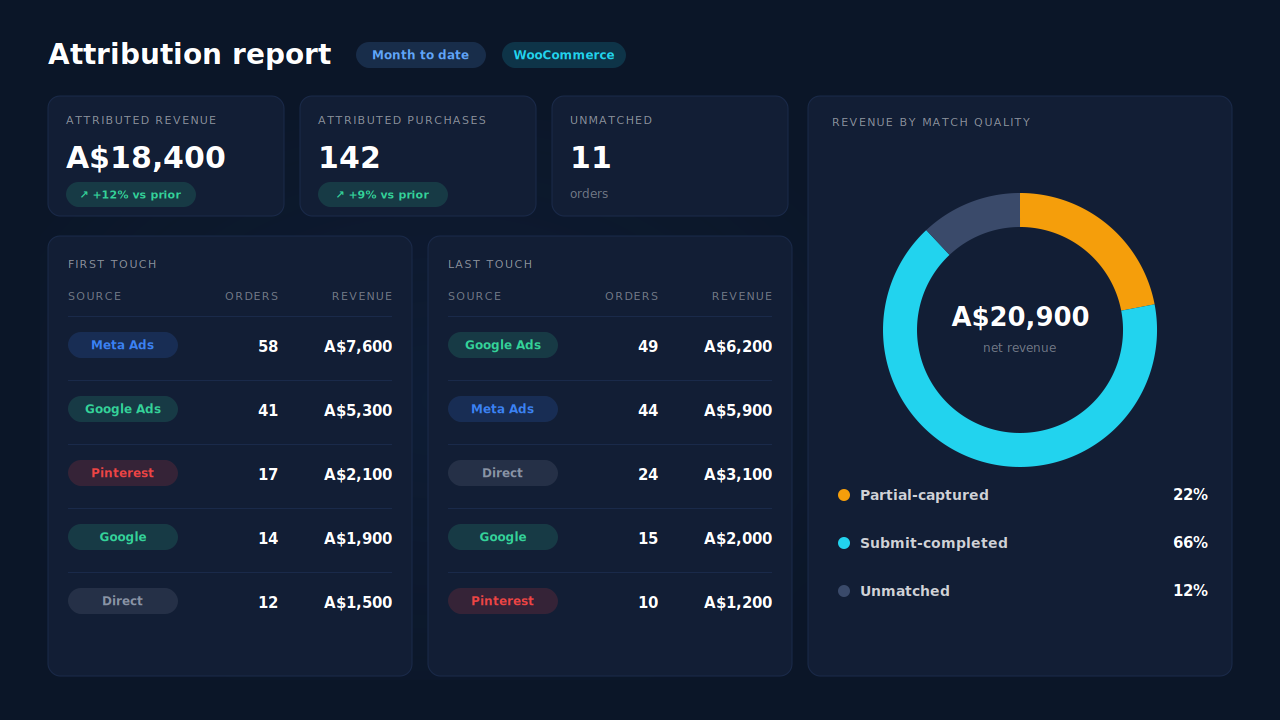
Where you see it working. Pull up your WooCommerce Unknown orders, then find the same order numbers in the Purchases ledger. Each paid order appears there as matched or unmatched. Matched orders carry their session’s source into the Attribution report. The Revenue by Match Quality donut shows how much revenue is tied to a session and how much isn’t. If the checkout sits on a separate domain, attributing WooCommerce orders when the checkout is on another page covers that setup.
The honest constraints. PartialLeads uses its own tag, and a tag can be blocked too. A buyer whose browser blocked it, or who never consented, has no session to match by visitor id, so the order can only match if their email or phone was captured on an earlier visit. Orders with no matching session still land in the Purchases ledger as unmatched and can be matched later when that person’s identity shows up. Admin-created orders and subscription renewals have no new visit behind them. Only paid orders are recorded. The server-side WooCommerce purchase tracking guide covers sending those orders on to Meta.
| What breaks | The mechanism | Where you see it in the dashboard |
|---|---|---|
| Hidden checkout fields empty, order saved as Unknown | Paid order matched to the landing session via the WooCommerce webhook, not the form | Purchases ledger, matched rows |
| UTMs present on landing, gone by checkout | UTMs, click ids and referrer recorded by the tag when the visitor lands | Attribution report by source, medium, campaign |
| Buyer returns days later or on a new visit | Tiered match: visitor id, then email, phone, IP; sessions stitched into one identity | First-touch and last-touch tables side by side |
| Visit without UTMs | Referrer used as the fallback source | Attribution report, Resolved model |
| No session could be found | Order kept as unmatched, re-matchable when identity arrives | Revenue by Match Quality donut, unmatched slice |
Tell us what's broken. We'll fix your tracking — free.
Describe the tracking/attribution problem you're stuck on and we'll map it to a fix: server-side conversions to Meta, Google, TikTok and Pinterest, plus first-party tracking that survives Safari. No code required.